OAuth Error For New Dialer Users
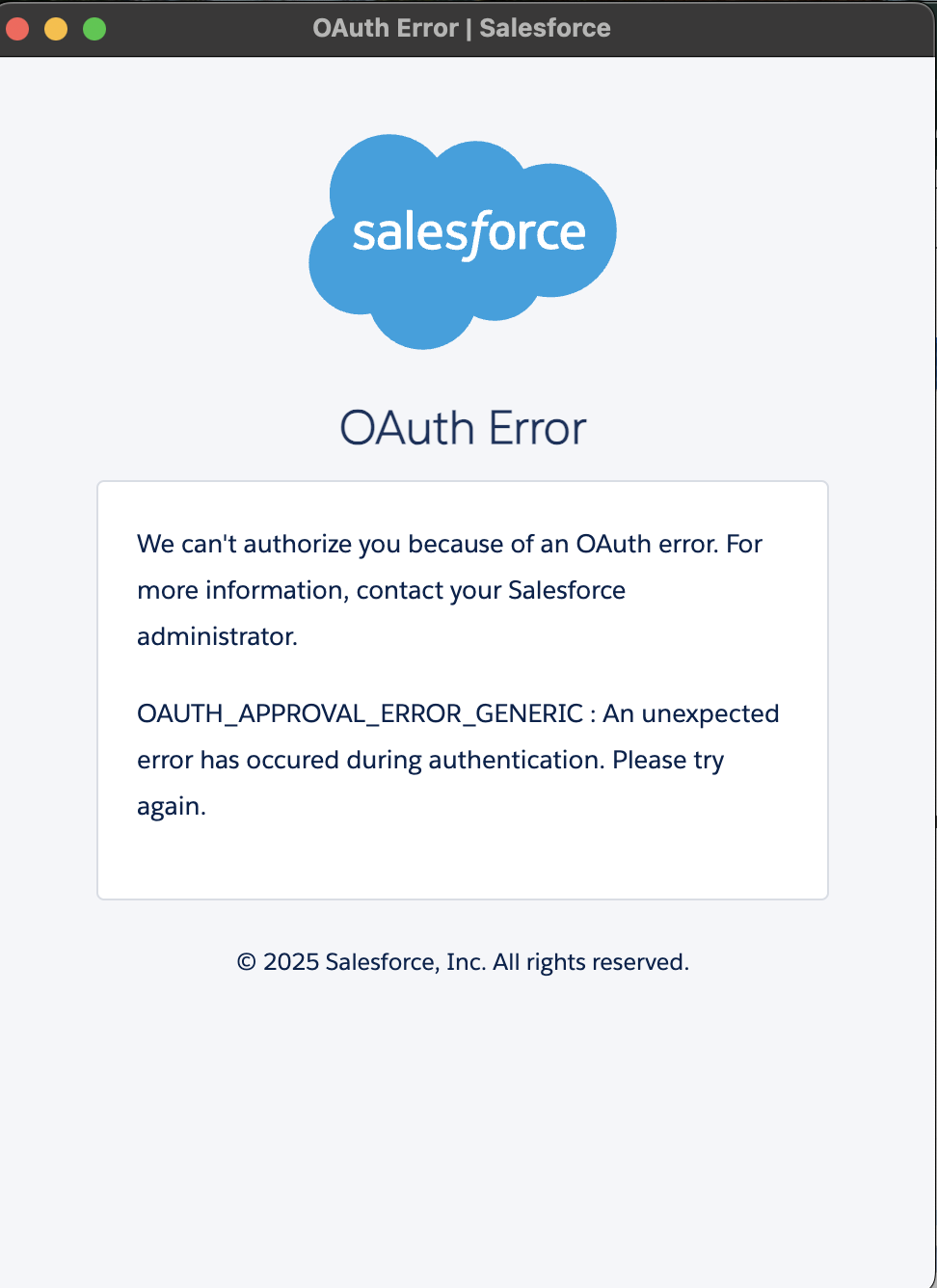
New Revenue.io users logging into the RingDNA dialer may encounter an error page with the message OAUTH_APPROVAL_ERROR_GENERIC (as seen below) if our connected app is not yet installed in their Salesforce org.
Resolution
- A Salesforce admin should log into Salesforce and navigate to Setup
- Search “Connected Apps”
- Select Connected Apps OAuth Usage
- Click Install next to RingDNA
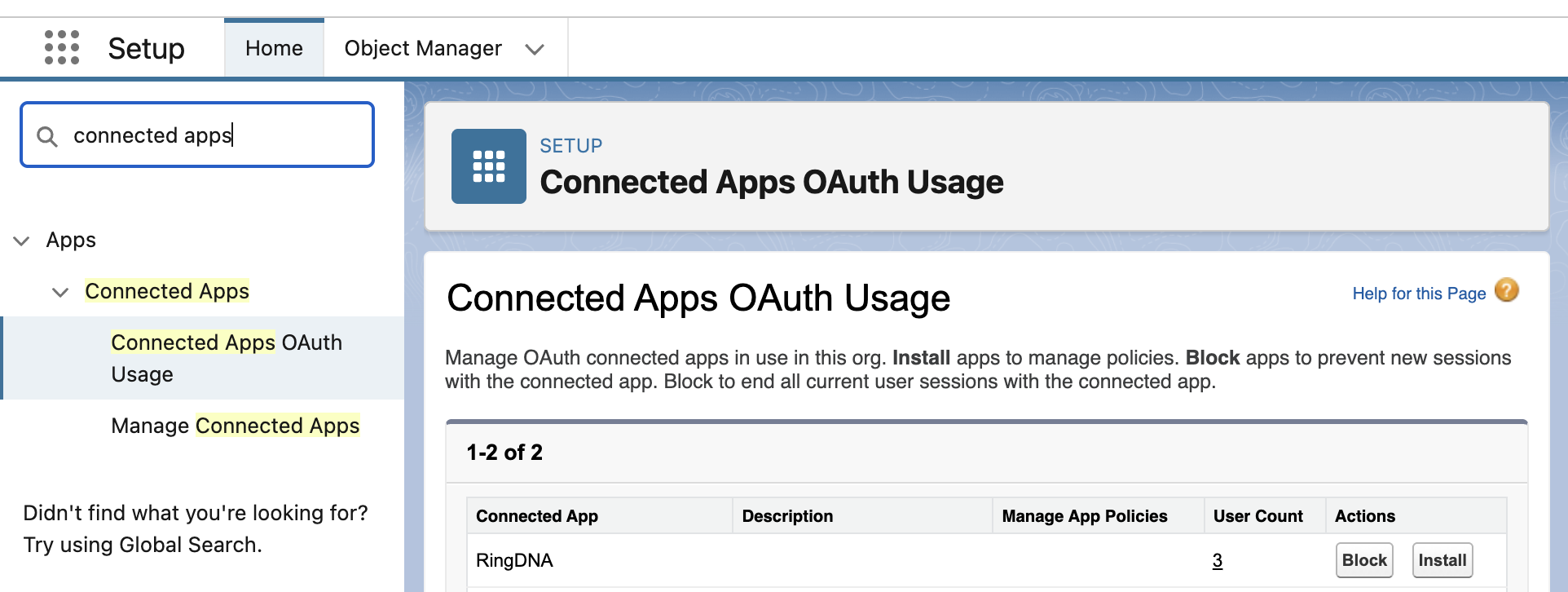
- Salesforce changes may take 5-10 minutes to effect.
Explanation
On August 19th 2025, Salesforce notified Salesforce Administrators that they would be changing how Connected Apps are authorized.
End users can no longer self-authorize a Connected App. Users who had previously authorized the app (or admins with elevated permissions) may still work, which is why it may looks like a one-user problem when a brand-new user is the first to access it.
More information can be found in Salesforce’s article which details the changes.
What does “Install” do?
Clicking Install from Setup → Connected Apps OAuth Usage registers the RingDNA/Revenue.io Connected App to your org so you can manage its policies: who can use it (profiles/permission sets), session timeouts, IP/geo restrictions, MFA requirements, and so on.
In short, it moves the app from ad-hoc user grants to an org-controlled, policy-managed integration. It does not deploy code to Salesforce. It simply enables governance over OAuth access.
Why now?
Salesforce tightened OAuth app controls following the ShinyHunters/Scattered Spider campaign that abused Connected App authorizations. As part of this change, Connected Apps are now blocked for typical end users unless an admin installs the app or explicitly grants a new permission.