Contact List View and Detail Pages
Contact pages provide a dedicated space to view and manage your Salesforce contacts directly within Revenue.io. You can open a full list of your contacts, search and filter using Salesforce list views, and open a complete contact record with activity history, details, opportunities, and related records in one place. Access to individual contact records follows your Salesforce permissions.
Why contact pages matter
The Contacts page gives account executives and revenue teams a centralized view of the people they engage with most. With the Contacts page, you can:
- Quickly find key contacts using your Salesforce list views.
- View a contact’s activity timeline.
- Review and edit contact details.
- See associated opportunities.
- Access other related Salesforce records.
- Navigate directly to the related Account page.
This helps you prepare for conversations, understand engagement history, and manage contact data in Revenue.io.
How to access the Contacts page
- Click Contacts in the navigation in the Revenue App.
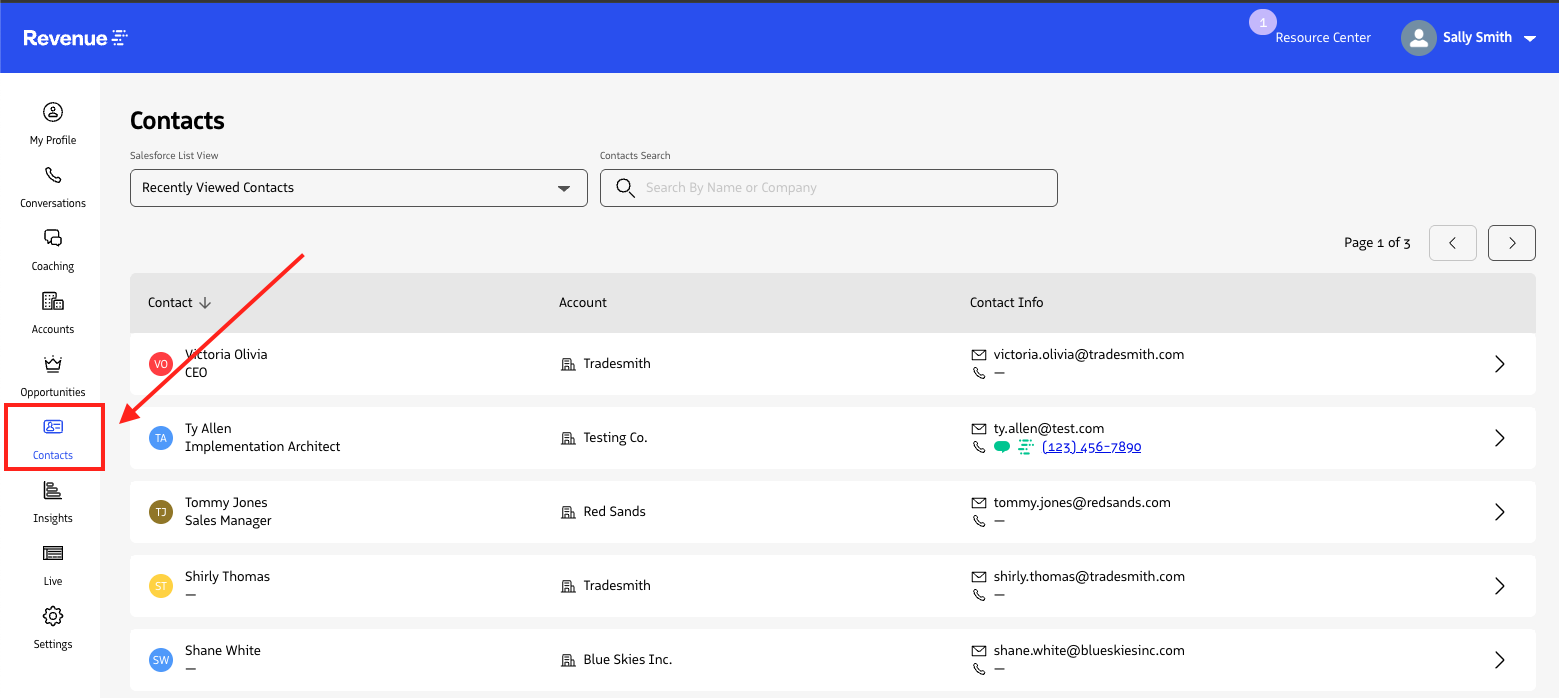
Contacts in the Revenue App navigation
Using the contacts list
The Contacts page displays a list of contacts based on your Salesforce List Views.
Select a list view
- Use the
Salesforce List Viewdropdown. - By default,
Recently Viewedis selected. - You can choose from any contact list view available in your Salesforce account.
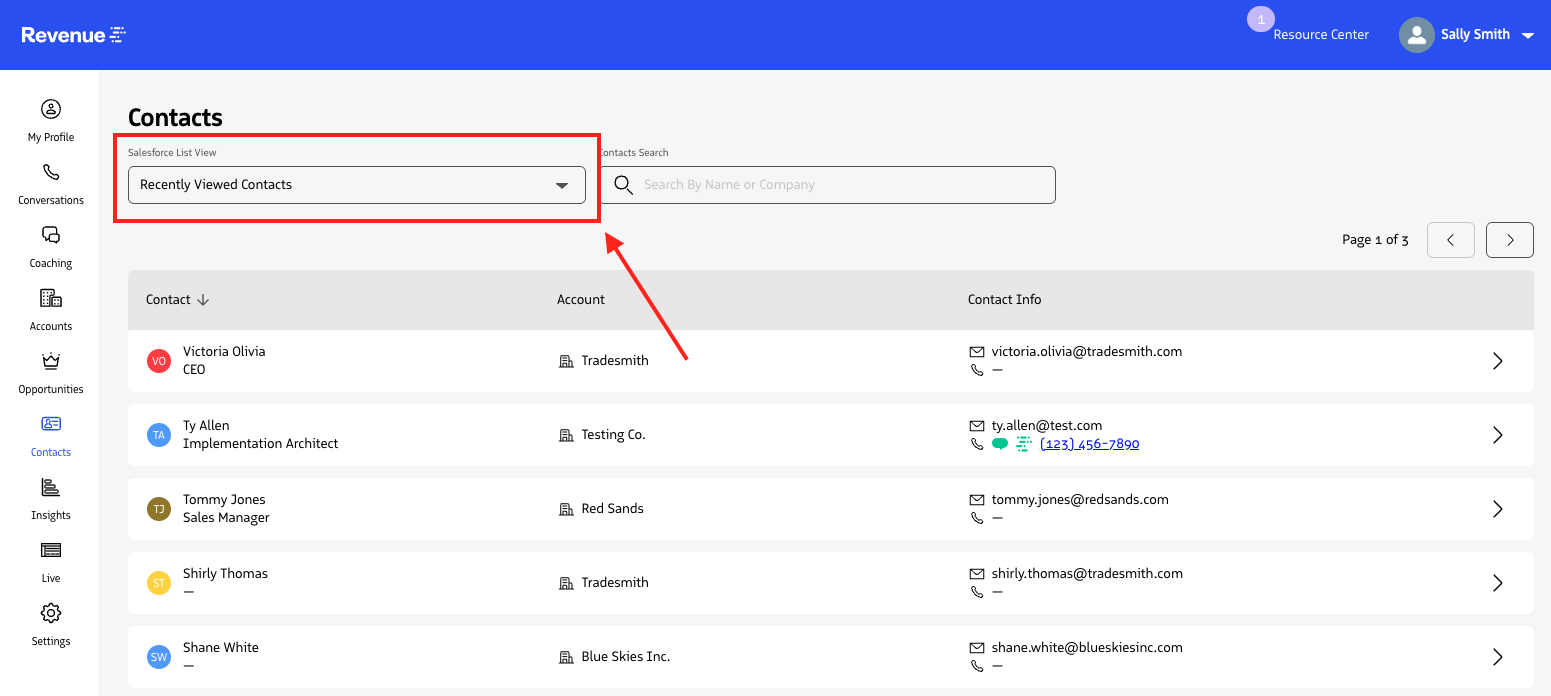
Salesforce List View dropdown on the Contacts page
Search contacts
Use the search bar to filter contacts by:
- Contact name
- Company name
The table updates as you type.
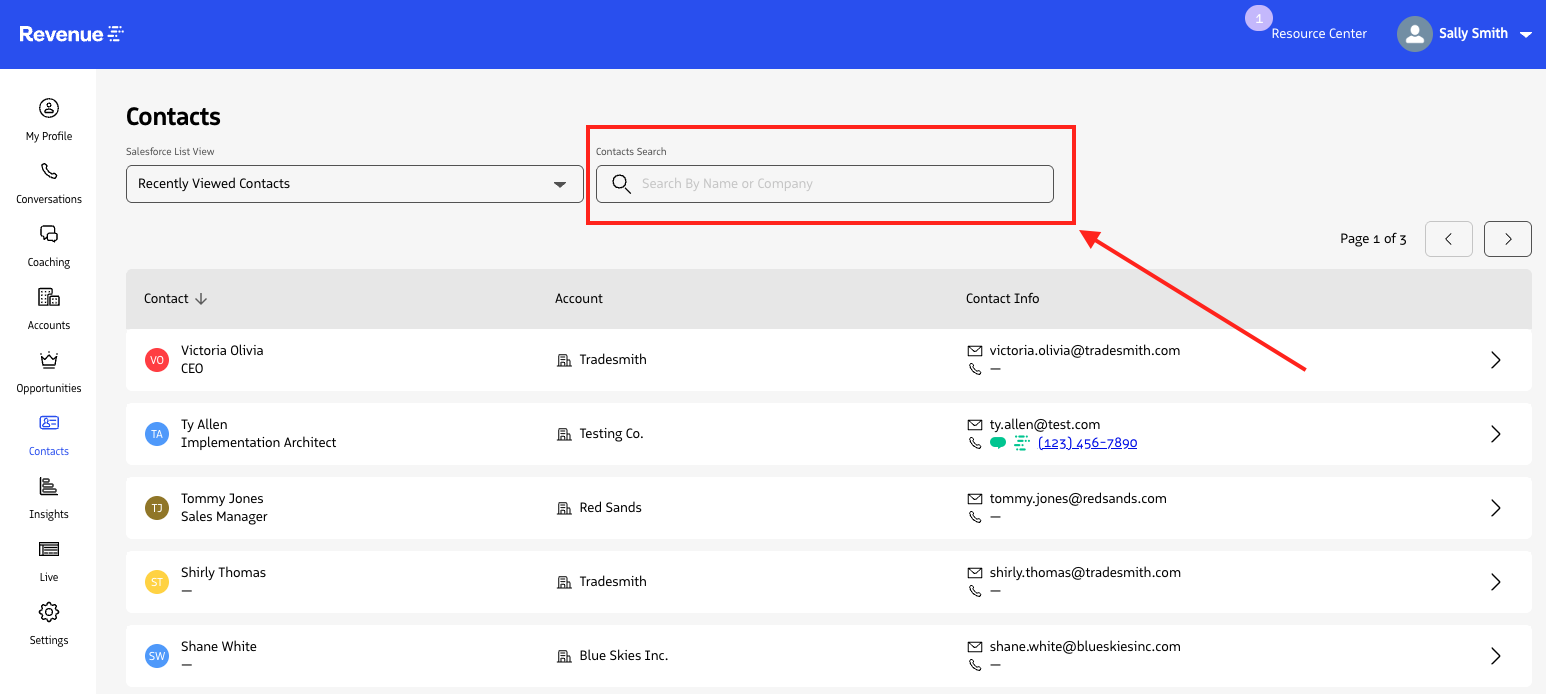
Search contacts by name or company
Contact list columns
The Contacts table includes:
- Contact (name and title)
- Company
- Contact info (email and phone)
You can:
- Click the contact name to open the full contact record.
- Click the company name to go to the Account page.
Viewing a contact record
Click a contact’s name to open their full contact page. The contact page includes four tabs.
Timeline tab (default)
The Timeline tab shows the contact’s activity history. You can:
- View phone calls, emails, meetings, and other activities.
- Filter by activity type.
- Expand individual activities to see more detail.
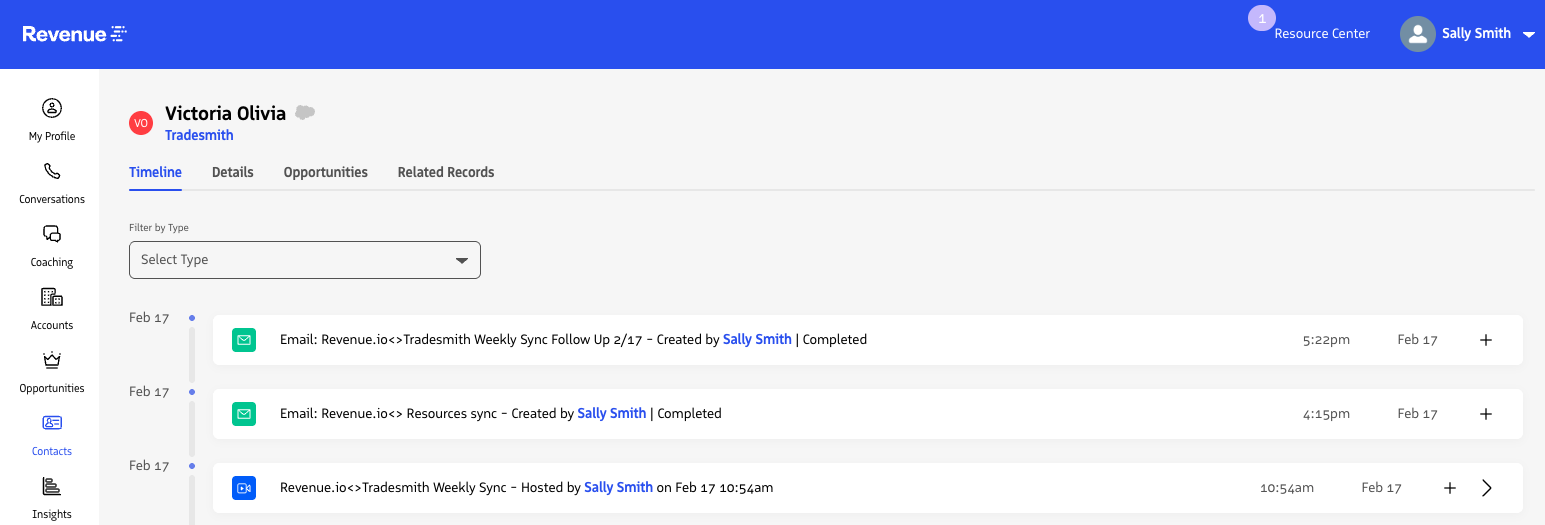
Timeline tab on a contact record
Details tab
The Details tab shows the contact’s Salesforce record information, including the same fields available on the contact record in Salesforce.
Editing a contact
- Go to the
Detailstab. - Click
Edit. - Update the fields you need.
- Save your changes.
Your updates sync with Salesforce.
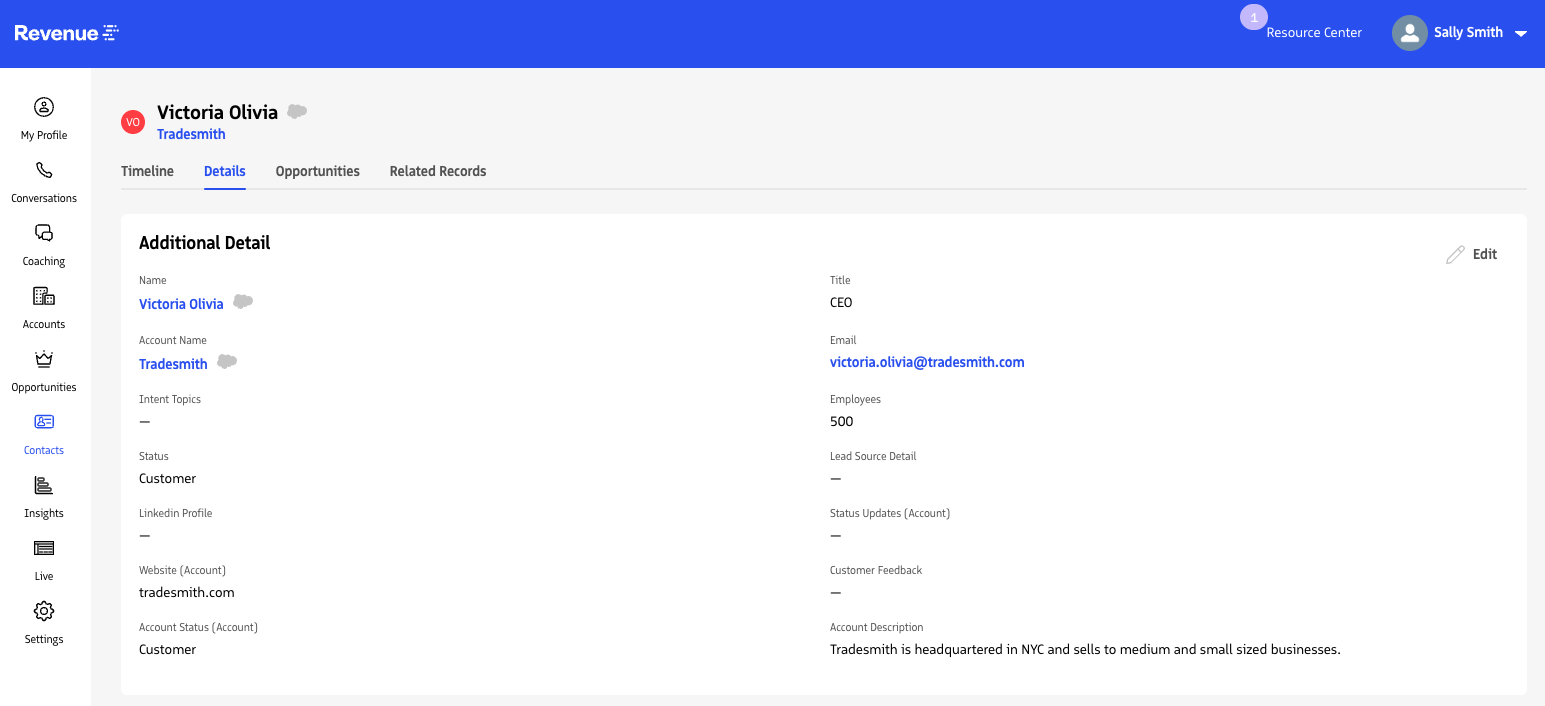
Details tab and editing a contact
Opportunities tab
The Opportunities tab lists opportunities associated with the contact’s company so you can see deal context and pipeline impact related to that contact.
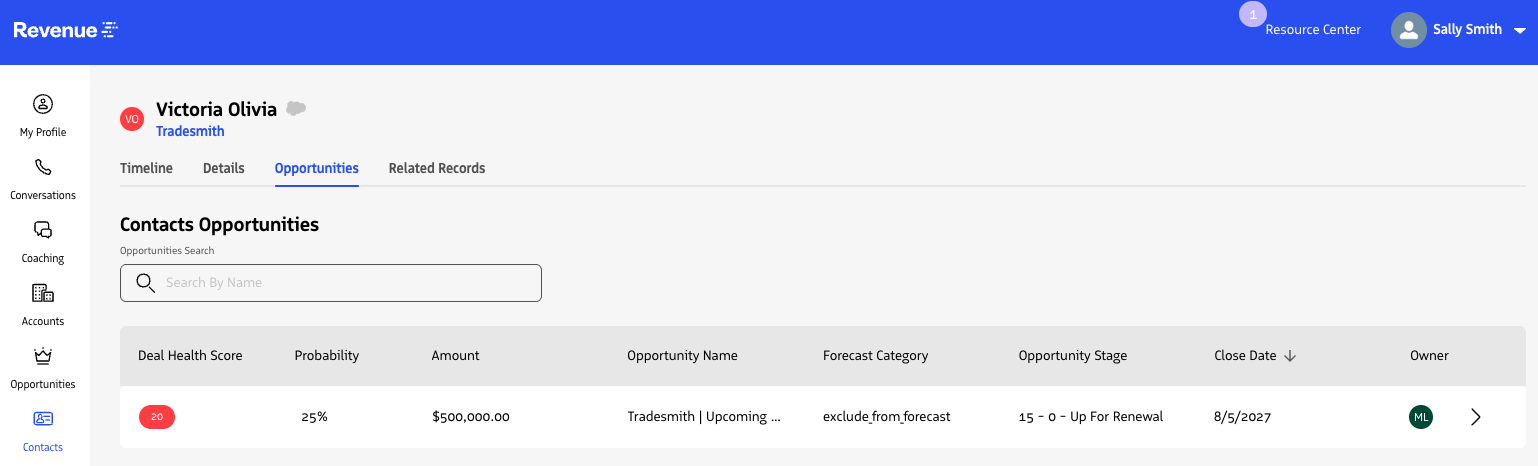
Opportunities tab on a contact record
Related records tab
The Related Records tab shows additional Salesforce records associated with the contact (excluding opportunities), such as other related objects configured in Salesforce.
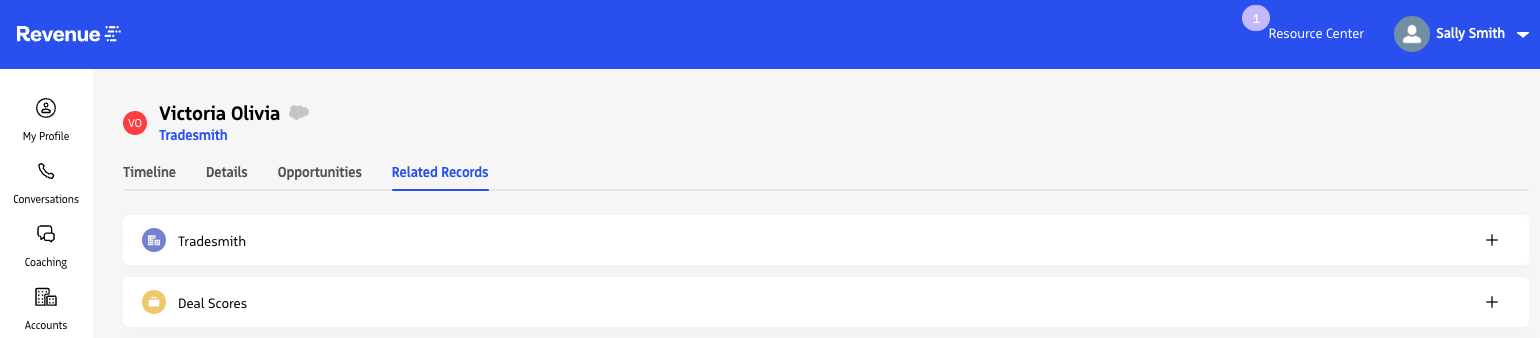
Related Records tab on a contact record
Permissions and access
The Contacts page is available to all Revenue.io customers. Viewing an individual contact record still depends on your Salesforce permissions. If you cannot view a specific contact in Salesforce, you cannot access that contact’s page in Revenue.io.
Frequently asked questions
Where do the contacts in the list come from?
Contacts are displayed based on your Salesforce Contact List Views. If a list view exists in Salesforce and you have access to it, it appears in the dropdown.
Do changes sync back to Salesforce?
Yes. Updates you make on the Details tab sync directly with Salesforce.