Opportunity List Views and Detail Pages
Overview
Opportunities Lists and Details provide a comprehensive way for teams to understand and manage their pipeline.
By mirroring Salesforce List Views, these pages give agents and sales leaders immediate access to the data they rely on in Salesforce, but with deeper context and insights in Revenue.io.
Agents can quickly see and act on the opportunities they own, while sales leaders can monitor engagement, spot risk early, and identify coaching opportunities. Each opportunity can be explored in detail through intuitive list views, summary metrics, Health Scores, and activity timelines; helping teams prioritize the right deals and drive more predictable outcomes.
Pre-requisites
- To view an Opportunity in Revenue, the user must have Read access on the following fields:
- Name
- Amount
- Owner.Name
- CloseDate
- Probability
- ForecastCategoryName
- StageName
- IsClosed
- IsWon
- To view Opportunity summaries, Revenue AI license is required and Opportunity summaries setting must be enabled for the user
- To view Deal health scores, Revenue AI license is required
- To ask a question of an opportunity, Revenue AI license is required and Ask a Question of an opportunity setting must be enabled for the user
Opportunity List
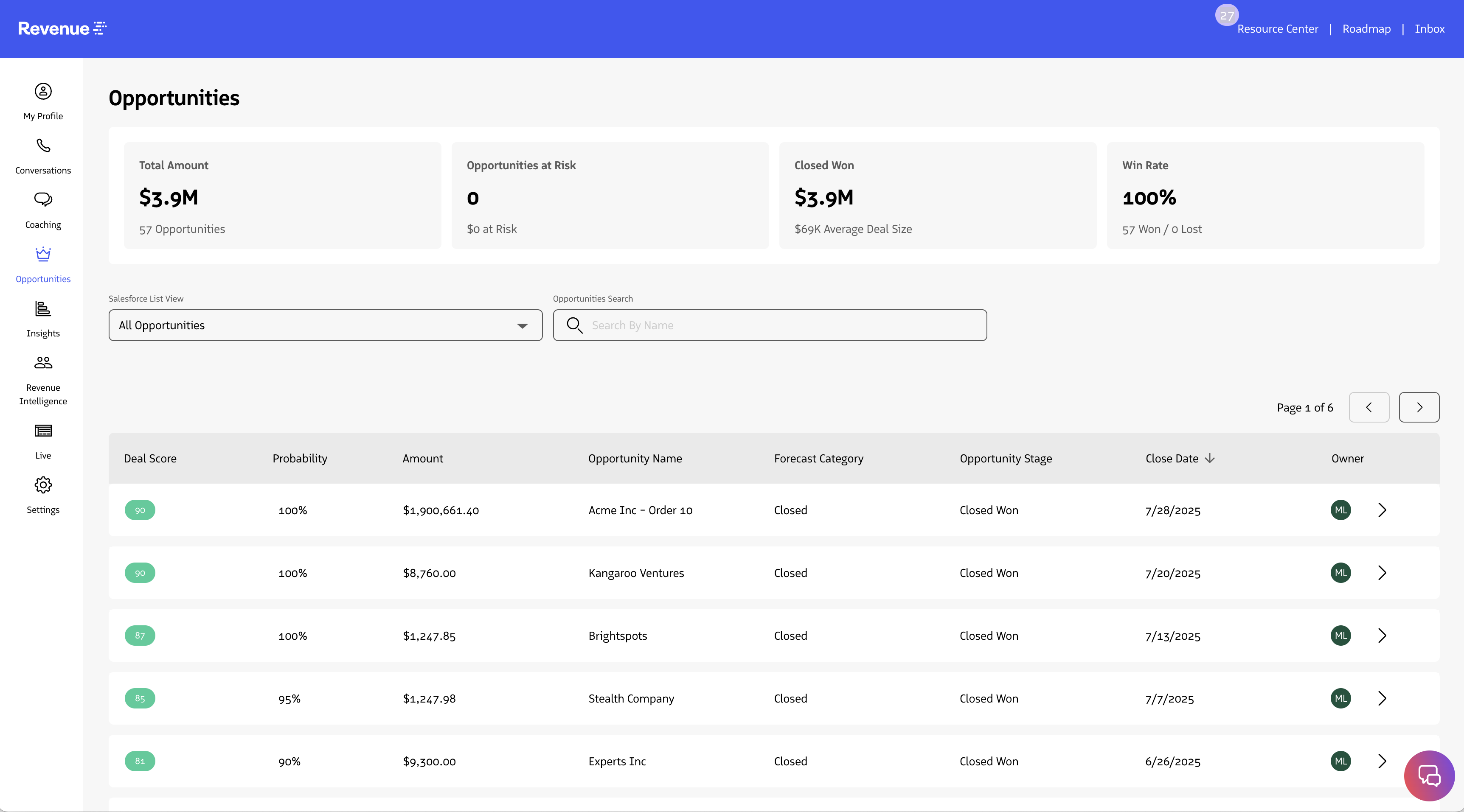
The Opportunity lists shown are based on your Salesforce List Views. This ensures the data you see is always aligned with your Salesforce access and filter settings
- These views are maintained directly in Salesforce by you or your Salesforce admin.
- Filtered according to the filter logic configured in Salesforce (e.g., “All Opportunities” or “Active Opportunities”).
Metric Cards

Metric cards are displayed along the top of the page and dynamically update based on the Opportunity List View selected:
| Total Amount | Total sum of all Opportunity amounts within the list view |
| Opportunities at Risk | Total count of Opportunities where deal health score is less than 40 |
| Closed Won | Total count of the amount of all opportunities within the list view where Salesforce isWon = True |
| Win Rate | Total count of deals where isWon = True divided by the total number of opportunities where closed = true and IsWon = False |
Opportunity Health Score
The Opportunity Health Score gives teams a quick way to assess the overall status of each deal in their pipeline. It appears as a numeric score (0–100) and is color-coded to highlight whether a deal is considered healthy or at risk:
- Above 70 – Green (Healthy)
- Between 40 and 69 – Orange/Yellow (Needs Attention)
- Below 40 – Red (At Risk)
Each Health Score reflects a combination of factors, such as engagement level, recent activity, deal stage progression, and signals from Conversation AI.
Health scores are updated daily, if there has been a new activity associated to the opportunity in the previous day.
Opportunity Details
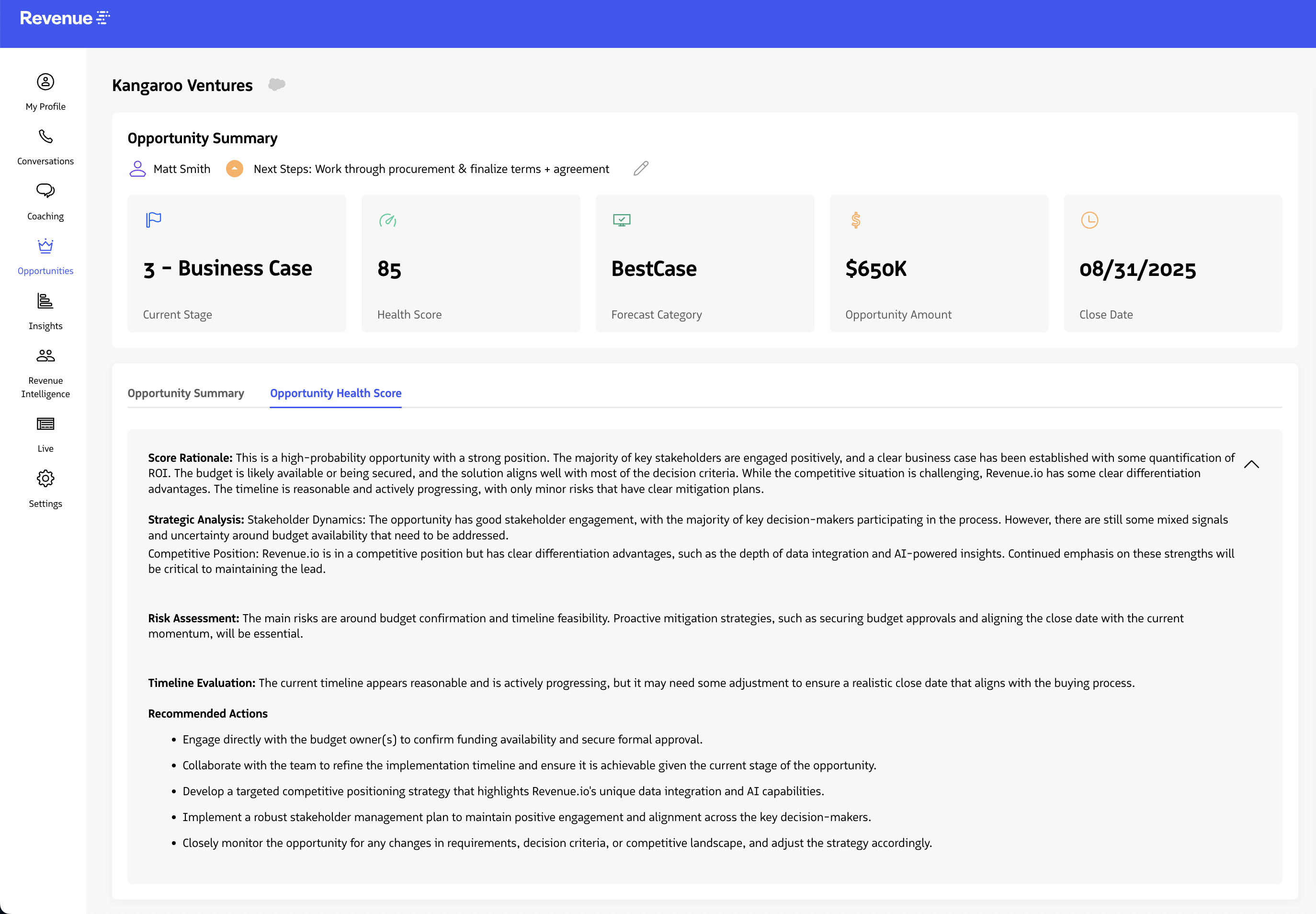
Sales leaders and agents can drill into individual opportunities to see summary stats, the progression of the opportunity over time, and related communications and conversations.
Opportunity Summary

At the top of Opportunity pages is a summary of the details for the opportunity including the following fields:
- Opportunity Name
- Opportunity Owner
- Next Steps
- Health Score
- Stage
- Forecast Category
- Amount
- Close Date
Opportunity Health Score
When you navigate to an Opportunity Details page, a dedicated Opportunity Health Score tab provides a detailed explanation behind the Health Score metric card.
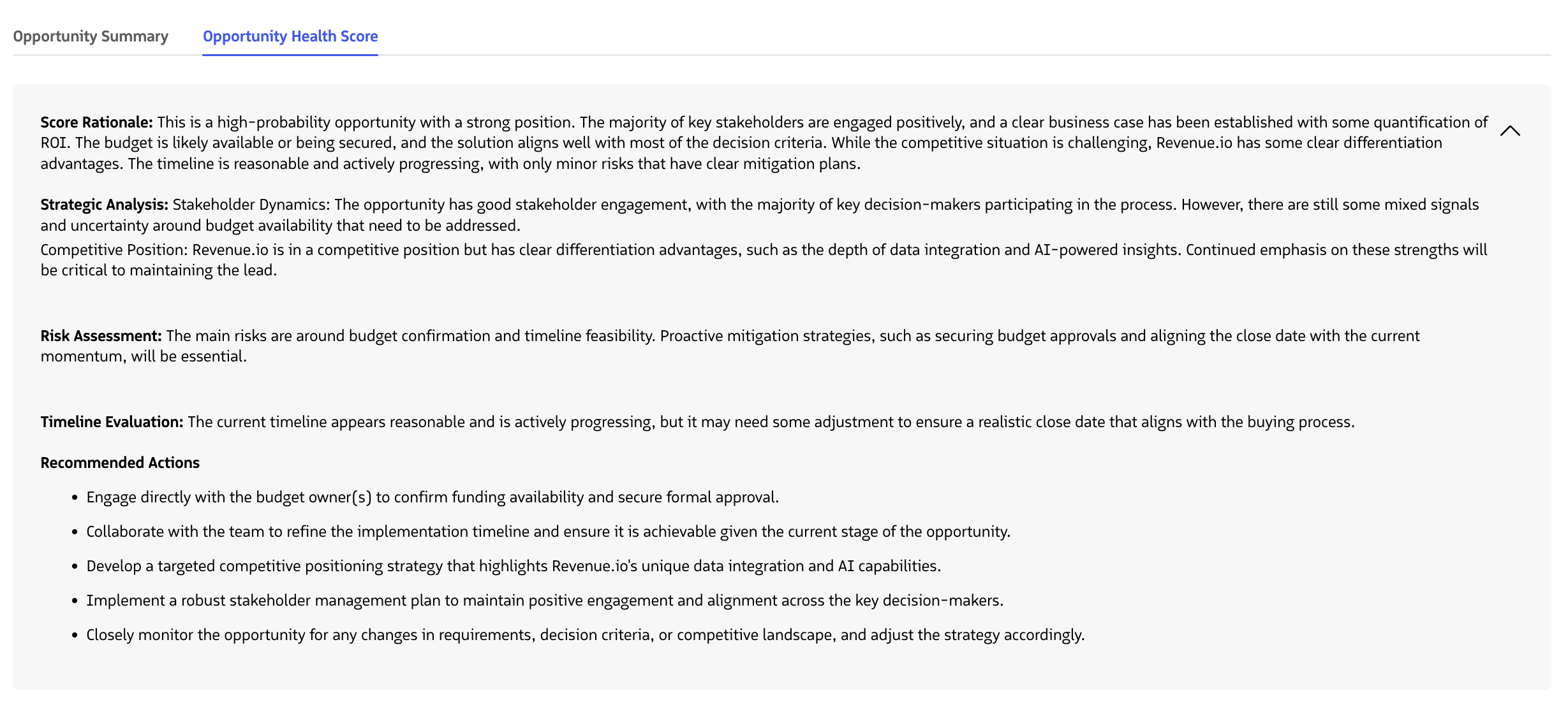
This narrative highlights the key drivers contributing to the score (whether positive or negative) so you can take targeted actions. For example, it may call out long gaps in customer engagement, stalled stage progression, or a high number of unresolved risks.
As an Account Executive, the Health Score allows you to quickly prioritize deals that need attention and focus on activities most likely to move opportunities forward. Sales leaders can use Health Scores across the pipeline to identify systemic risks, coach their teams, and drive more predictable revenue outcomes.
If a score is unavailable (for example, in a newly created opportunity), the Health Score will display as n/a. Scores are recalculated automatically as opportunity data and activity signals are updated.
Timeline
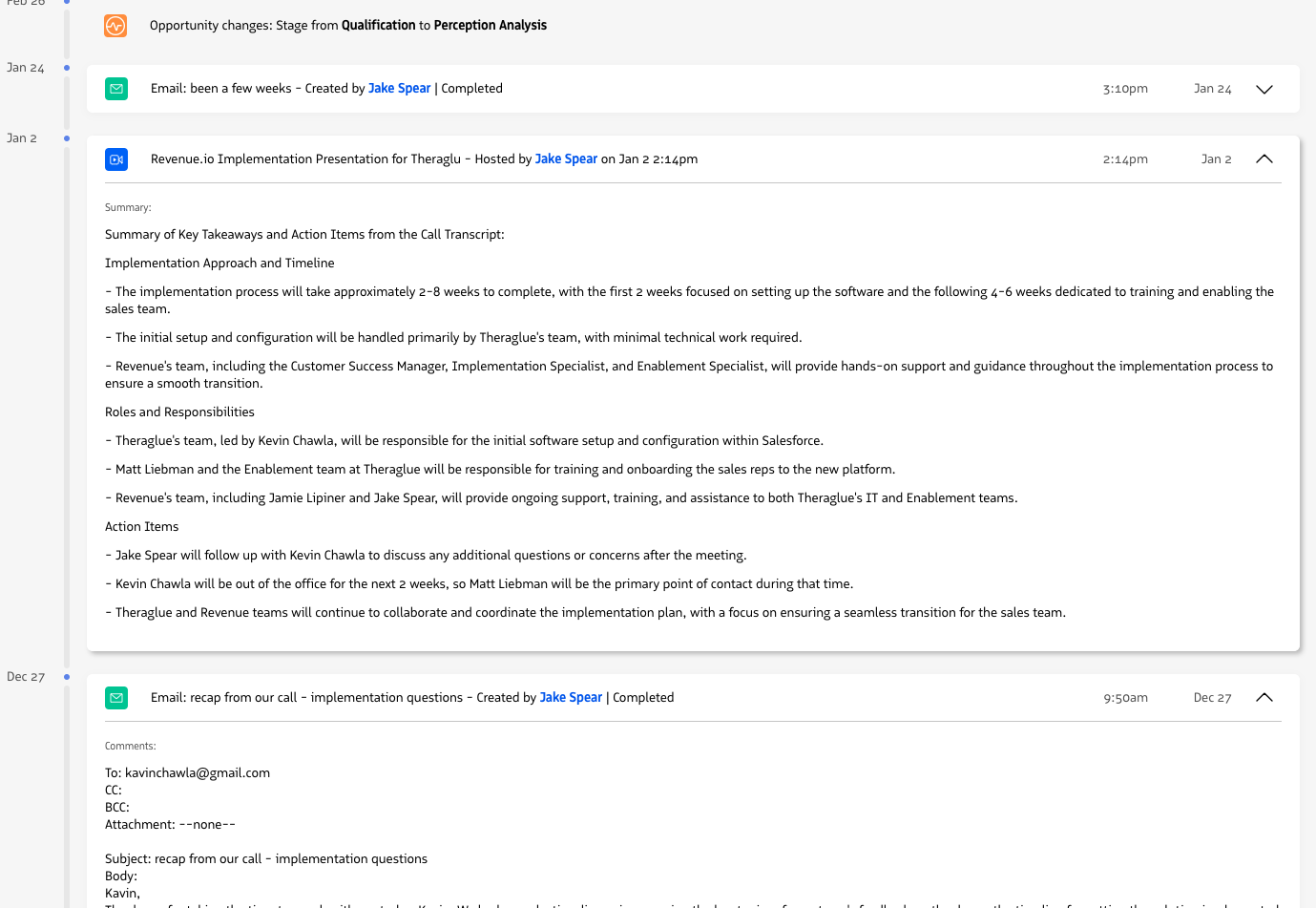
The activity timeline shows all activities linked to the opportunity in Salesforce, including calls, events, video meetings, SMS messages, emails, and tasks. It also shows daily changes to the opportunity’s amount, close date, and stage.
Sales Managers and Coaches can now easily find conversations that resulted in changes to opportunity stages, amounts, and close dates. As conversations resulting in Opportunity changes have significant coaching opportunities, this not only helps ensure opportunities progress as expected but also highlights impactful coaching opportunities based on conversations that impacted a deal.
Insights
Note: The enablement of Enhanced Analytics is necessary to view Insights on Opportunity Pages.
Within each Opportunity is a series of insight reports that provide a lens into how the opportunity has taken shape over time and the activity pulse to support it.
Opportunity Amount Over Time
The Opportunity Amount Over time shows the ending opportunity amount for each week.
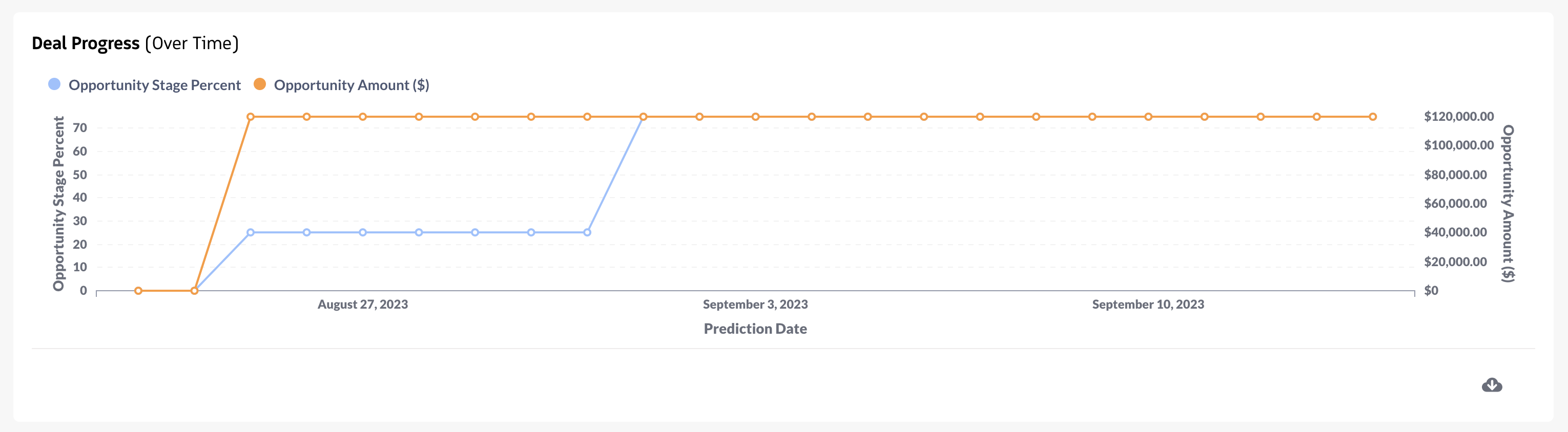
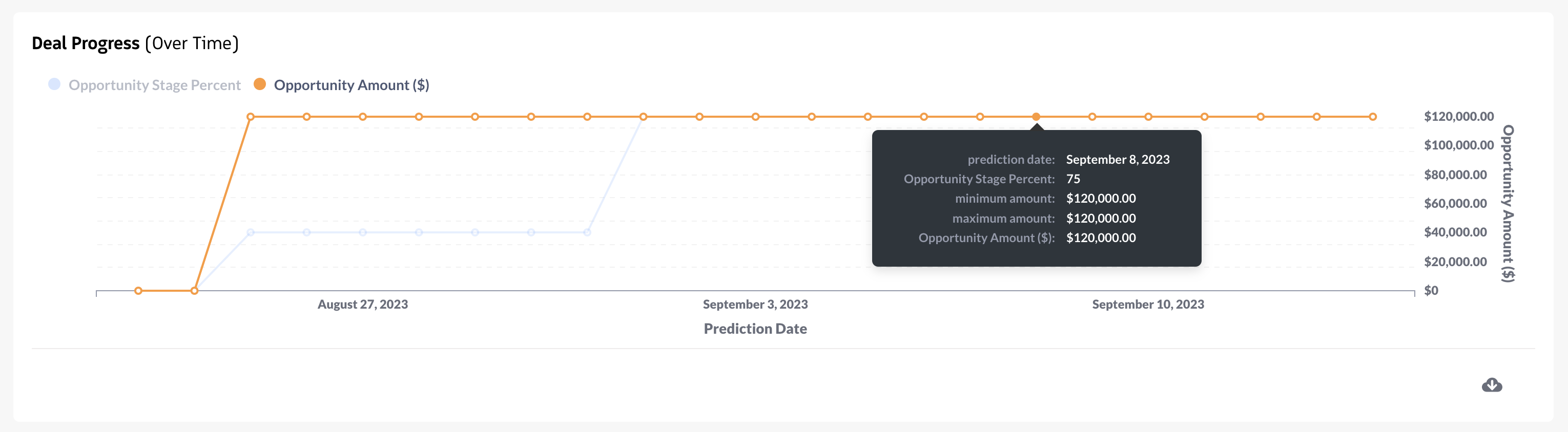
Hovering over each data point within the graph shows 3 dollar amounts.
- The Minimum amount, which is the smallest value the amount field had during the course of that week.
- The Maximum amount shows the greatest value recorded within the amount field within that week.
- The Opportunity amount shows the amount recorded at the end of that week.
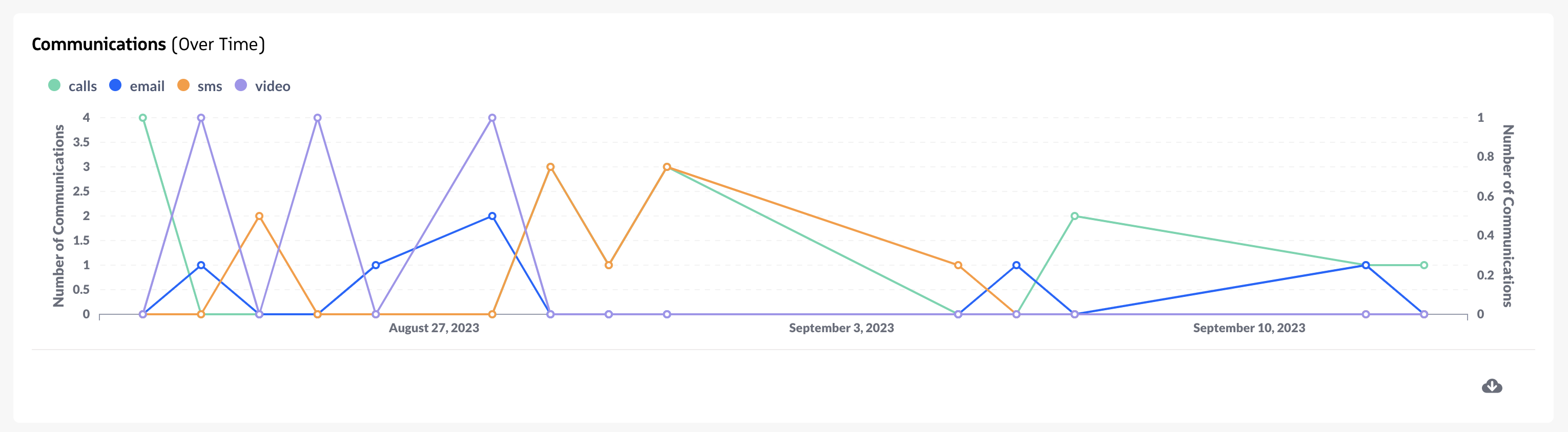
Communication Over Time
The communication over time module shows communications that occurred within an opportunity as shown within the Salesforce Opportunity Activity feed. This provides an overview of all the communications and types of communication that have occurred for each opportunity.
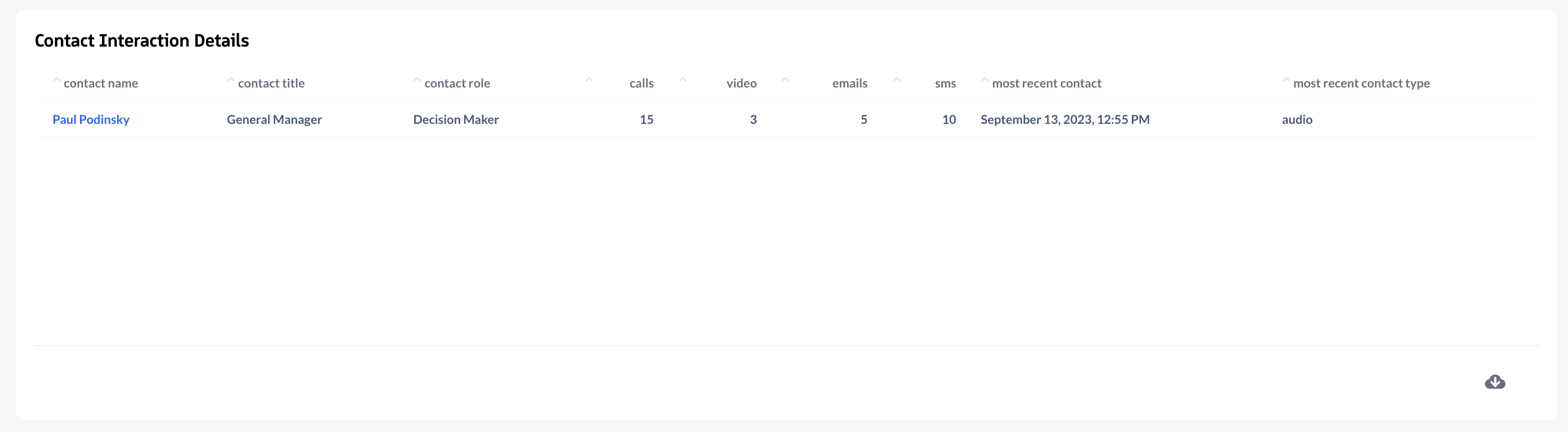
Contact Interaction Details
Lists contacts tied to an opportunity, the most recent contact date, and the number of times each contact was interacted with by communication channel.
Additional Details
The Additional Details module shows additional details extracted from each opportunity. Here reps can quickly edit the fields visible for the opportunity without having to navigate to Salesforce.
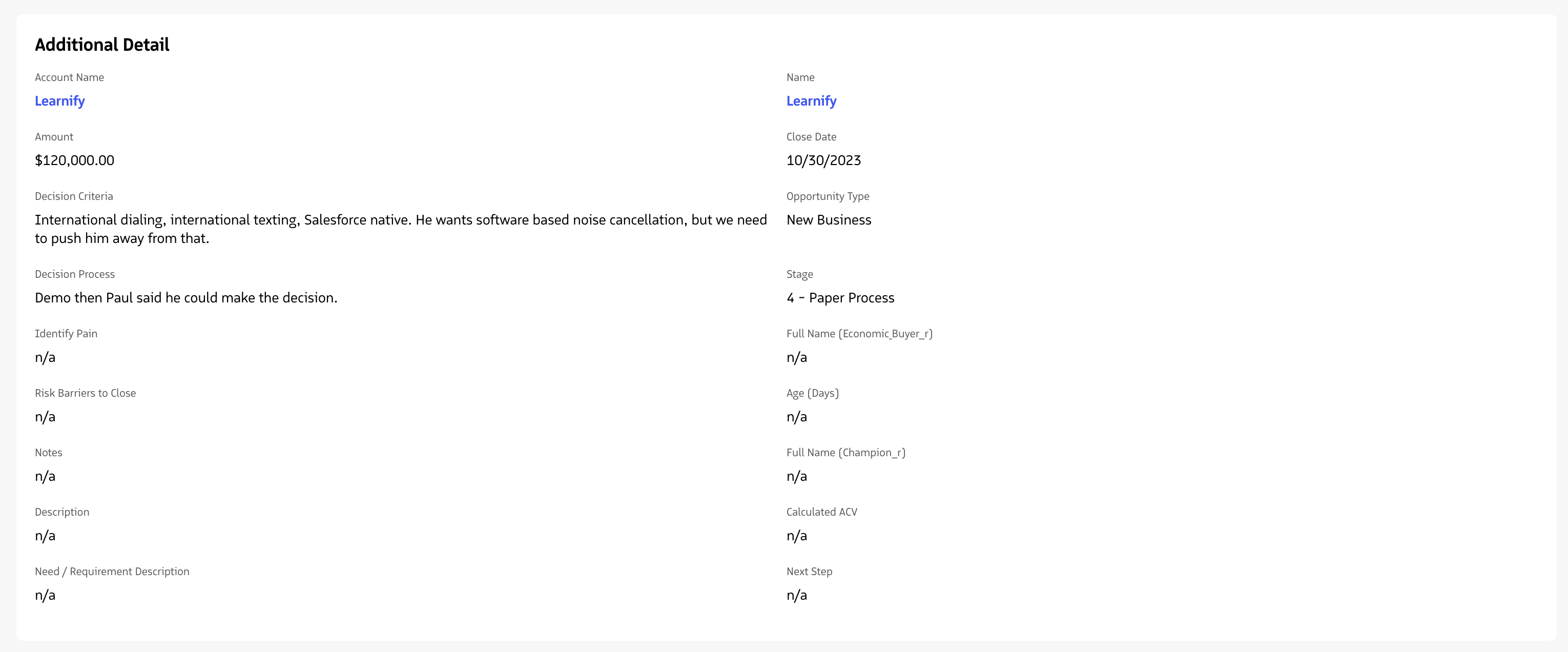
The field values defined within this block are managed within the Revenue Admin console.