Account List View and Detail Pages
Account Pages provide a centralized view of your Salesforce account data within the Revenue platform designed to help Sales Leaders and Agents gain quick insight into account engagement and recent activity.
- Quickly review calls, meetings, emails, and texts tied to an account.
- Access summaries of calls and meetings for quick context.
- Licensed users can also ask Revenue AI questions about an account to get instant insights.
View Accounts Lists
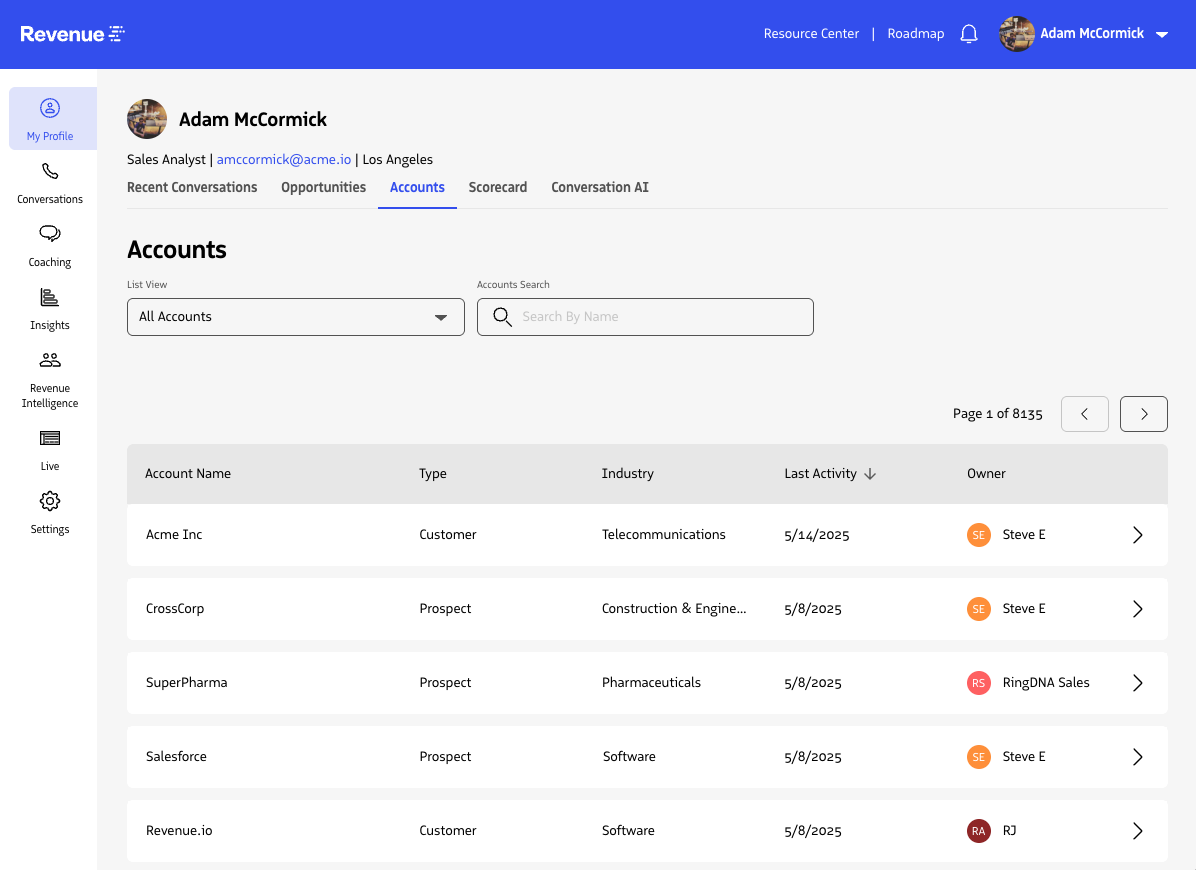
To view your Accounts, navigate to the Accounts List in the Revenue App:
- Click on My Profile in the top-left corner of Revenue.
- Select the Accounts tab in the top menu.
This will take you to a list of accounts based on your Salesforce access permissions.
You can also view a list of Accounts from the Accounts page in the side navigation.
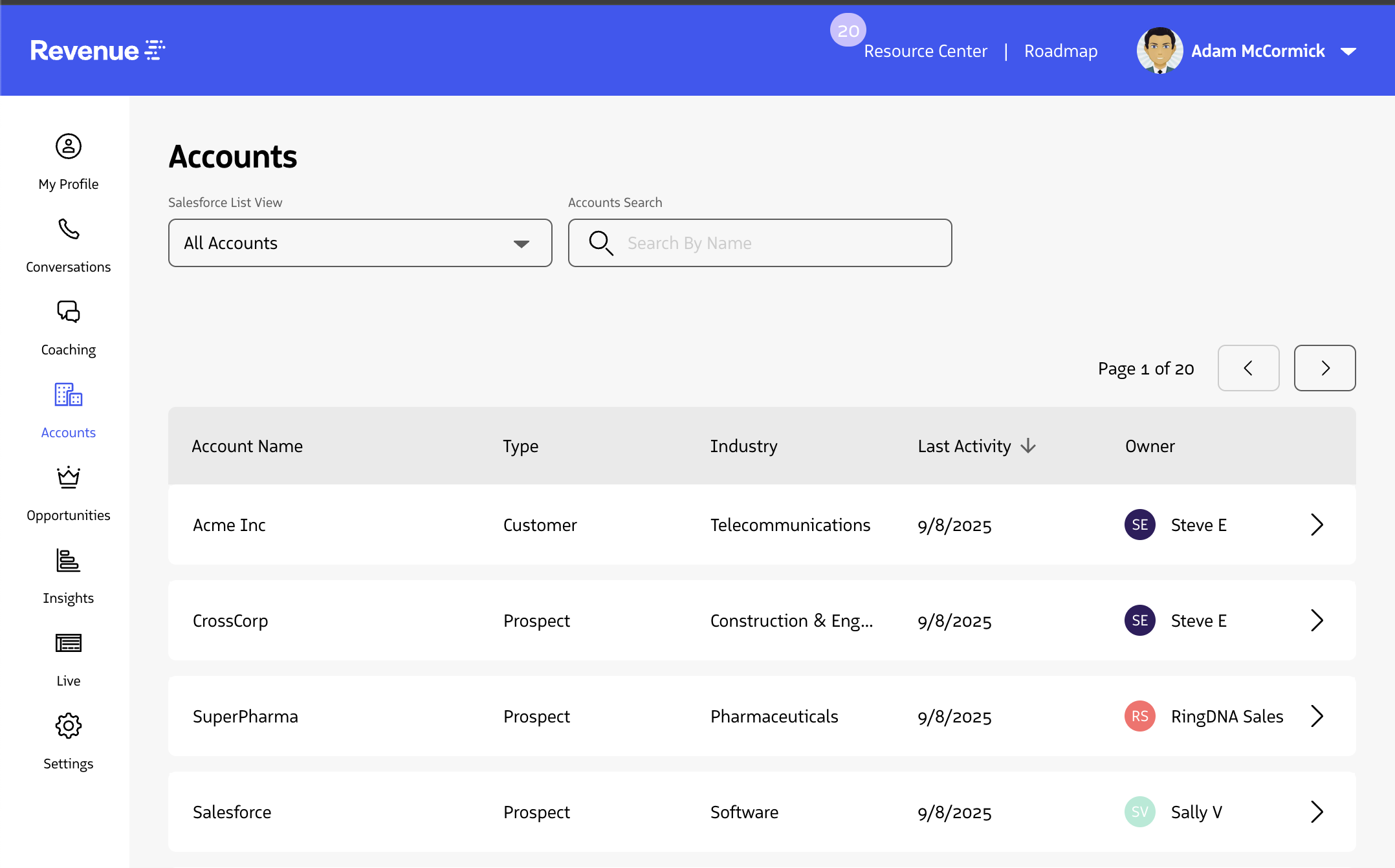
Where Do the Account Lists Come From?
The account lists shown are based on your Salesforce List Views. These views are:
- Maintained directly in Salesforce by you or your Salesforce admin.
- Accounts are reflected in Revenue using your Salesforce access rights.
- Filtered according to the filter logic configured in Salesforce (e.g., “My Accounts”, recently viewed).
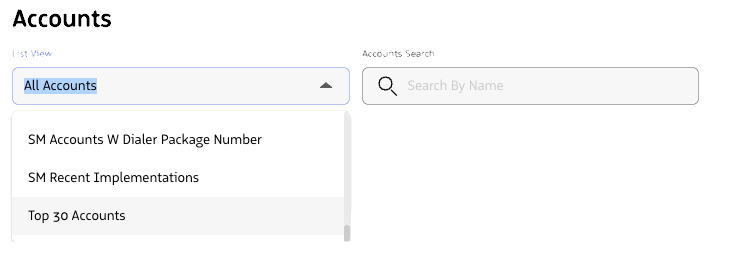
Note: If you see outdated or irrelevant lists, your Salesforce admin may need to clean them up directly in Salesforce.
Searching Within a List
The Search function on the Account Page allows you to search only within the selected list view. This ensures that:
- Your search results are scoped to accounts you’re authorized to see.
- The returned matches are filtered from the currently selected list view, not your entire Salesforce org.
Viewing Account Details
The Account Details page is your go-to spot for understanding the full picture of an account at a glance. It surfaces relevant details and recent activity so you can act quickly and take informed next steps - whether you’re prepping for a call, reviewing account health, or following up after a key meeting.
The page includes:
- A timeline view of all recent tracked activity including calls, video meetings, emails, and SMS messages, giving you full context in one place.
- Key account details
- Account opportunities
- Contacts associated with the account
At the top of the page, you’ll also find a direct link to the Account in Salesforce. This makes it easy to dive deeper and take actions directly in Salesforce. Use Revenue as your first stop for insights, and dive into Salesforce when needed.
1. Timeline
There is a timeline view of all recent tracked activity as well as AI-generated summaries for calls and meetings (where applicable), so you don’t have to dig through notes or recordings to understand what happened.
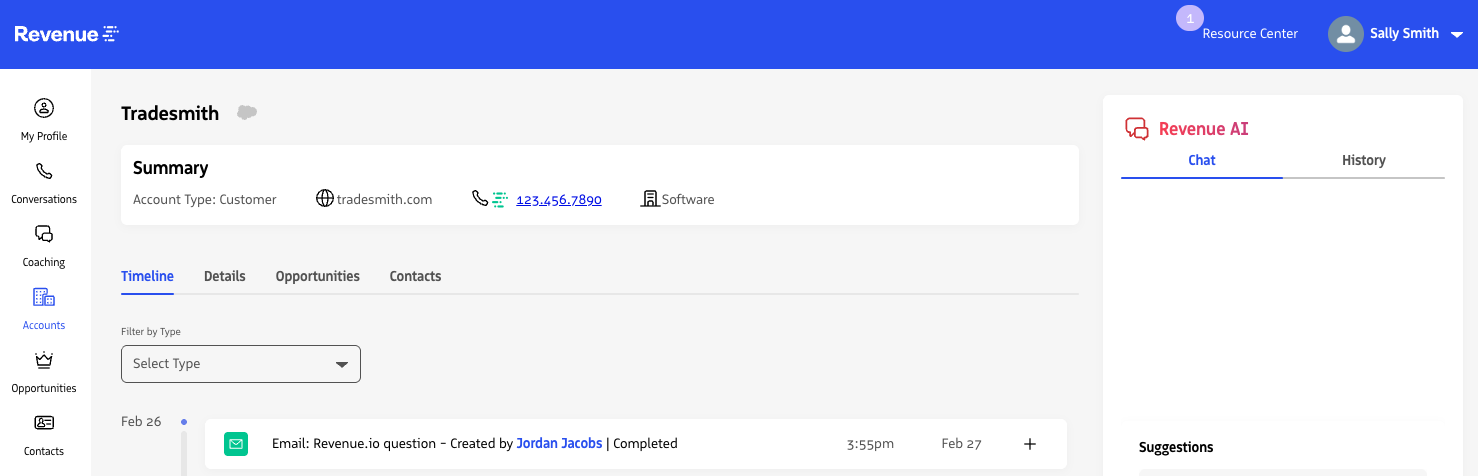
Filters are available to focus on specific interaction types based on what matters most to your workflow.
Filter by Type
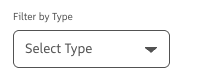
You can filter the timeline to show:
- Calls
- Video Meetings
- Emails
- SMS Messages
Call and Meeting Summaries
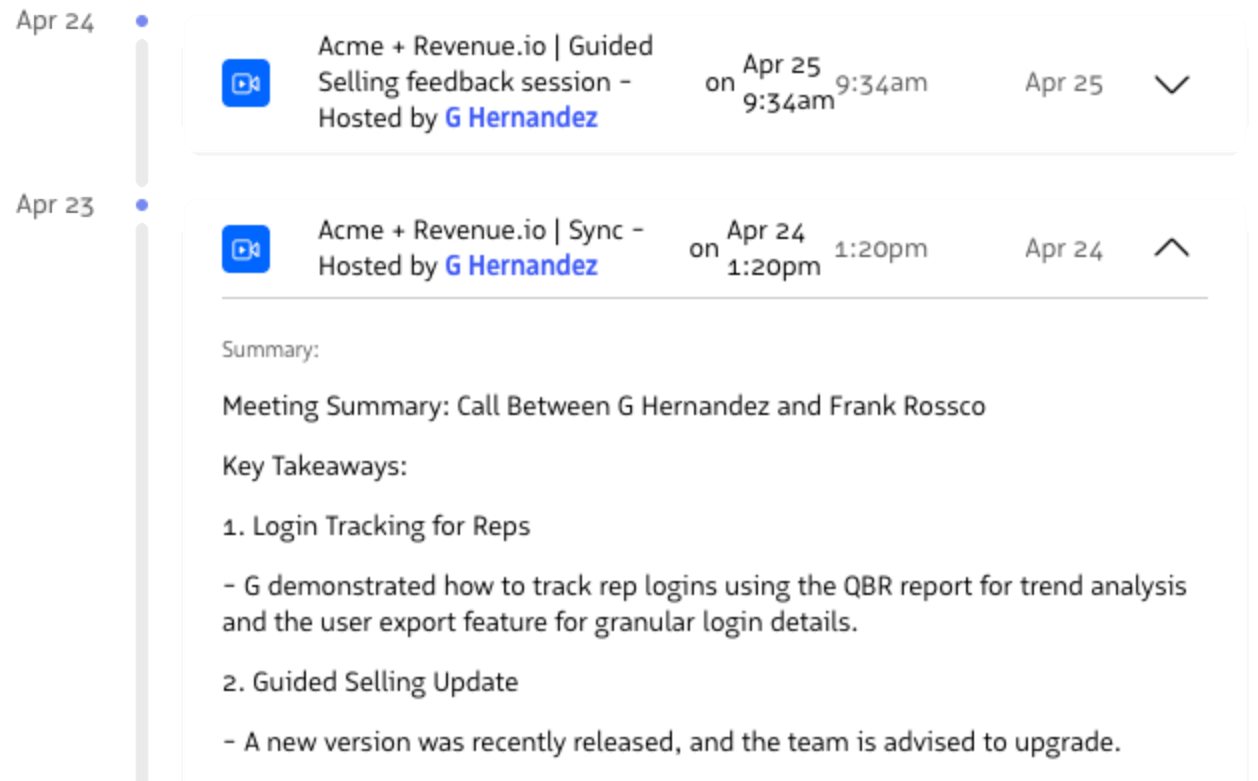
For calls and video meetings:
- Expand the timeline card to see a Generative AI summary.
- Click the card to open the full recording in a new tab.
2. Account Details
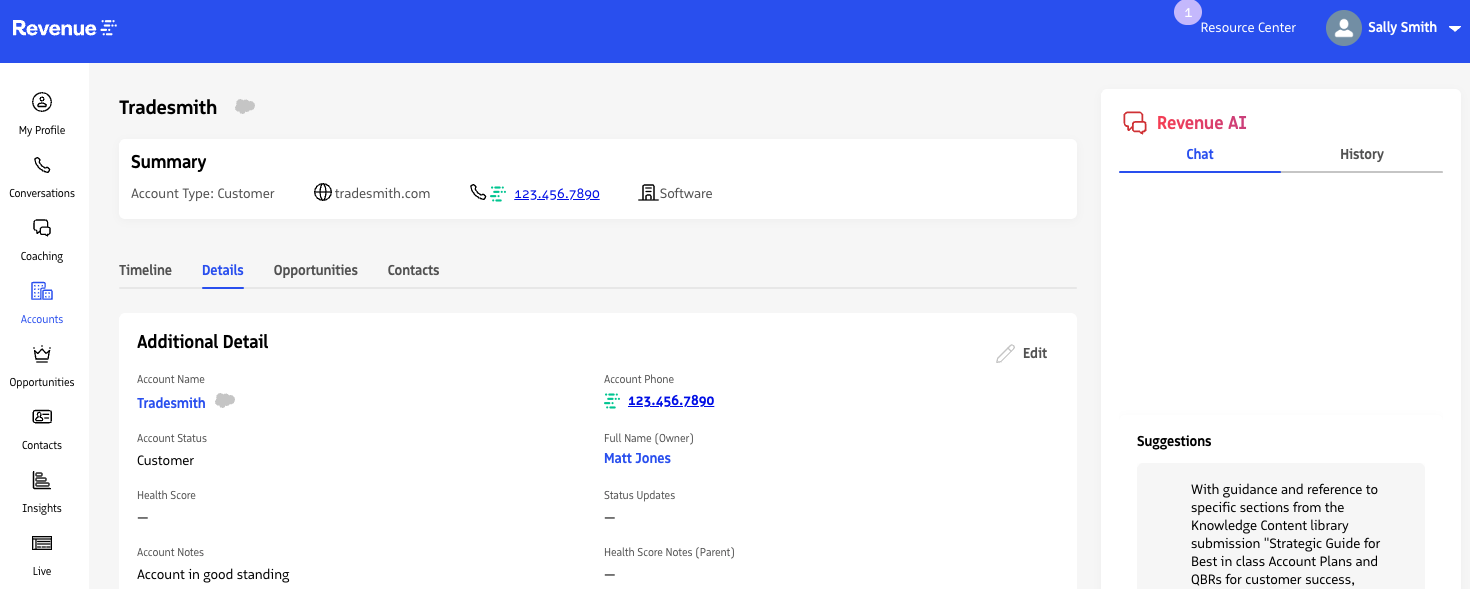
You can view default fields associated with the account, as well as additional fields based on what is configured for your role in Admin.
If you have the proper permissions, you’ll also be able to Edit details to update the fields in Salesforce.
3. Opportunities
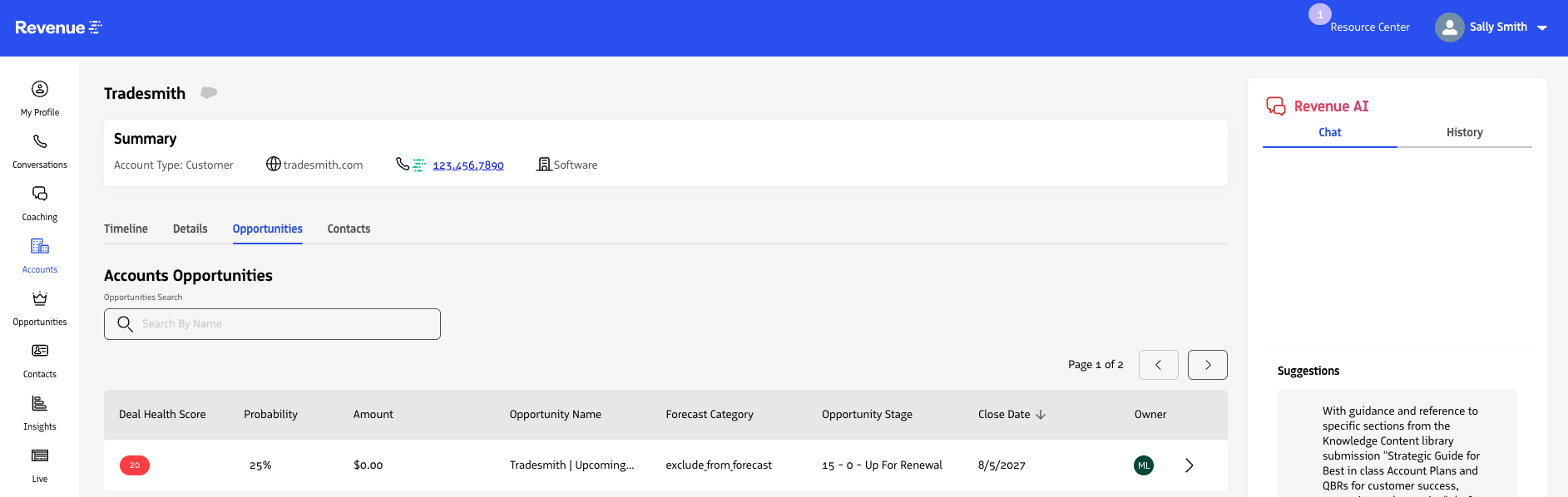
See Opportunities associated to an account, and easily drill into any opportunity that you want to see more details on.
4. Contacts
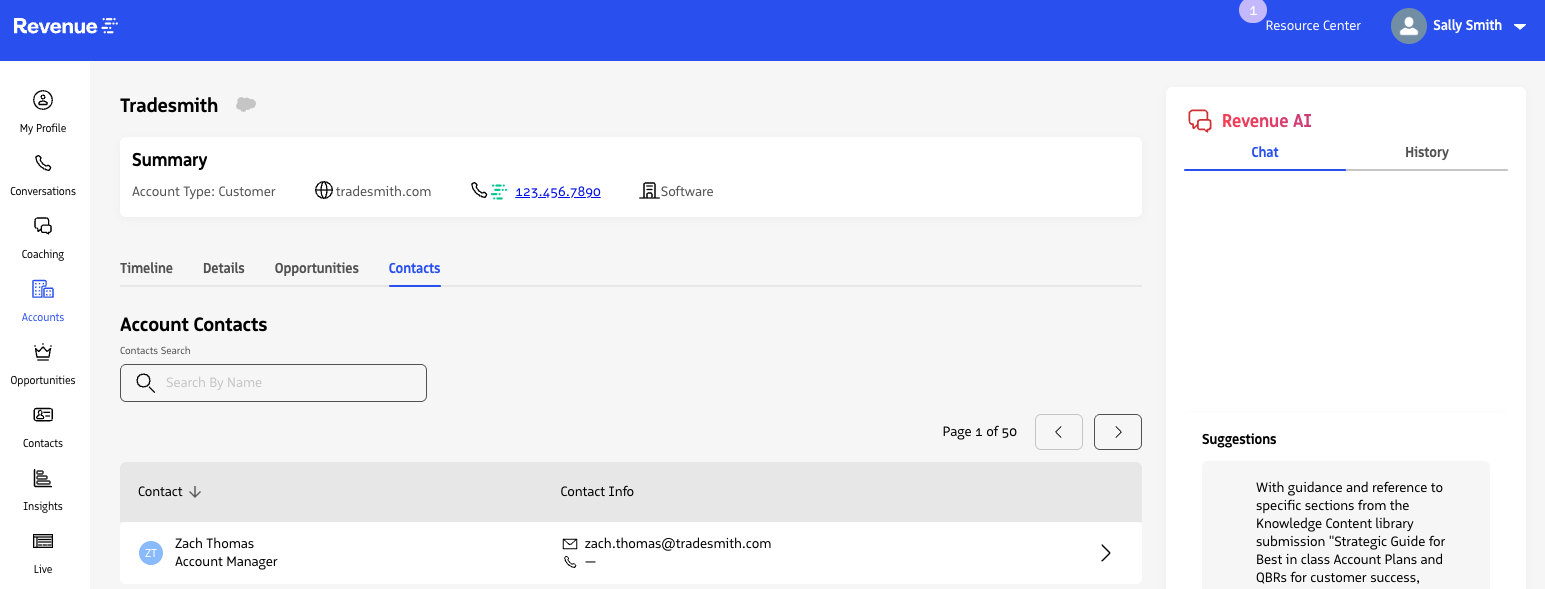
The Contacts tab on an Account record allows you to view and access all contacts associated with that account.
This makes it easy to quickly identify key stakeholders and drill into recent engagement with each individual.
Access to Accounts (and their associated Contacts) is governed by your Salesforce permissions. If you can view the Account in Salesforce, you can view its associated Contacts in Revenue.io.
Ask a Question (Revenue AI Users)
If your organization uses Revenue AI, you will also see a “Revenue AI” chat window.
This lets you ask natural language questions like, “What are the main objections discussed on recent calls?” and get AI-generated answers based on past call, meeting, email, and SMS activity.