Generative Scorecards
Consistently evaluating sales conversations is essential to improving performance and identifying coaching opportunities. Revenue.io’s Generative Scorecards take the manual effort out of call assessments by automatically scoring conversations based on customizable criteria, ensuring every interaction aligns with your organization’s standards and methodologies.
Generative Scorecards
How it works
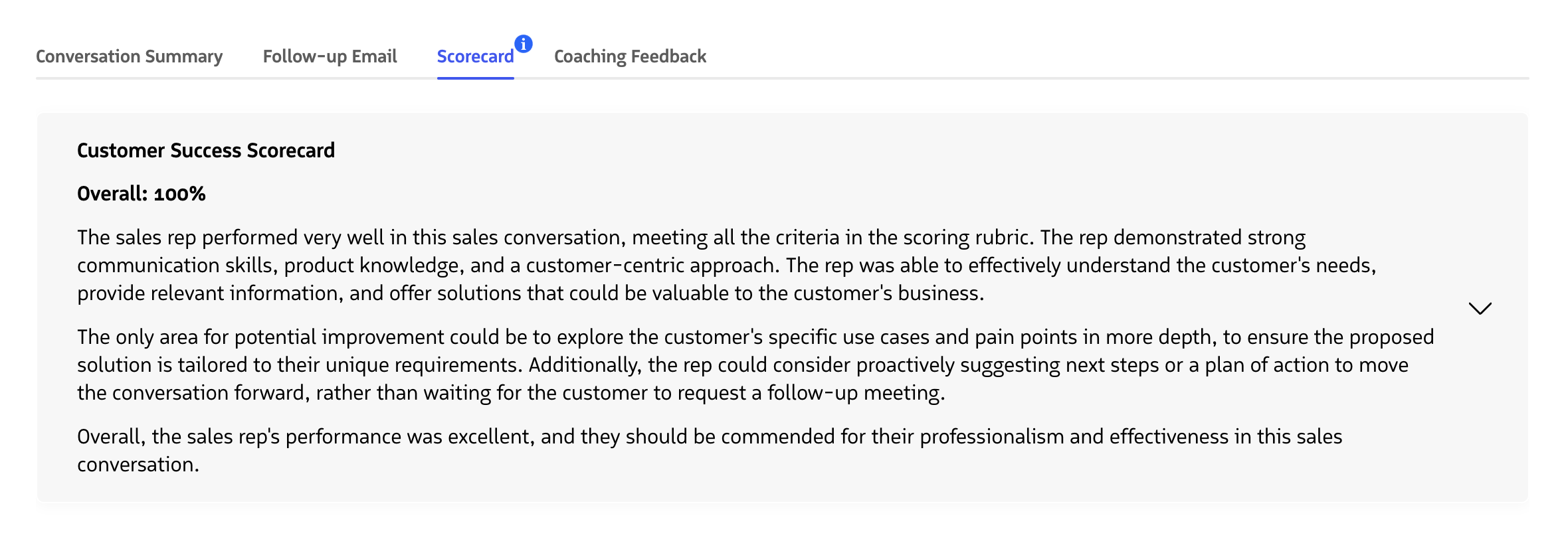
With Generative Scorecards, individual conversations are graded based on defined criteria. Criteria are graded on a 1 to 0 scale, with 1 meaning a rep met a criteria condition of the scorecard and 0 meaning they did not. An overall percentage score is applied to a conversation based on the total score divided by the number of criteria associated with the scorecard.
Scorecard scoring on a conversation
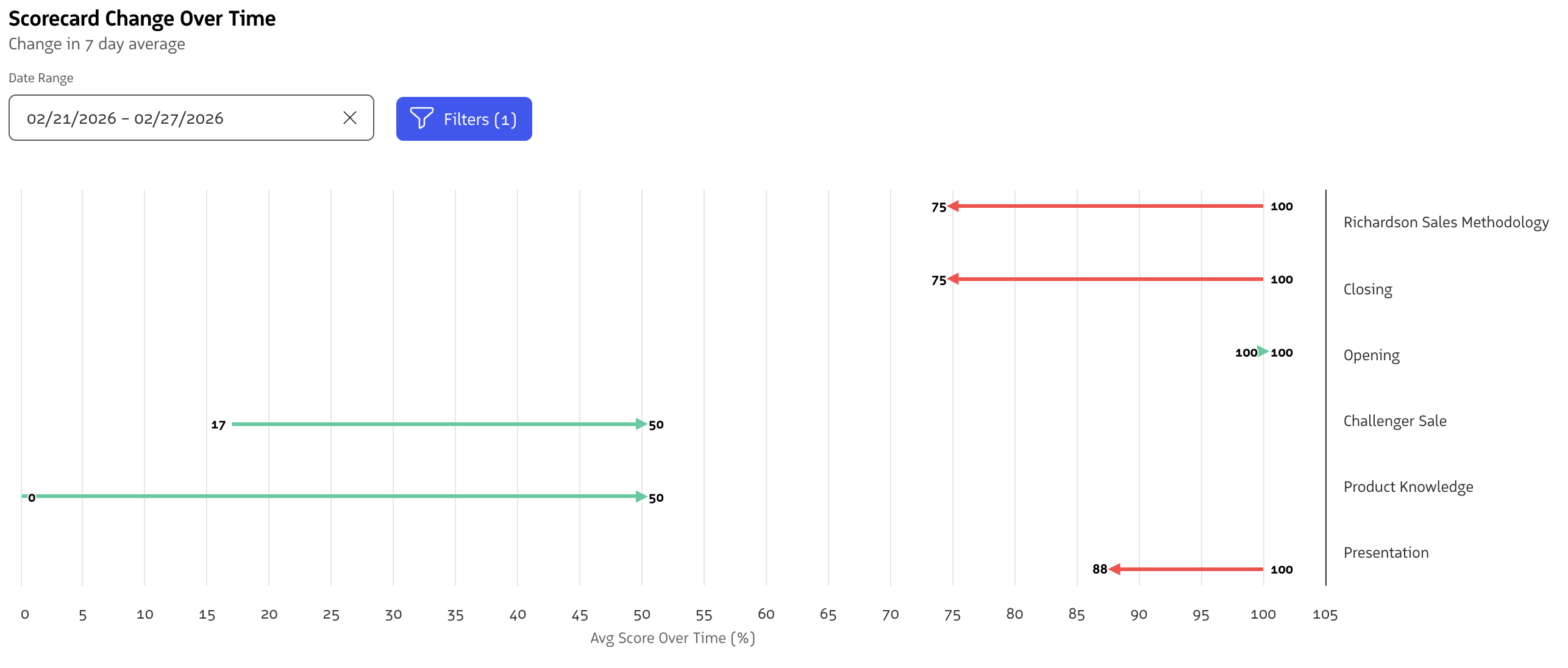
Scorecard trends can be analyzed to track changes in scores across criteria category or individual criteria over time. Insights are presented across all users and can be filtered by team or individual user.
Feature controls
For a user to view Scorecards on an individual conversation, they have to be the host of that conversation, the host’s supervisor, or an Admin, and they must have a Revenue AI license and have the Generative Scorecards setting enabled. Learn more about Revenue AI licenses and enabling Revenue AI features.
Only conversations that are over 240 seconds in duration and have at least 100 spoken words will be eligible for Generative Scorecards. If needed, these minimums can be configured to a lower threshold for your account by contacting the Support team.
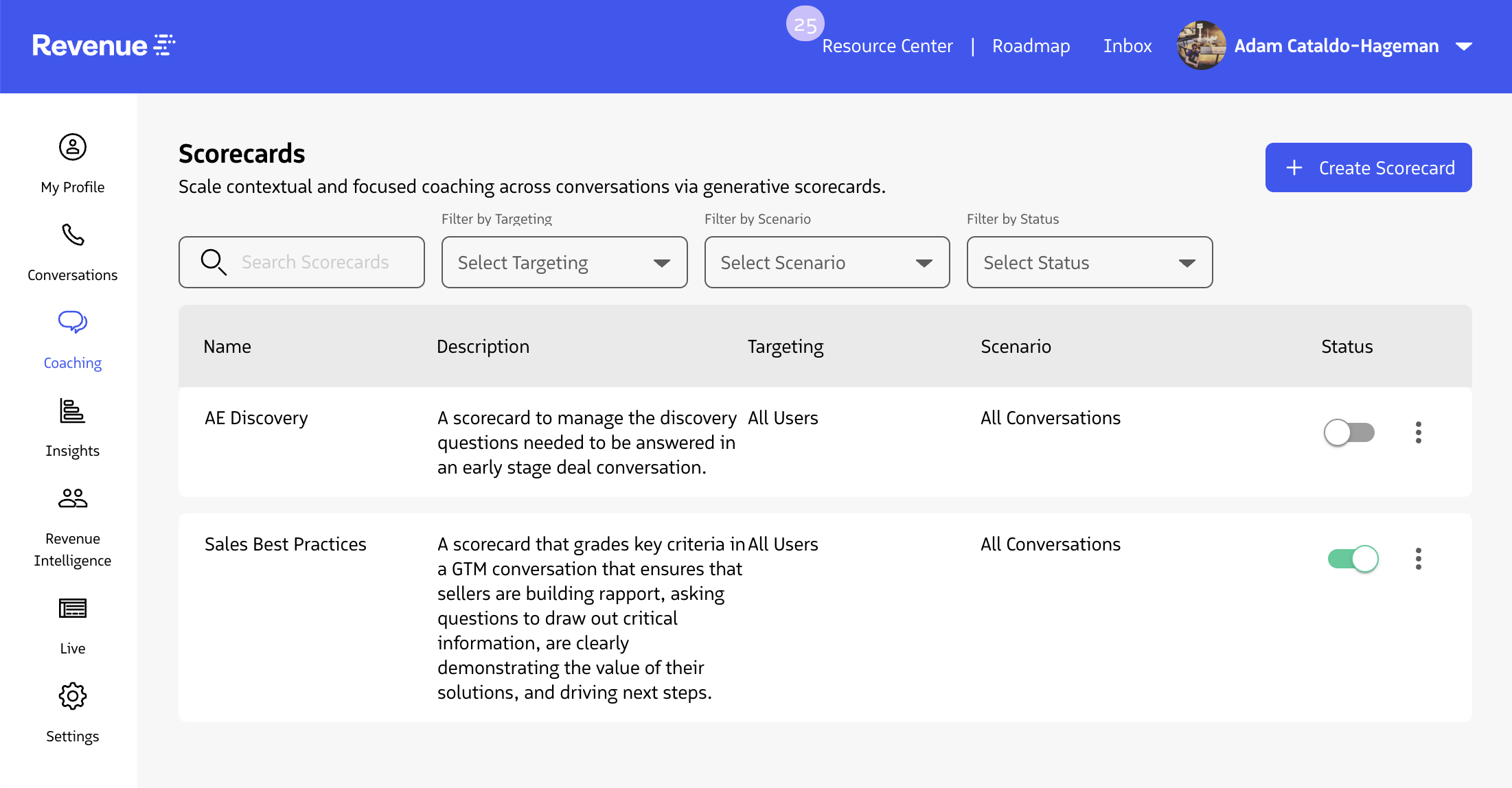
To manage scorecards, an Admin or Supervisor can navigate to the Scorecard tab of the Revenue Application. Within this page, users can search for, view, manage, and create new Scorecards to apply to their team’s conversations. Agents can also create Scorecards for themselves.
Managing scorecards
To create a scorecard, select the + Create Scorecard button in the upper right of the Scorecards page.
Scorecards page
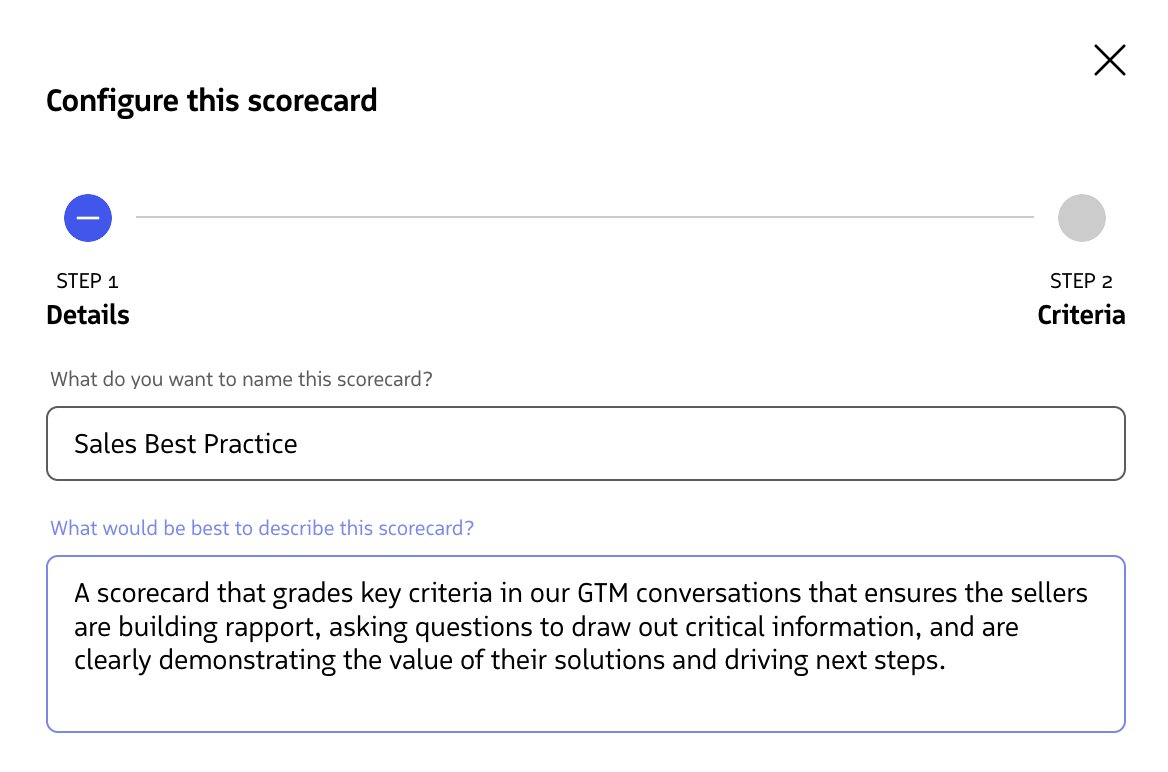
On selection, you are presented with a modal to create your scorecard. In the scorecard modal there are two steps to complete:
Step 1. Define the scorecard
Define the scorecard
In this first step, there are three configurations that need to be made:
What do you want to name this scorecard?
First, you must add a descriptive name for a Scorecard. This is used to quickly identify a scorecard within filtration, within scorecards applied to conversations, and analytics.
What is the best way to describe this scorecard?
Second, users can optionally designate a description for the scorecard to give others an overview of where the scorecard should be used and how it should be leveraged across conversations.
Step 2. Set scorecard targeting
You can configure a Scorecard to apply to the right conversations by defining who or what it should target. There are several flexible targeting options available.
Whose conversations should this apply to?
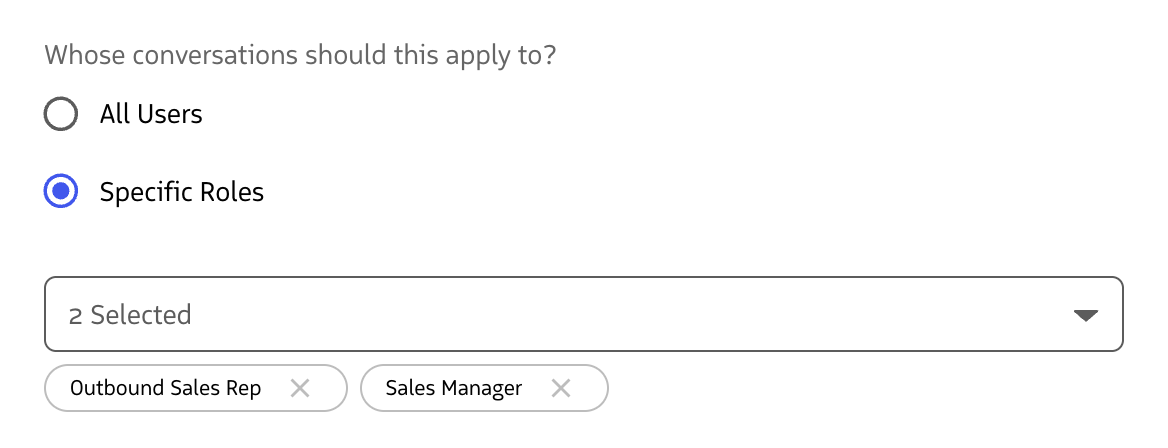
Whose conversations
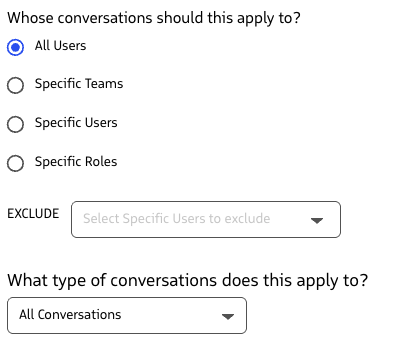
Audience targeting options
All users
Apply a scorecard universally across your organization. This is ideal for broad criteria such as general compliance, call professionalism, or org-wide behaviors.Specific teams
Target specific teams within your organization. This is ideal for Supervisors to create scorecards for just the teams they manage.Specific users
Apply a scorecard to specific users within your organization. Supervisors can target users that they manage.Specific roles
Target users based on predefined roles (e.g., Account Executive, Customer Success Manager, Support). This helps ensure that different teams are evaluated based on criteria tailored to their responsibilities and conversation context. Learn more about managing Roles.Exclude users
You can exclude certain users from scorecards. This is often used if you have scorecards applied to specific teams or roles, and want to exclude a new user who is being onboarded and you don’t want them to have a scorecard yet.
What type of conversations should this scorecard apply to?
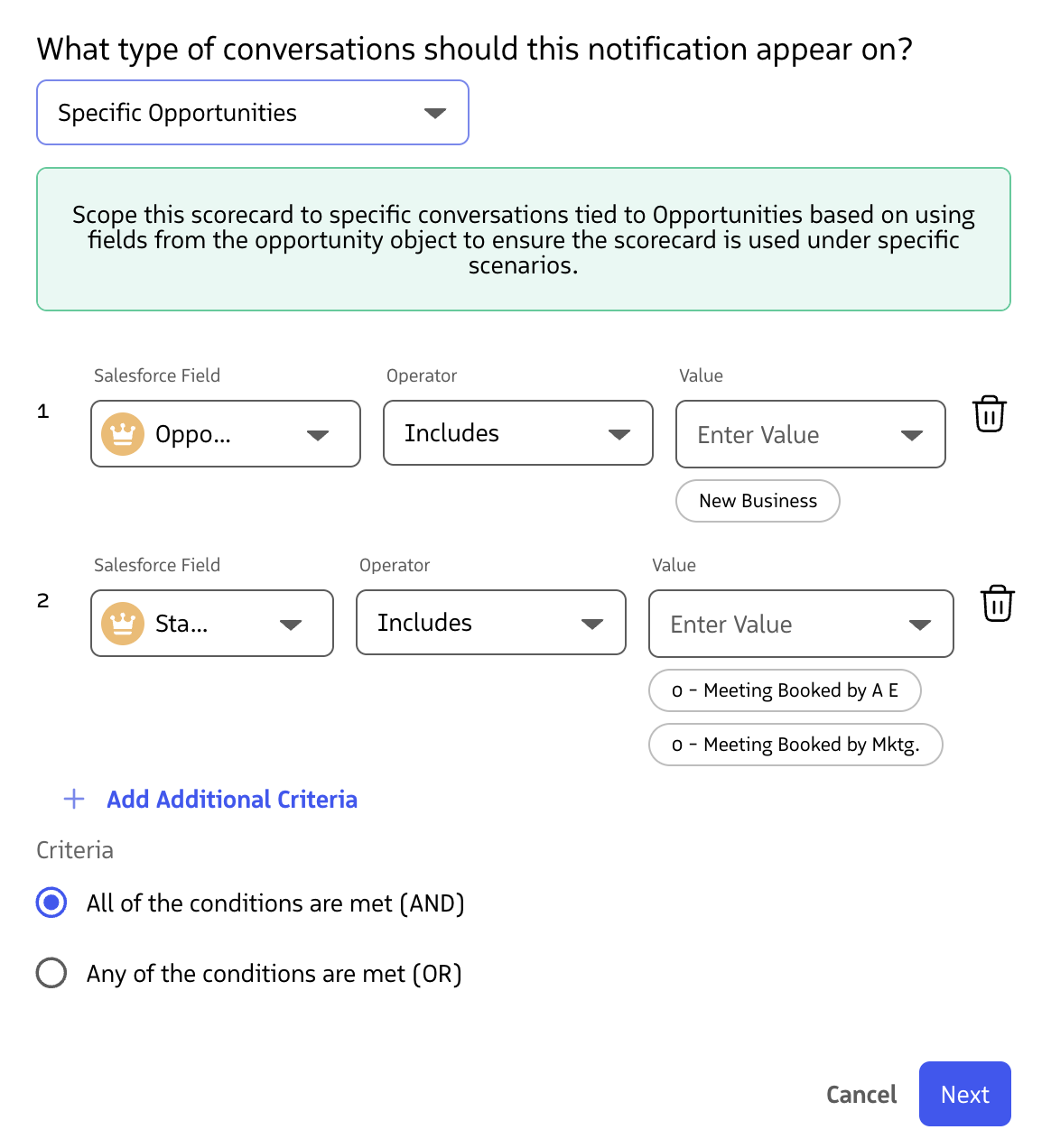
Conversation type targeting
All conversations
Apply a scorecard to all conversations made by the user.Specific opportunities
Scorecards can be scoped to specific opportunity-level criteria, enabling contextual coaching tied directly to deal characteristics. When targeting by opportunities, you can define field-based logic to control which deals should trigger the scorecard.For example, you might filter using fields like:
- Opportunity Stage (e.g., Discovery, Negotiation, Closed Won)
- Opportunity Type (e.g., New Business, Renewal)
- Customer Segment or Custom Fields configured in Salesforce
Specific campaigns
Scorecards can be scoped to conversations tied to Campaigns using fields from the campaign, lead, or contact objects so the scorecard is used under specific scenarios.Specific cases
Scorecards can be scoped to conversations tied to Cases using fields from the case, contact, or account objects so the scorecard is used under specific scenarios.Specific individuals
Scorecards can be scoped to specific types of conversations with participants using fields from the lead, contact, or account objects so the scorecard is used under specific scenarios.Specific events
Scorecards can be scoped to conversations tied to Events using fields from the event, contact, or lead objects so the scorecard is used under specific scenarios.Specific dispositions
Scorecards can be scoped to specific conversation dispositions from the activity and conversation objects so the scorecard is used for specific conversation outcomes.
You can apply multiple criteria using AND or OR logic to fine-tune how scorecards are assigned. For example, a scorecard might apply only to renewal type opportunities in the “Negotiation” stage for enterprise customers.
Step 3. Designate scorecard criteria
The next step in configuring a scorecard is to designate the criteria that should be used to grade a conversation. There is a series of out-of-the-box criteria to choose from to evaluate conversations. These criteria span the various methodologies that are available within the Revenue platform along with general sales best practice scenarios.
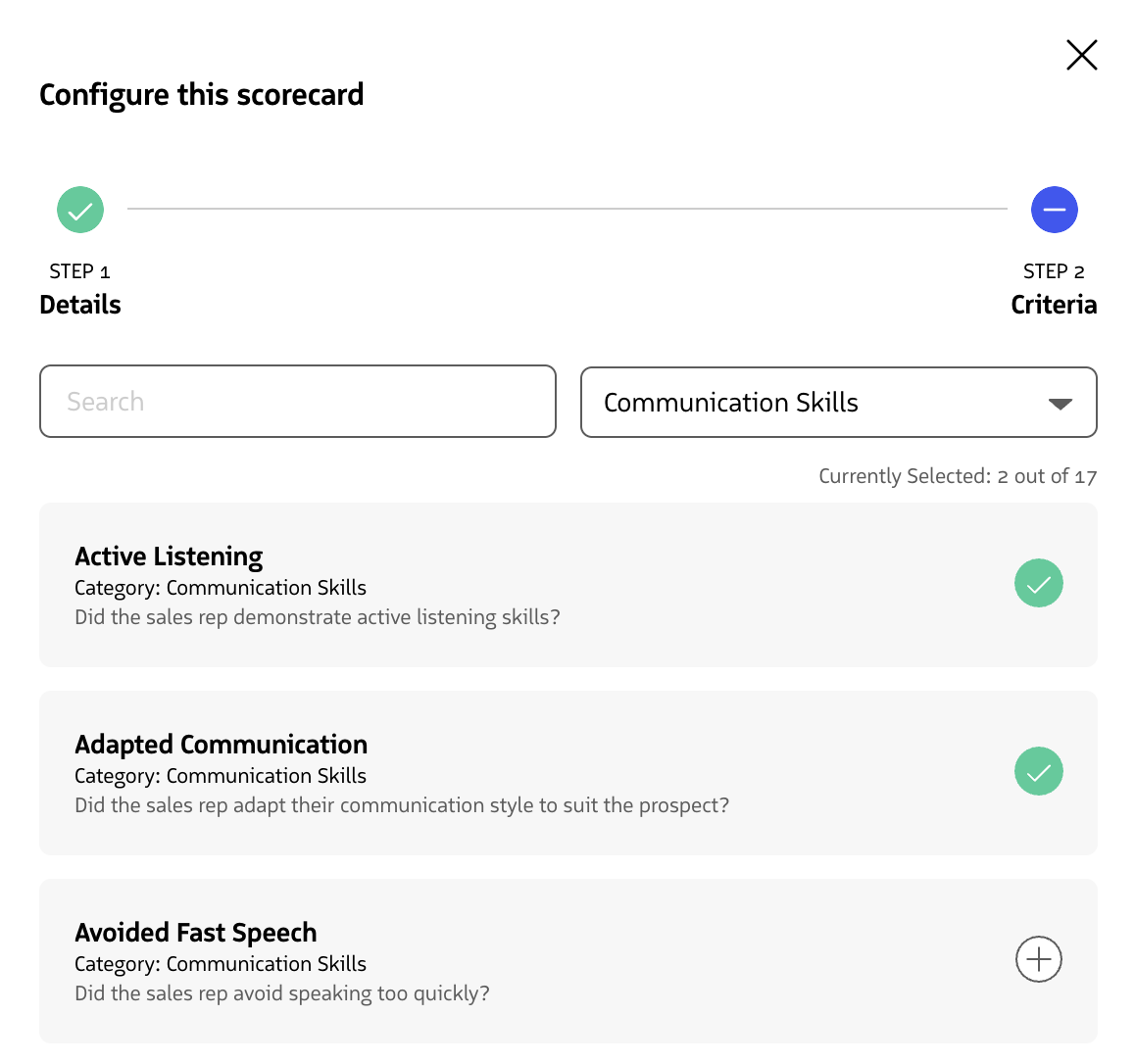
Designate scorecard criteria
Once you have found the criteria that you want to add to your Scorecard, select the + icon associated with each criteria. Selected criteria are updated with a checkmark. Once you have made all of your selections, click Save to create your new Scorecard.
Editing scorecards
To edit a scorecard, navigate to an individual scorecard and select the ⋮ icon associated with the scorecard. On selection, you are presented with an Edit option.
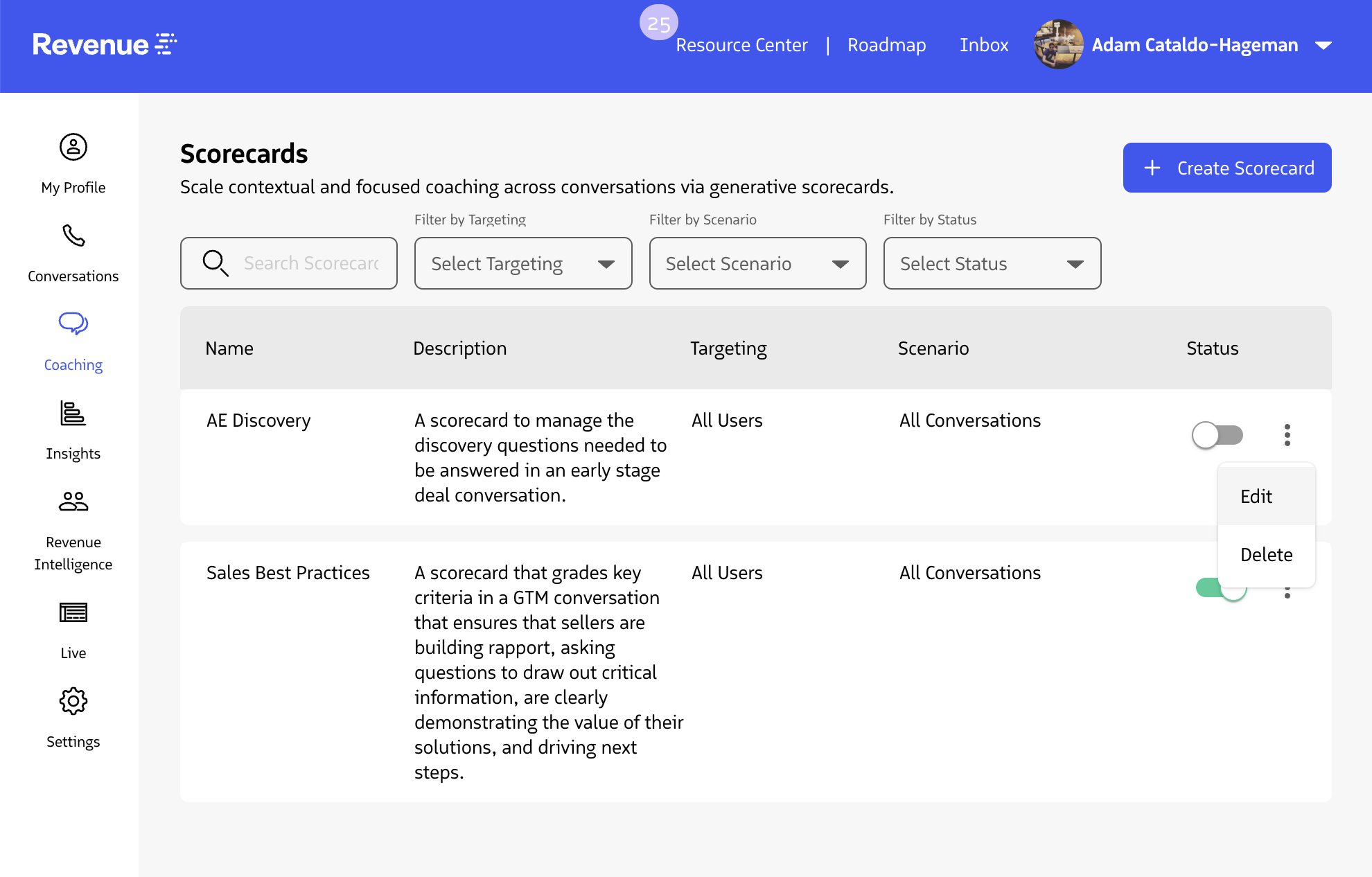
Edit a scorecard
Upon selecting Edit, you are presented with the Scorecard edit flow to update details or criteria associated with a scorecard.
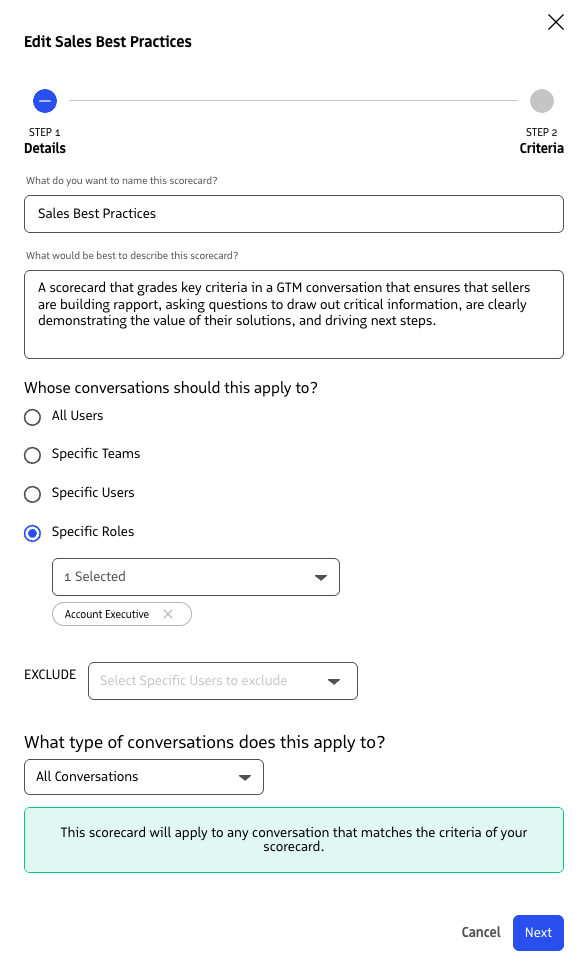
Scorecard edit flow
When you are done making changes to a scorecard, you can select Save to commit the changes or Cancel to abort any changes.
Deleting scorecards
To delete a scorecard, navigate to an individual scorecard and select the ⋮ icon associated with the scorecard. On selection, you are presented with a Delete option.
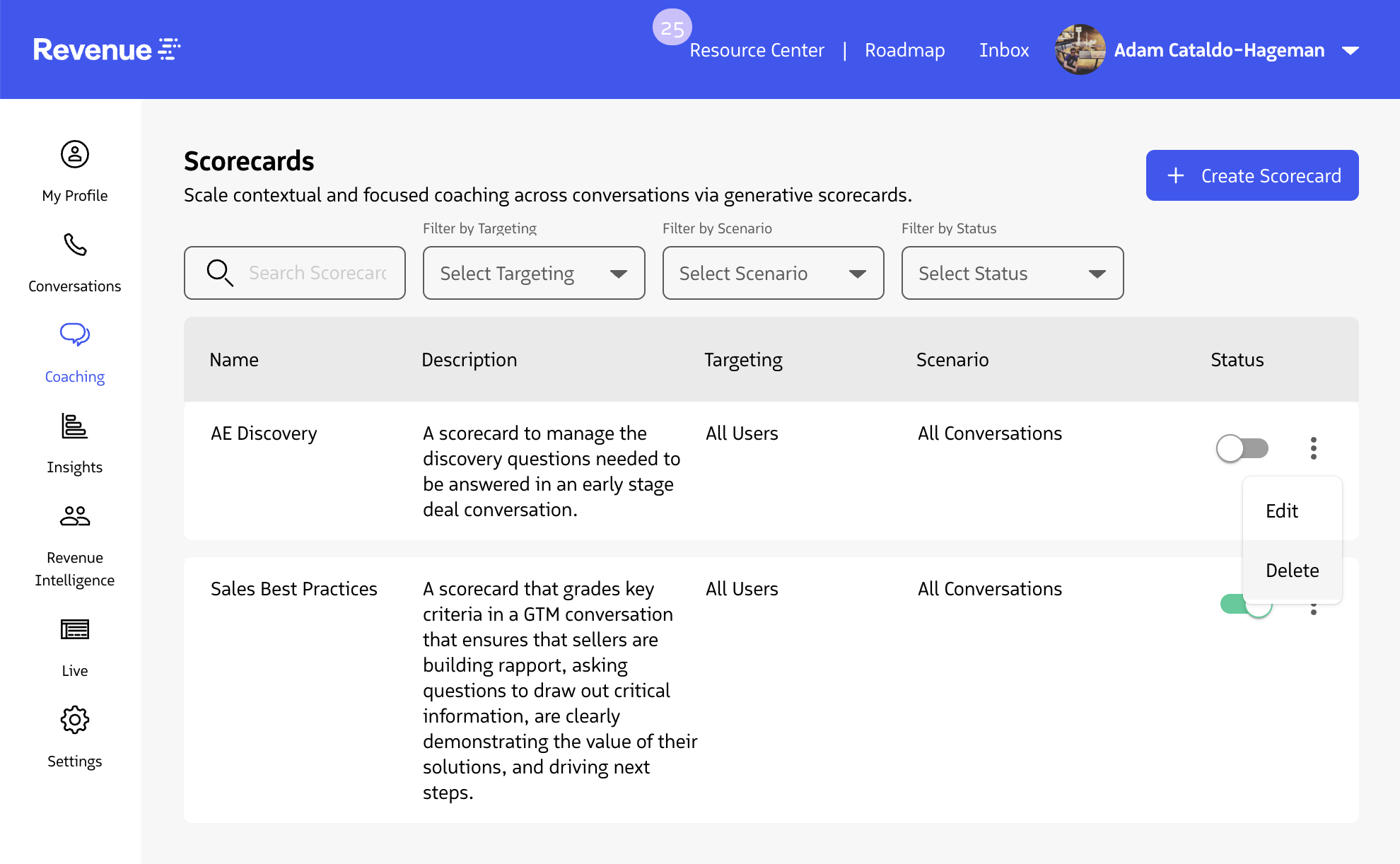
Delete a scorecard
On selection of Delete, you are presented with a modal to confirm the deletion. When you confirm, the scorecard is removed from Revenue.io and any conversations scored by that scorecard will no longer show that scorecard on the conversation.
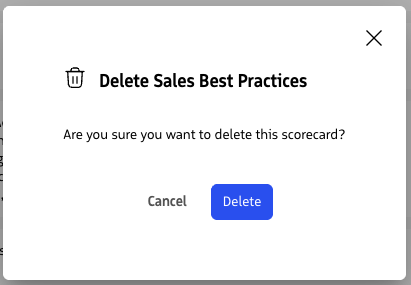
Confirm scorecard deletion
Activating and deactivating scorecards
By default, Scorecards that are created in your account are added to your Scorecard list in a deactivated state.
To activate a scorecard, select the toggle in line with the scorecard that you want to activate.
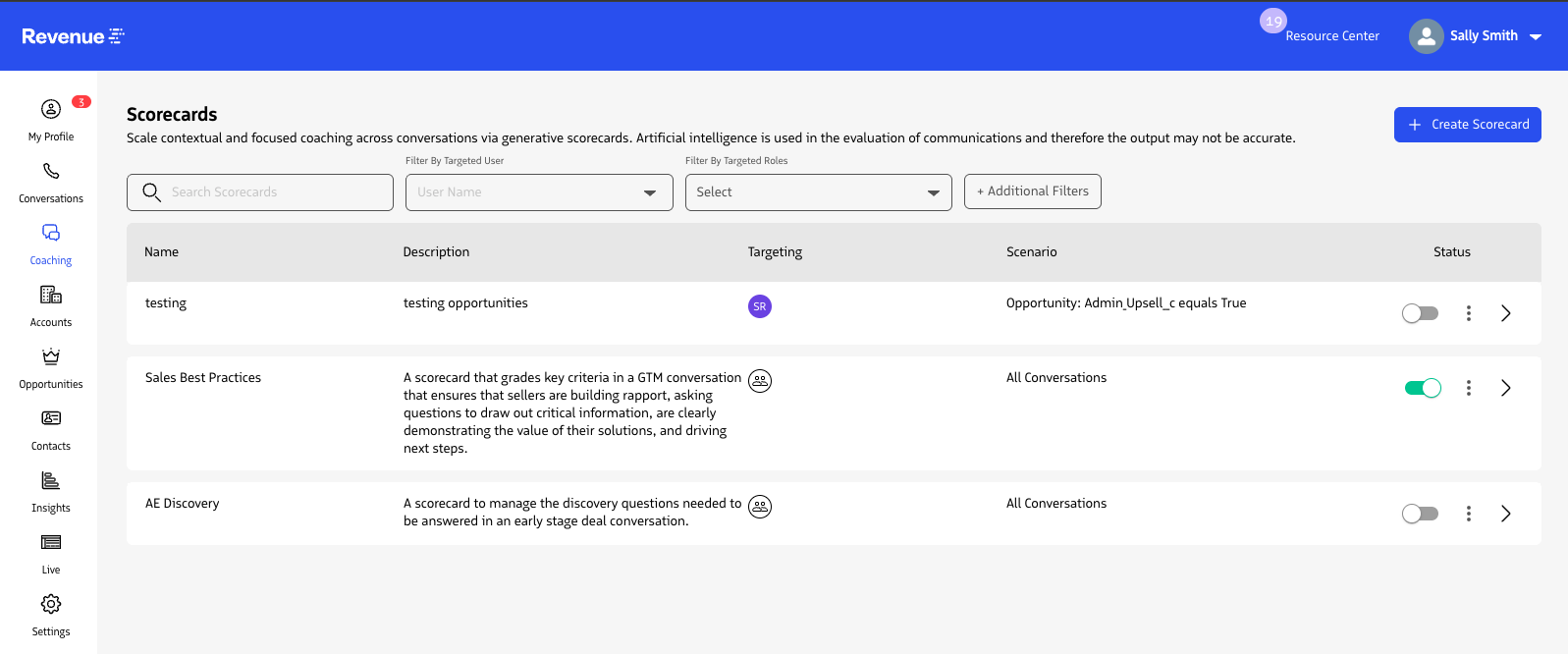
Activate a scorecard
When you activate a scorecard you see a success message that designates that your scorecard is now live. Once a scorecard is activated it is applied to conversations on a go-forward basis based on who the scorecard applies to as defined in its configuration.
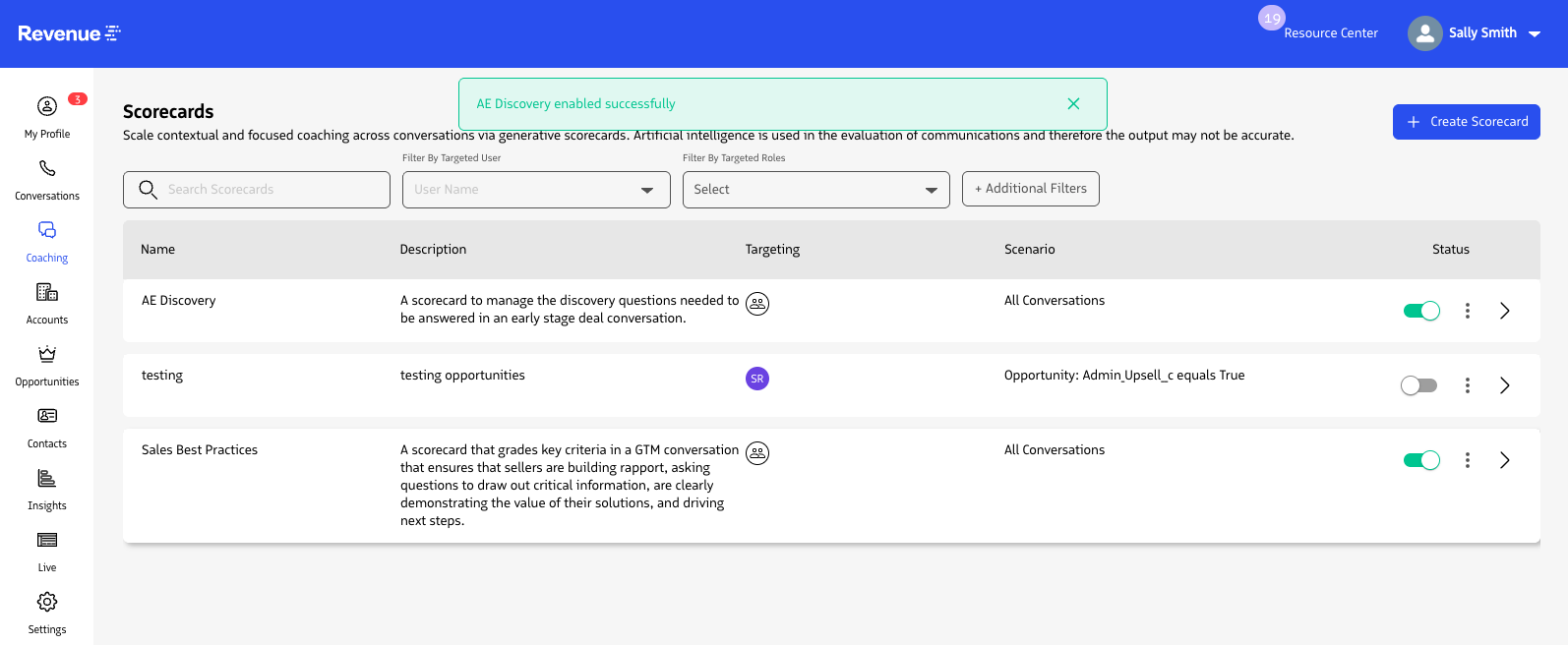
Scorecard activated
To deactivate a scorecard, select the toggle to receive a message that the scorecard has been disabled. When a scorecard is disabled, users can still see historical analytics for that scorecard but the scorecard is no longer applied to conversations on a go-forward basis.
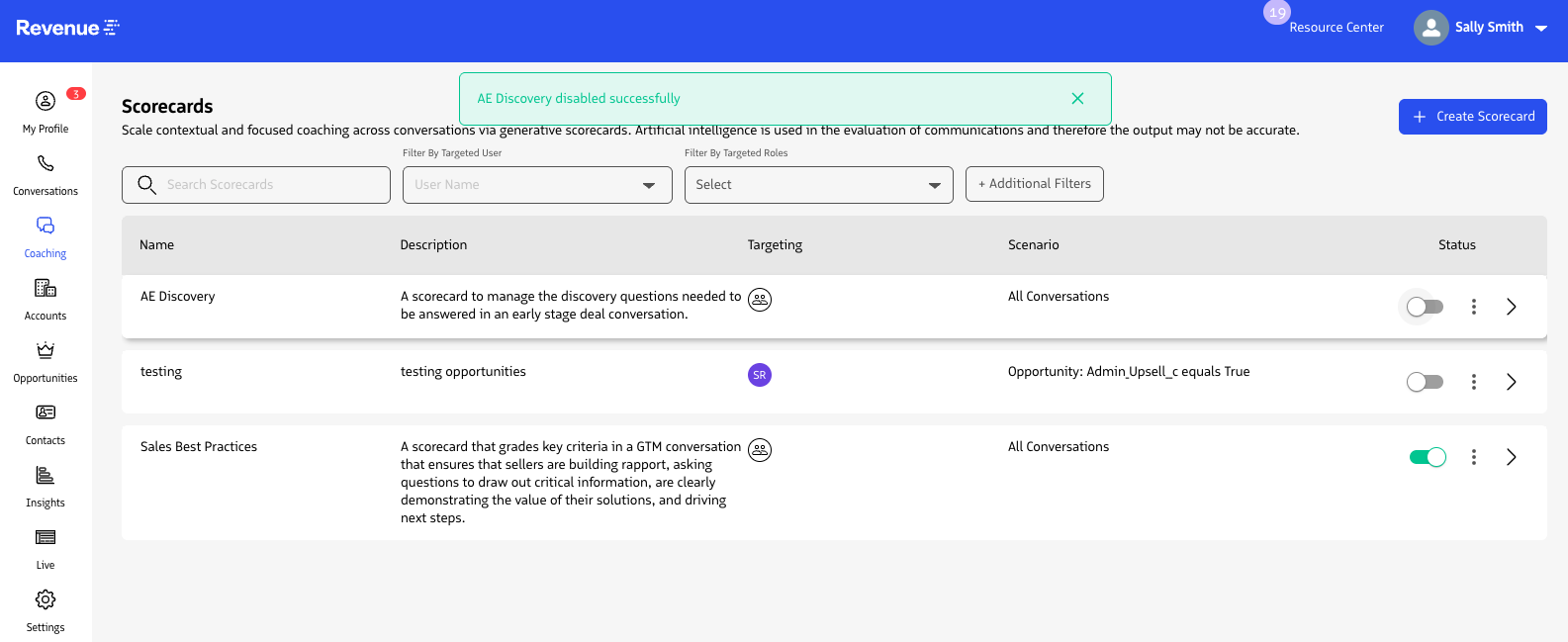
Deactivate a scorecard
Tracking scorecard performance
Now that you have scorecards applied to your conversations, open insights and analytics by selecting any scorecard in the list of scorecards configured in your account.
Within an individual Scorecard page are details and insights into performance across your organization against the scorecard.
Scorecard details
This presents the basic information of the scorecard including who the scorecard applies to and the description of the scorecard.
Scorecard change over time
This chart is an interactive view focused on showing changes in scorecard behavior over time. By default the chart highlights how scores have changed over a defined period of time based on the category of criteria associated with the scorecard. You can drill further into performance by updating the time frame, filtering insights by team, and selecting an individual category to view performance changes over time for the granular criteria within each category.
Scorecard filters
You can filter by Date Range, Disposition, Disposition Outcome, Conversation Duration, and Call Direction to narrow down the conversations being analyzed so you have deeper insights.
Scorecard details heat map
The heat map highlights scores across teams and criteria categories for the selected time period. These visually represent the distribution of scores and where users are excelling or need help. The heat map can be filtered by team to view performance across users associated with each team at both the category and individual criteria level.
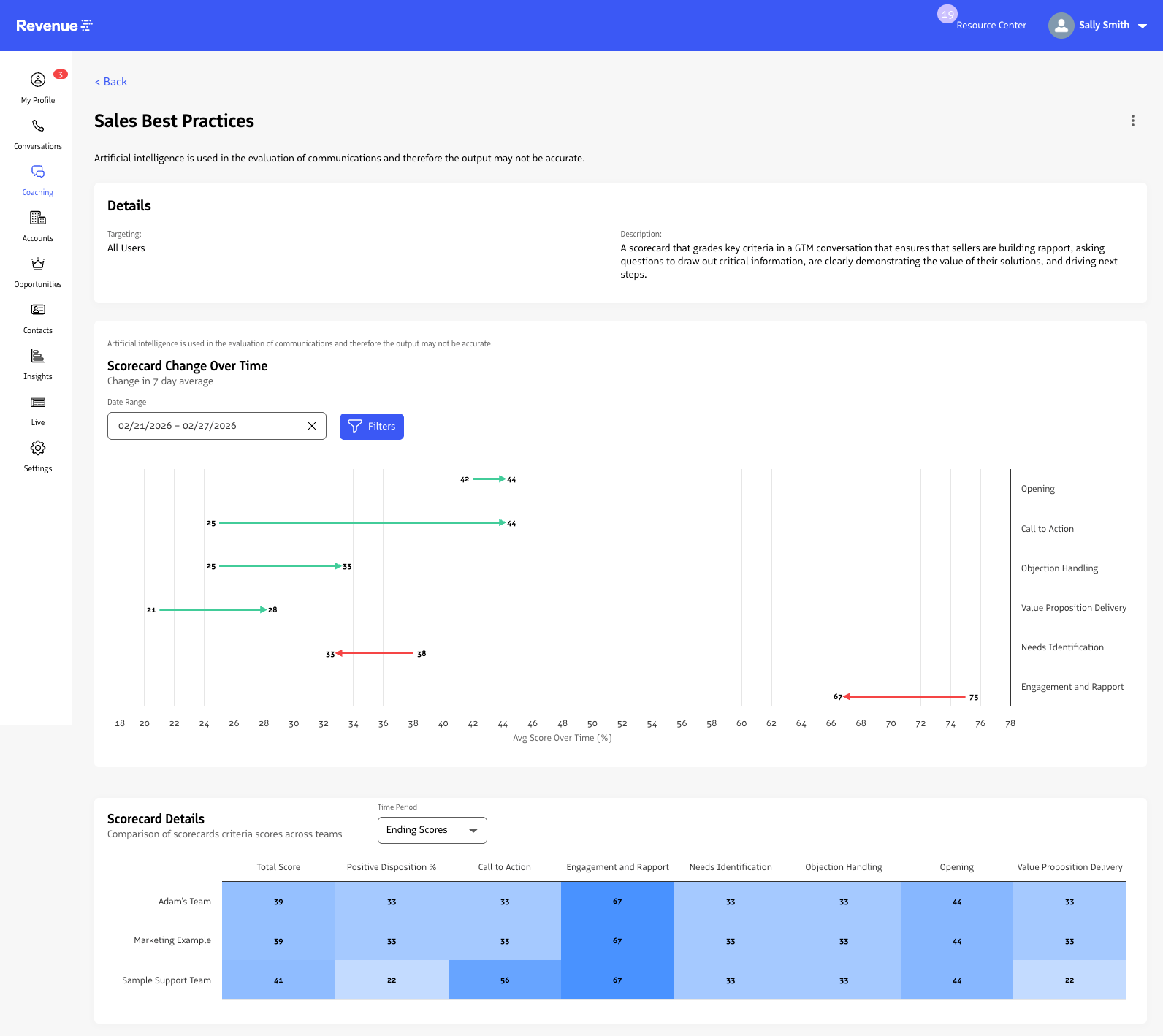
Scorecard performance heat map
View conversations associated with a scorecard
Below the heat map is a list of conversations associated with the scorecard. Based on the criteria filters applied, you can view the overall score of the conversation or the score associated with an individual criteria. This helps you drill in and view examples to better understand the user’s performance in the conversation.
By selecting the Download Data button, you can download a .csv of the scores across conversations in the date range selected for each of the criteria associated with the scorecard.
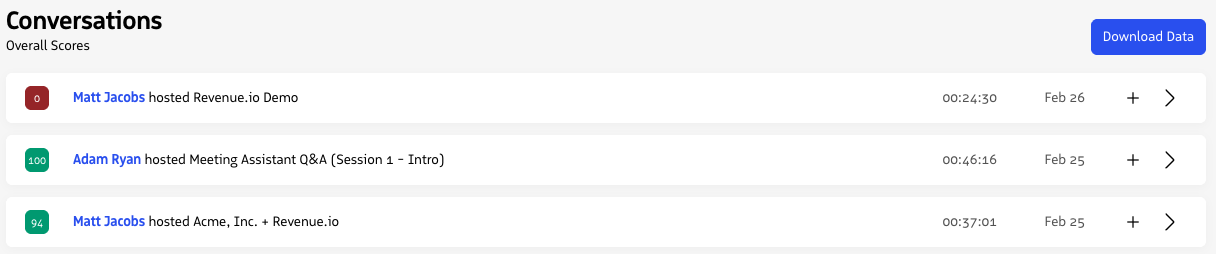
Conversations associated with a scorecard
View scorecard performance for a user
Similar to the insights provided for an individual Scorecard, users can view Scorecard performance metrics for individual users on their User profile page. Those who can access a user’s profile can interact with a Scorecard change over time chart to see performance over time for all scorecards that are associated with the user.
Users can toggle between the scorecards associated with the user via the Scorecard picklist, change time dimension and start date of insights by selecting time periods of 7 days, 30 days, and 90 days. To see detailed insights, users can also select individual scorecard categories for a selected scorecard to see the user’s performance in the individual criteria associated with a selected category.
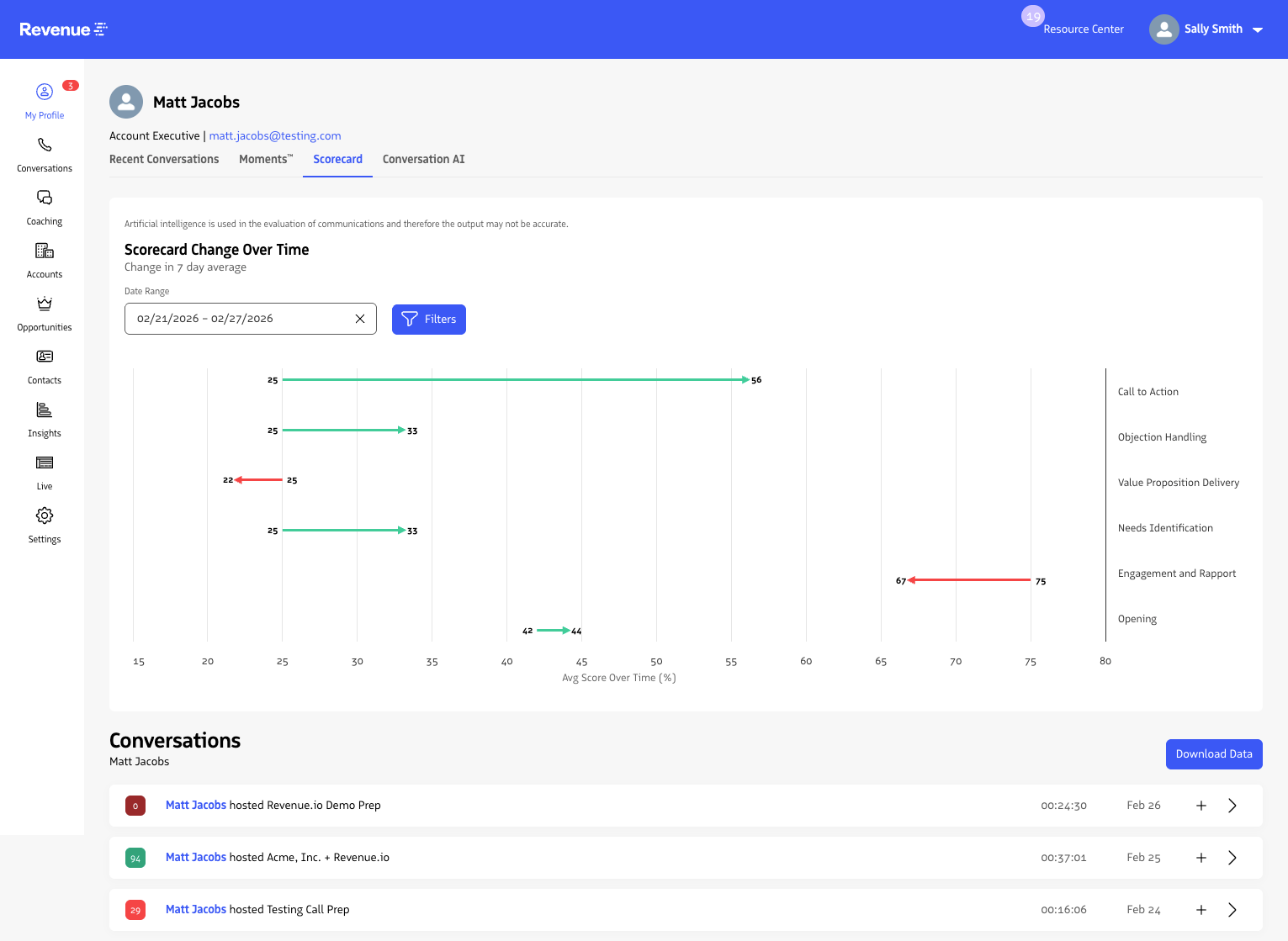
Scorecard performance on a user profile
Viewing scorecards for a conversation
When Scorecards are applied to a conversation, they are visible to users who have Generative Scorecards enabled for all conversations that they can access. For each scorecard applied to a conversation, users can view the following:
- The scorecard name
- The overall scorecard score
- A detailed analysis of the user’s performance
- A list of the criteria associated with the scorecard, individual scores for each criteria, detailed analysis and insights into why the conversation criteria was scored as it was, all grouped by category.
This level of insight provides comprehensive coaching while saving time for managers to scale coaching across more users in less time.
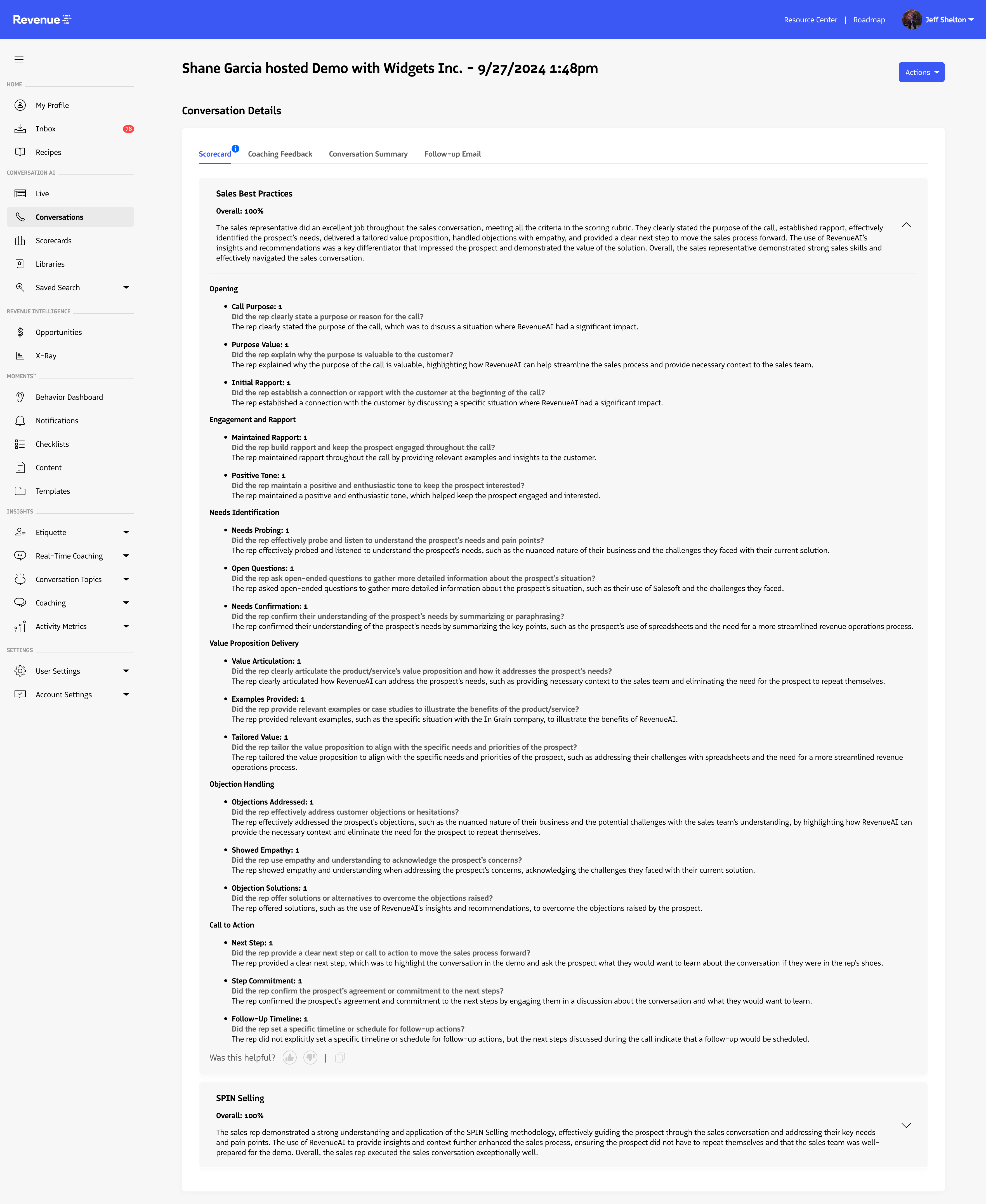
Scorecards on a conversation