Conversation Agents
- Conversation agents must be enabled at the account level before they run on conversations
Learn how to access, enable, and use out-of-the-box conversation agents. After each conversation ends, agents analyze the transcript in the background and make extracted insights available on the conversation record, in reporting views, and in mapped Salesforce fields.
Roles and permissions
- Admin / Support: View all agents; enable, disable, or edit any agent; configure Salesforce field mapping
- Supervisor: View all agents; enable, disable, or edit agents scoped to their team
- Agent: View agents they are targeted to; see extracted insights on conversations they own; view their agent insights under My Profile > Agents tab. Access to conversation agents varies by targeted roles. Learn more about managing roles and methodologies.
How to access Conversation Agents
- Log in to the Revenue app.
- Select Conversation Agents from the left navigation.
This opens the Conversation Agents list page, which displays all available agents with their name, description, current status (enabled/disabled), and Salesforce field mapping status. You can search agents by name or description using the search bar at the top of the list.
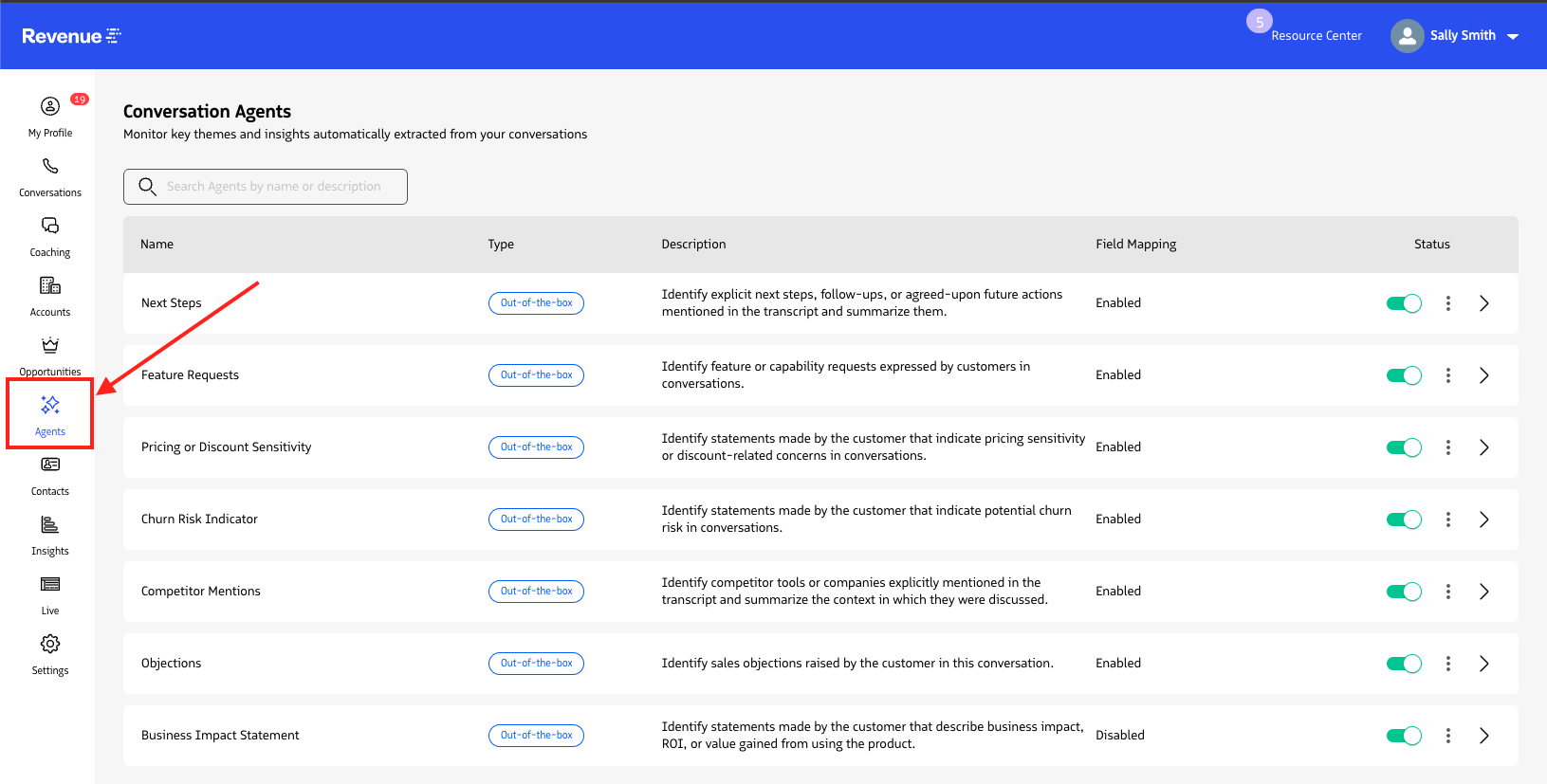
Select Conversation Agents from the left navigation in the Revenue app.
How to enable Conversation Agents
Out-of-the-box agents are available in your account by default but must be enabled before they will run on conversations. An Admin or Support user must complete this step.
- From the Conversation Agents list, locate the agent you want to enable.
- Use the toggle in the agent row to turn it on.
- To configure the agent before enabling it, click the kebab (⋮) menu and select Edit.
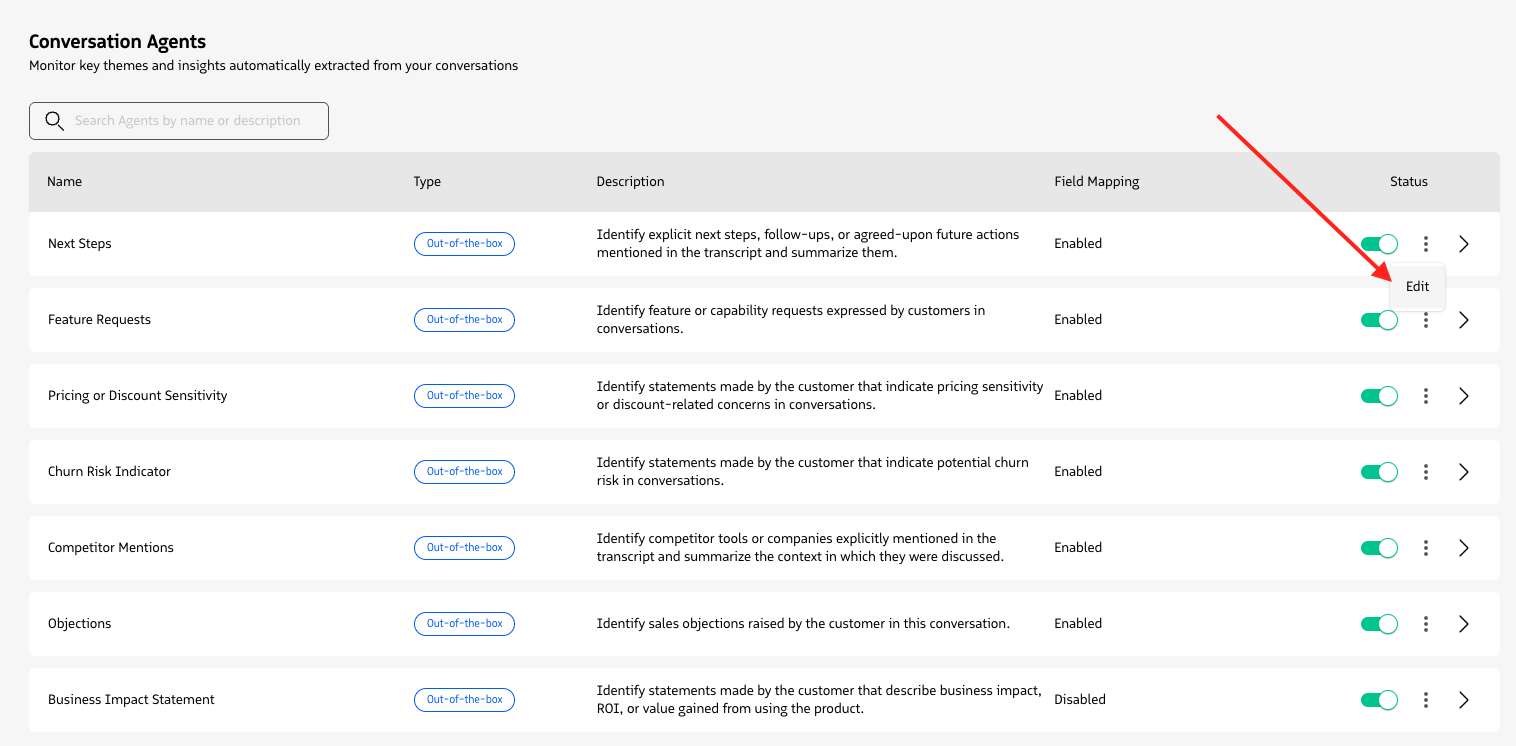
Conversation Agents can be configured through the Edit button.
On the edit page, you can configure:
- Conversation scope: Apply the agent to all conversations, or limit it to specific opportunities, campaigns, cases, individuals, events, or dispositions
- Targeting: Run the agent for all users, or target specific teams, roles, or individual users (with optional user exclusions)
- Salesforce field mapping: Map the agent’s extracted output to a Salesforce text field, and choose the field update behavior: append to existing content, override existing content, or do nothing if the field already has data
Note: If you plan to map to a Salesforce field, select a field with a higher character limit. The system will warn you during setup if the selected field is too short, which can cause field mapping failures.
Once enabled, the agent will run automatically on all new conversations that match its configured scope and targeting.
How Conversation Agents work
Agent execution
Agents run automatically after setup. No manual action is required per conversation. Once a conversation ends and transcription is complete, the system checks which agents apply to that conversation, processes each one using the transcript and the agent’s predefined prompt, and stores the results.
Available out-of-the-box agents
The following agents are available and ready to use without any prompt configuration:
- Next Steps: Action items and follow-up commitments discussed in the conversation
- Competitor Mentions: References to competitors, including context and tone (comparison, objection, preference)
- Business Impact Statement: Customer expressions of value, ROI, or product impact, useful for Customer Success and expansion
- Objections: Sales objections or blockers raised, including concerns about features, integrations, or pricing
- Pricing or Discount Sensitivity: Mentions of pricing concerns, discount requests, or negotiation signals
- Churn Risk Indicator: Signs of dissatisfaction, lack of perceived value, or intent to switch
- Feature Requests: Feature asks or desired capabilities expressed by the customer
Agent names and descriptions are fixed and cannot be edited for out-of-the-box agents.
Viewing extracted insights
Extracted insights appear in three places:
On the conversation record: Under the Insights tab on the conversation record page. Conversation owners, including agents who do not have broader Insights access, can see what agents extracted from their conversations. You can copy extracted text directly from this view.
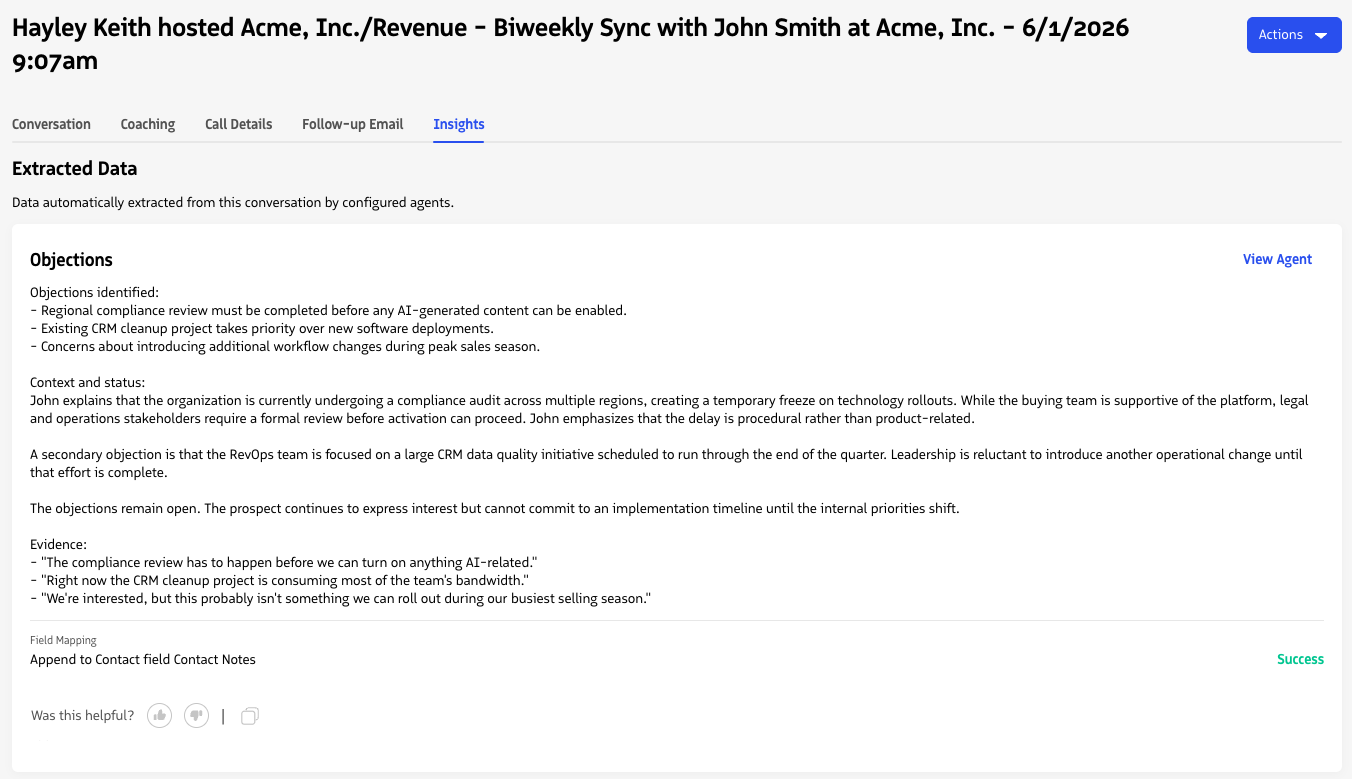
On conversation record pages, the Insights tab shows extracted text from applicable Conversation Agents.
On the agent report page: Each agent has a dedicated report page with an AI-generated analysis summarizing themes and patterns across all conversations the agent has processed. The default view covers the last 30 days. You can filter by date range, user, team, and account. The Extracted Conversations list shows each conversation with a link, date, owner, and Salesforce field mapping status.
To view the prompt used by an agent, click the icon on the agent report page and select View Prompt.
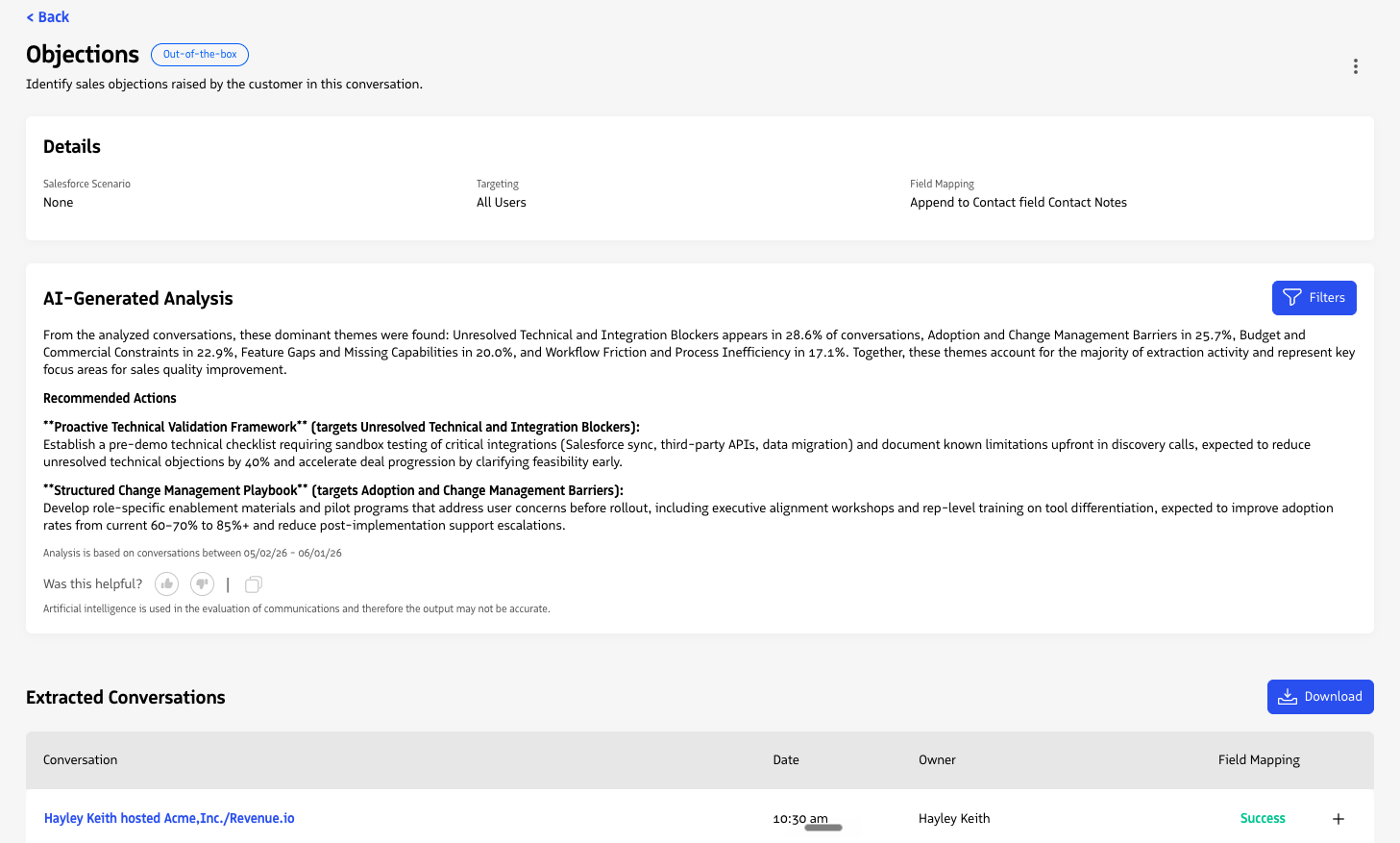
See the Conversation Agent report for AI-generated analysis and extracted text per conversation.
In My Profile: Agents can view their own agent insights under My Profile > Agents tab. This tab only appears if at least one agent has extracted text from the user’s conversations. Data is scoped to conversations the user owns.
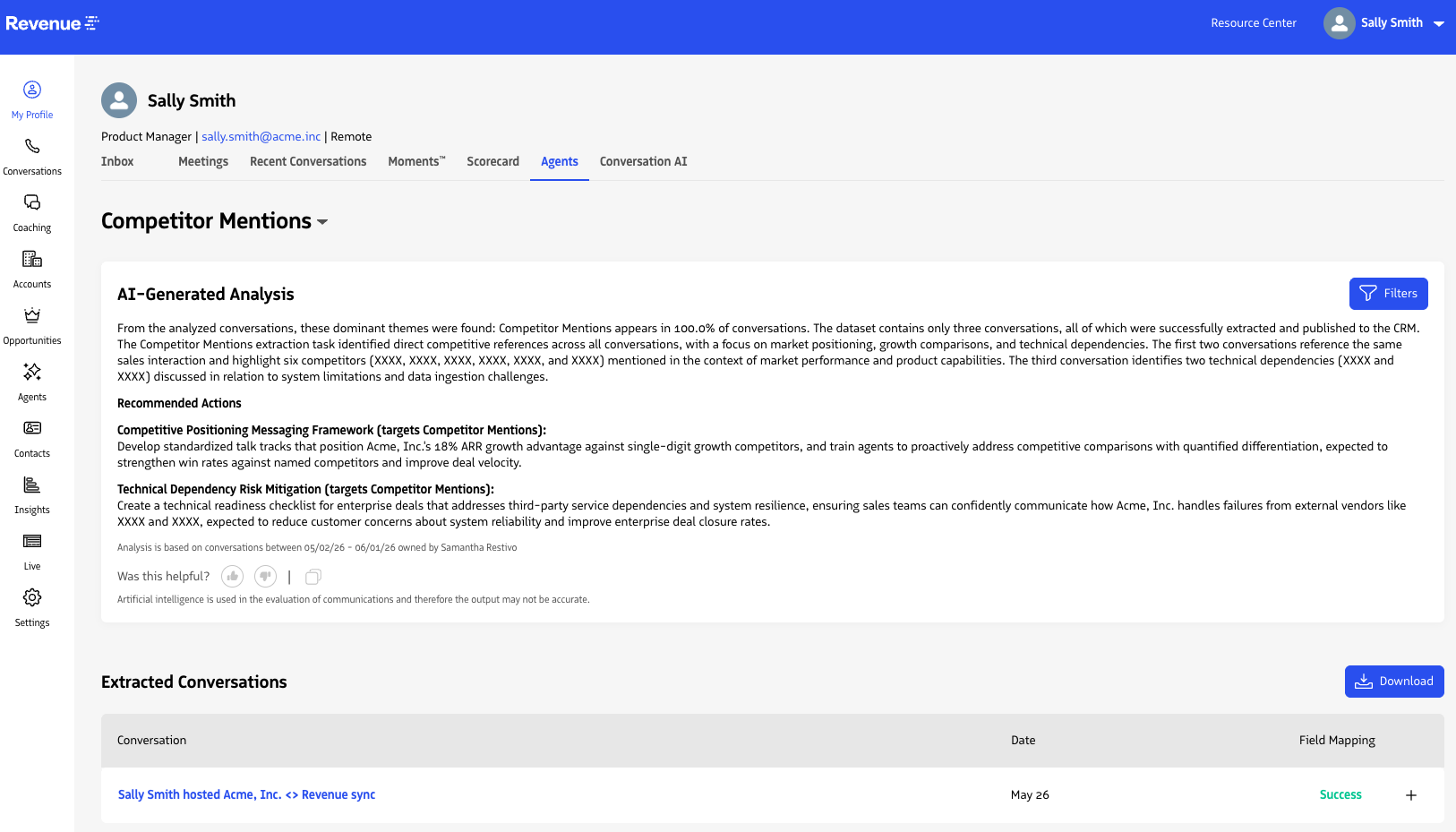
View Conversation Agents data from conversations you own under My Profile.
Salesforce field mapping
If field mapping is configured, the system writes extracted insights to the specified Salesforce field after each conversation is processed. Field mapping status is visible on both the conversation record page and the agent report page.
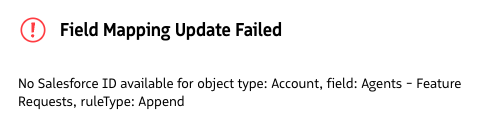
If a field mapping fails, an info icon appears next to the status on the conversation record. Click the icon to see a plain-language explanation of the failure reason.

Click the info icon next to a Conversation Agent failure to see the reason.
If field mapping is disabled on an agent, a banner on the agent report page will prompt you to navigate to the edit page to enable it.
Known limitations
- Custom agents are not yet supported. Only the seven out-of-the-box agents listed above are available.
- Salesforce field mapping supports text fields only. Boolean, numeric, and other field types are not currently supported.
- Agents only run on conversations after they are enabled. Existing historical conversations are not retroactively processed when an agent is enabled.