Complete a Notification in Moments™
During live conversations, you may receive multiple notifications with real-time guidance. Some notifications have completion phrases that automatically dismiss when you say a specific word or phrase during your conversation. For other notifications, you can manually mark them as “Done” to indicate you’ve used or addressed the guidance. This helps you track your progress and manage your notifications.
Checklists are a special type of notification that contain a task list or talk track within an overarching notification. When a Checklist is triggered, you’ll see 1-3 checklist items that can be completed individually. Each checklist item can be completed by clicking its checkbox or by speaking a completion phrase.
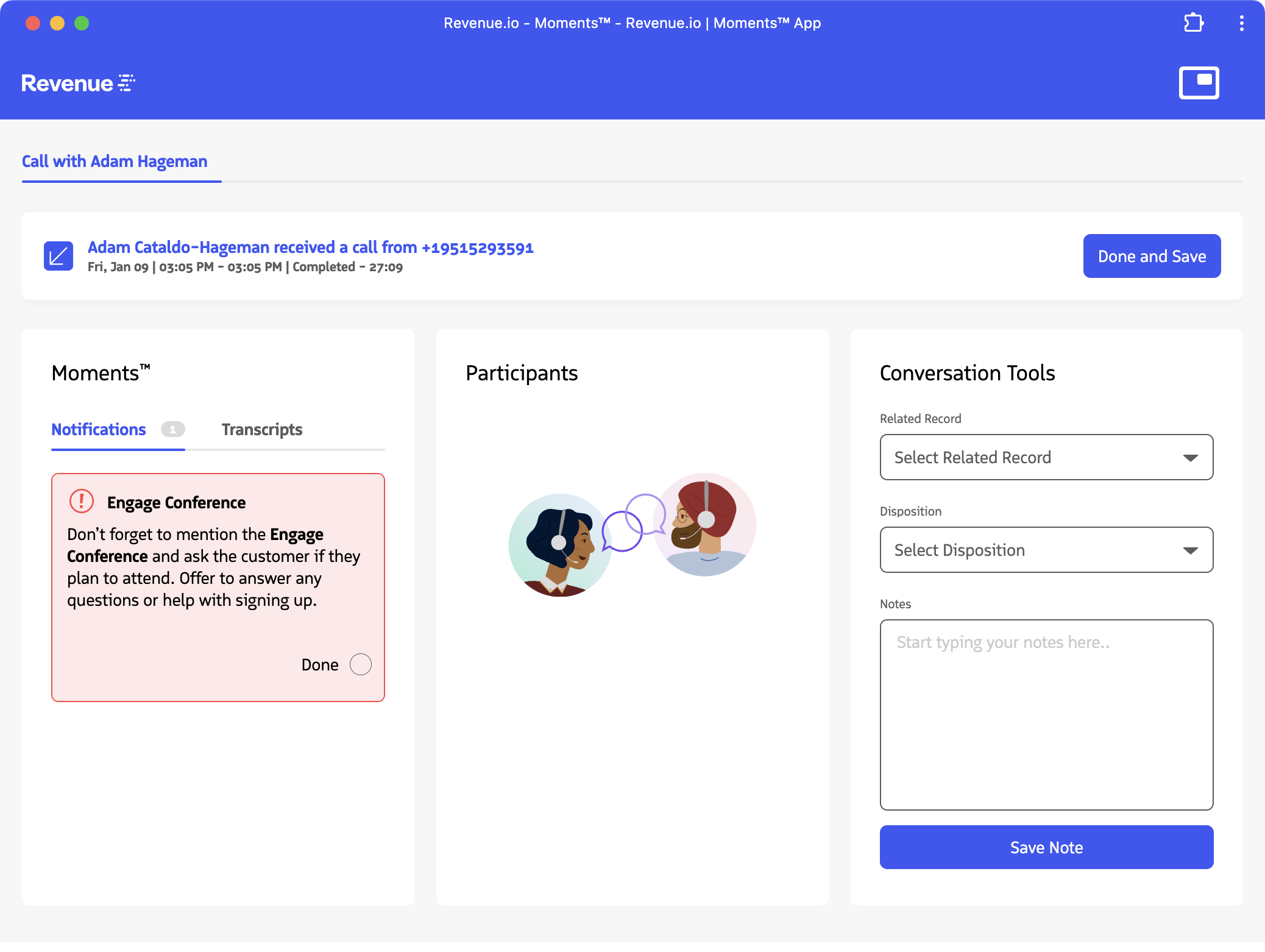
Why Complete Notifications
Notifications are an indication that your supervisor wants you to do or say something during your conversation. When you mark a notification as “Done” or speak the completion phrase, the notification is dismissed and signals back to your supervisor that you’ve completed the requested action. This helps your supervisor track your performance and ensures you’re following important guidance in real-time.
If you’ve created notifications for yourself, completing them helps you track your own progress. You can see how you’ve improved over time in the reports, which helps you identify areas where you’re excelling and areas where you may need more practice.
Important: Incomplete notifications remain visible during your conversation and are tracked in reports as “No Engagement.” Your supervisor can see which notifications you didn’t complete, so it’s important to address and mark notifications as “Done” when appropriate.
How It Works
- Done icon: When a notification is triggered, a Done icon appears in the bottom-right corner
- Mark as done: Click the Done icon only after you’ve addressed the guidance in your conversation, not just when you see the notification
- Automatic completion: For some notifications, if the target phrase is detected as spoken, the notification is automatically marked as “Done”
- Cannot undo: Once a notification is marked as “Done”, it cannot be undone. Make sure you’ve actually addressed the guidance before marking it complete
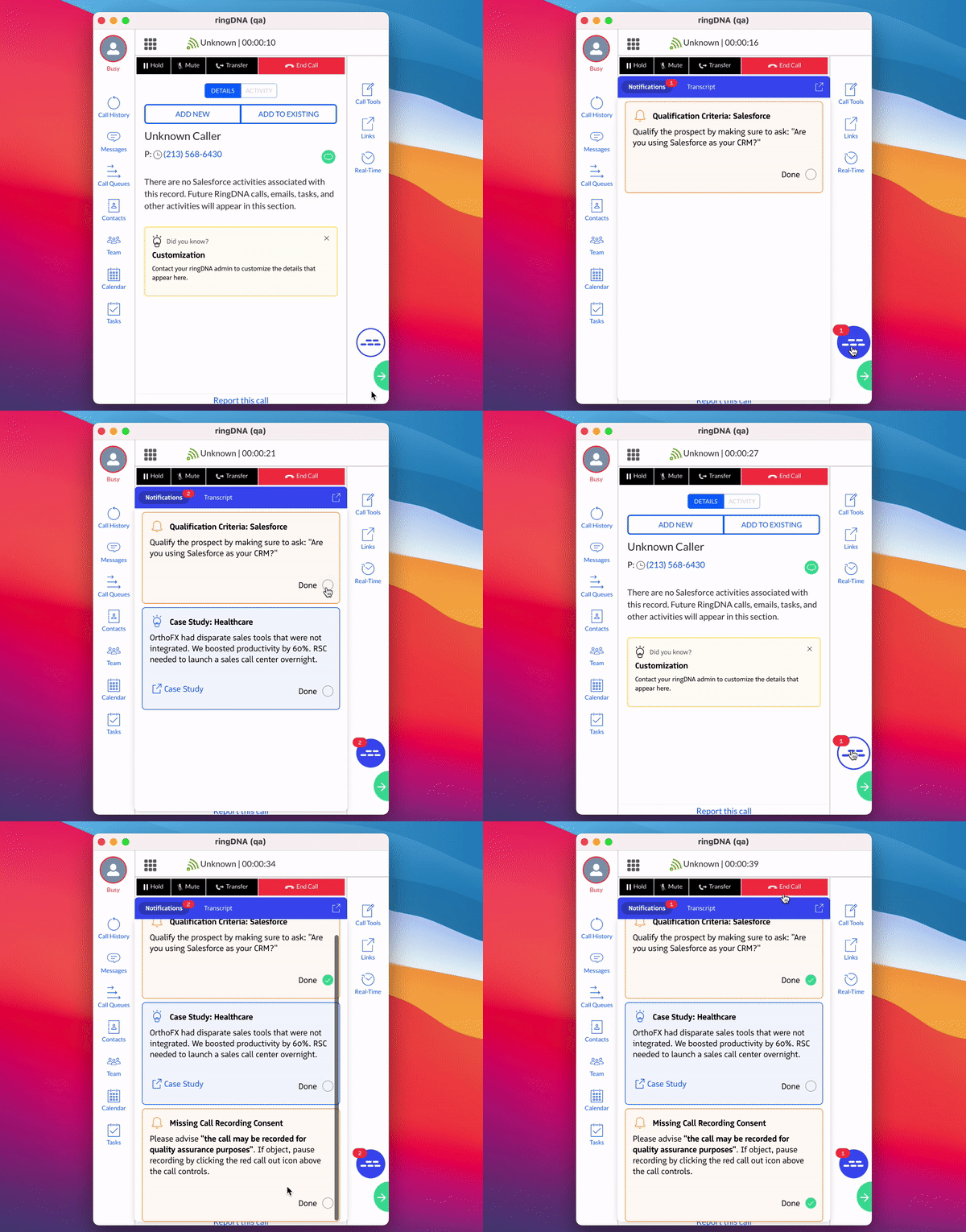
Once a notification is marked “Done” (either manually or automatically via completion phrase), it disappears from view, the count of incomplete notifications decreases, and your supervisor is notified that you’ve completed the action.
Complete Checklists
Checklists are a special type of notification that provide actionable reminders of best practices to apply in real-time. They help you follow critical talk tracks and complete important steps during your call or meeting.
Access Checklists
Steps to access:
- While on a call, open the Moments™ App
- Click the Checklists tab

After clicking the Checklists tab, the Checklists panel opens showing your active checklists.

How Checklists Work
- Triggers: A Checklist is triggered when a targeted phrase is spoken (or not spoken), or when a certain amount of time has elapsed during a call
- Items: A Checklist can display up to 3 individual checklist items to complete
- Completion: You can mark items as complete in two ways:
- Click the checkbox next to the item. The item is greyed out when completed.
- Speak a required completion phrase. The checkbox is automatically marked and the item is greyed out.
- Visibility: A Checklist remains visible until all individual items are completed
- Full completion: Once all items are completed (in any order), the Checklist is fully completed and disappears from view, just like a regular notification