Automatic Participant Linking and Primary Contact Logging
Overview
Automatic participant linking and primary contact logging streamlines meeting workflows while keeping you in control. By combining intelligent matching with clear suggestions and override protection, Revenue ensures your meetings are accurately reflected in Salesforce with minimal effort.
When enabled, Revenue automatically matches meeting participants to Salesforce records and assigns a primary contact when there is a clear match, based on the Admin defined rules.
This functionality works across both Upcoming Meetings and during the Live Meeting in Moments™, providing a consistent experience before and during calls.
Why It Matters
With automatic participant linking and primary contact logging, you can:
- Save time by reducing manual data entry
- Improve Salesforce data accuracy with consistent matching logic
- Maintain control with the ability to review and adjust matches
- Ensure meetings are properly logged to the right records
- Power features like Scorecards and Conversation AI using accurate data
Pre-requisites
Account must be using the Meeting Assistant
Host must have a connected Google or Exchange calendar
- Steps to connect a calendar can be found here
How to Enable
- Go to Admin and navigate to Integrations → Video Meetings → Participant Linking
- Enable the following settings:
- Allow automated participant linking
- Allow automatic primary contact logging (optional)
- Allow multi-match participant linking (optional)
Changing settings will apply to upcoming meetings only, and will not apply changes to past meetings.
Participant Linking Settings
Admins can define participant matching methods for their account.
Email or Name Match
When a participant is invited to the meeting, they can be automatically linked when:
- The participant’s email exactly matches a Salesforce record on the invite OR
- The participant’s meeting display name exactly matches a Salesforce record
- Example: if the Salesforce record is Samantha Smith and the participant joins as Sam Smith, this is not an exact match and will not be auto-linked.
- Note: Matching is not case-sensitive (e.g., “SAM SMITH” = “Sam Smith”).
Additional conditions:
- Record type must match the Record Type Preference set in Admin
- If Person Accounts are enabled, the record must be a Person Account
When a participant joins via shared link (not invited), they can be automatically linked when:
- The participant’s display name exactly matches a Salesforce record
The same record type rules apply as above.
Multi-Match Behavior
When multi-match is enabled, If multiple Salesforce records match:
- Tie-breaker logic (defined in Admin) is applied
- The participant is automatically linked to a single record
When multi-match is disabled, If multiple Salesforce records match:
- No automatic linking occurs
- Suggested matches may be shown for manual selection
When No Match Is Found
No automatic linking or suggestions occur when:
- No exact match exists in Salesforce
- Email and/or name do not match any record
- Multiple Salesforce records match for a participant, and Allow multi-match participant linking is disabled
- Record type doesn’t match the Record Type Preference set in Admin
Email Match
When Email match is selected, automatic linking occurs when:
The participant is invited to the meeting and their email exactly matches a Salesforce record
A single match exists
OR
Multiple matches exist and multi-match is enabled (tie-breaker applies)
Suggestions (no auto-linking) occur when:
- The participant joins via a shared link (not invited)
- The participant is invited to the meeting and their email has no exact match to a Salesforce record
- Multiple matches exist and Multi-match is disabled
Primary Contact Logging
When Allow automatic primary contact logging is enabled, Revenue assigns a Primary Contact (WhoID) when a single match is identified.
- If multiple external participants exist, Allow multi-match participant linking must be enabled to allow automatic assignment
- If a single match cannot be determined:
- No automatic assignment is made
- Suggested contacts may be shown
Known limitations
Does not support automated linking when Meeting Assistant is manually added to a meeting.
Attribution may be limited for unscheduled/instant meetings because there is no calendar event data with email addresses.
Users will be under a single list (not split by external vs colleague)
We will only be able to rely on name matching (no email)
Fuzzy matching is not supported. A user during the live meeting must have the exact same display name as a Salesforce record to be matched automatically
If Email Only matching method setting is selected, any participants that join a meeting and weren’t on the original invite list will not be able to be automatically associated.
- This is because participants in the live meeting only have their display name to provide, so we can’t match them.
We don’t support recurring meetings where if you link a participant or set a primary contact manually, it applies to all occurrences of that meeting. The automation logic will run for every instance of the meeting, and if manual selection is needed, it will need to be done for each instance.
How It Works
Automatic Participant Linking
Revenue automatically matches meeting invitees to Salesforce records based on your configured matching rules.v
Upcoming Meetings
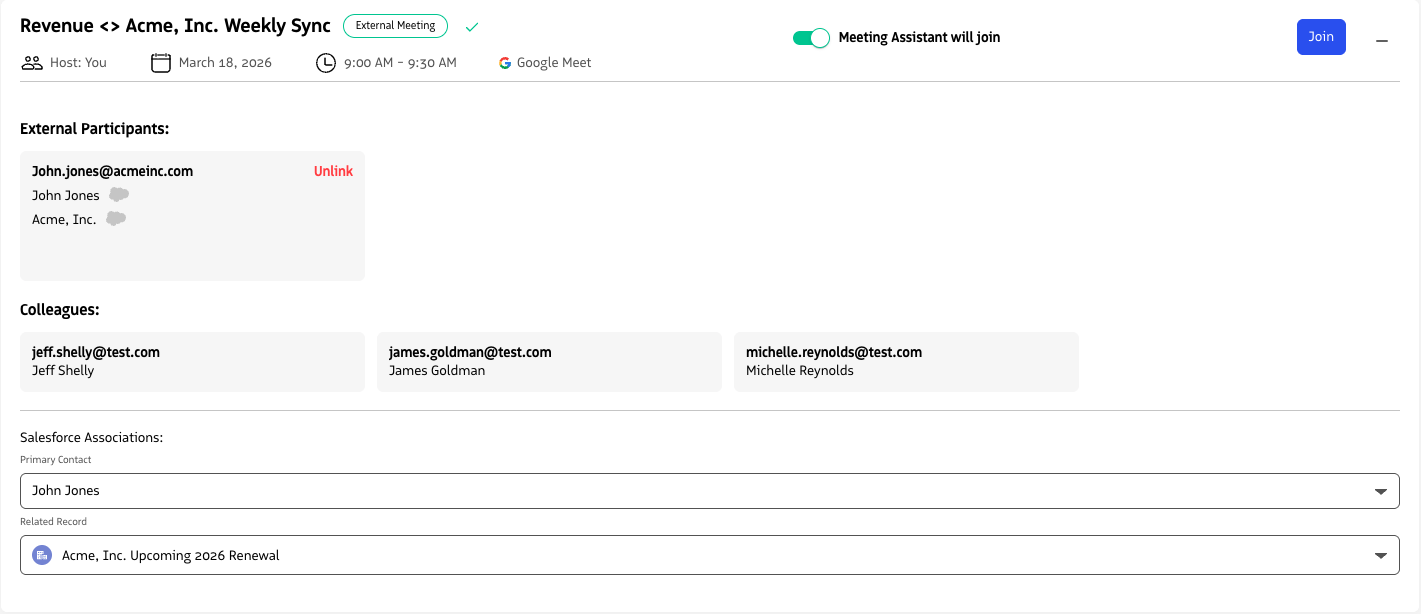
- Invitees are pulled from the calendar event
- Participants are categorized as:
- Colleagues (same domain as the host or Additional Domains listed in Admin)
- External participants (all other invitees that aren’t a colleague)
Automation applies only to external participants.
Hosts can:
- Override matches
- Unlink participants
- Select a different record
- Create new Leads or Contacts
- Only the host can modify linking and primary contact
- Non-hosts can view but not edit
Live Meeting in Moments™
- Participants are categorized as Colleagues vs External as they join the meeting
- Matching is based on display name only
- Exact match is required for automatic linking
Behavior:
- Existing associations from Upcoming Meetings are retained
- Remaining participants are re-evaluated using matching rules
- As participants join, participant linking automation runs
User actions:
- Hosts can override or adjust matches at any time
- Hosts can create new records if needed
Automatic Primary Contact Assignment
- If one matching record is found → it is automatically set as the Primary Contact
- If multiple matches are found → no automatic selection is made. You may see suggested primary contacts to choose from.
Manual Control and Overrides
The host always remains in control of participant linking and primary contact selection.
- If you change or remove a primary contact or linked participant:
- Your selection is respected
- Automation will not override your changes
- You can:
- Select a different linked participant, or primary contact
- Clear the linked participant, or primary contact