Email templates
Email Templates (RDNACadence__Email_Template__c) are preconfigured email content used in Email actions in sequences. When you add an Email action to a sequence, you will typically compose an email template in the Sequence Builder. When users click the Email button from Engage, their message pre-populates with the exact language you want them to use, along with merge fields populated.
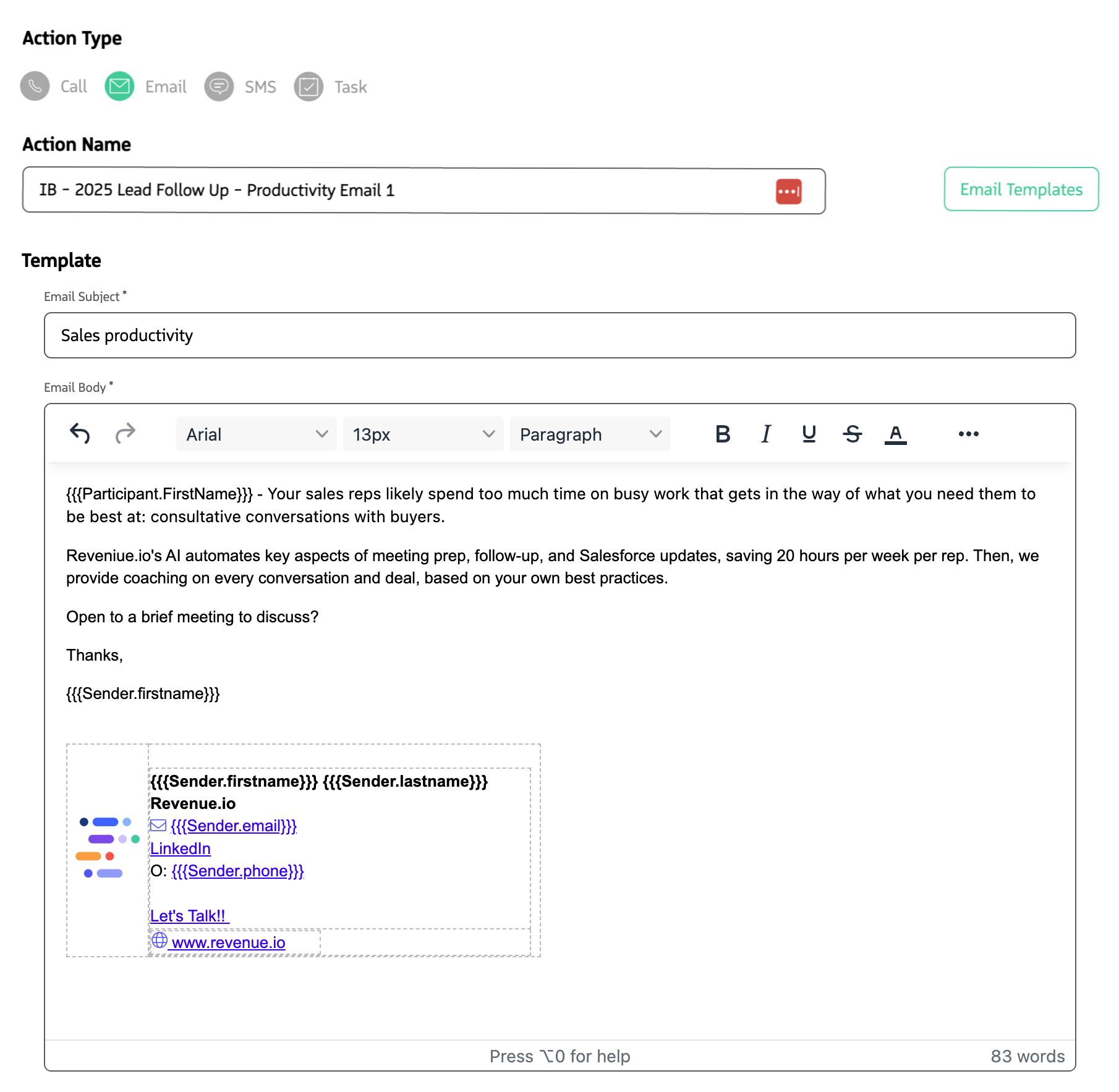
Email templates are composed on Email actions and used when the user sends from Engage.
Email Template Builder
Typically, email content is built one-off when you add an Email action to a sequence. The Email Template Builder lets you create reusable Email Templates that you can use across multiple sequences. This is helpful when you have a common email template structure you want to reuse as you build out sequences.
A Sequence Admin can click the green Email Templates button to browse these saved templates, then further modify them to tailor the content to the specific sequence.
Create a reusable Email Template
- Navigate to the Guided Selling app
- Click
Templatesin the top menu - Click
Create Template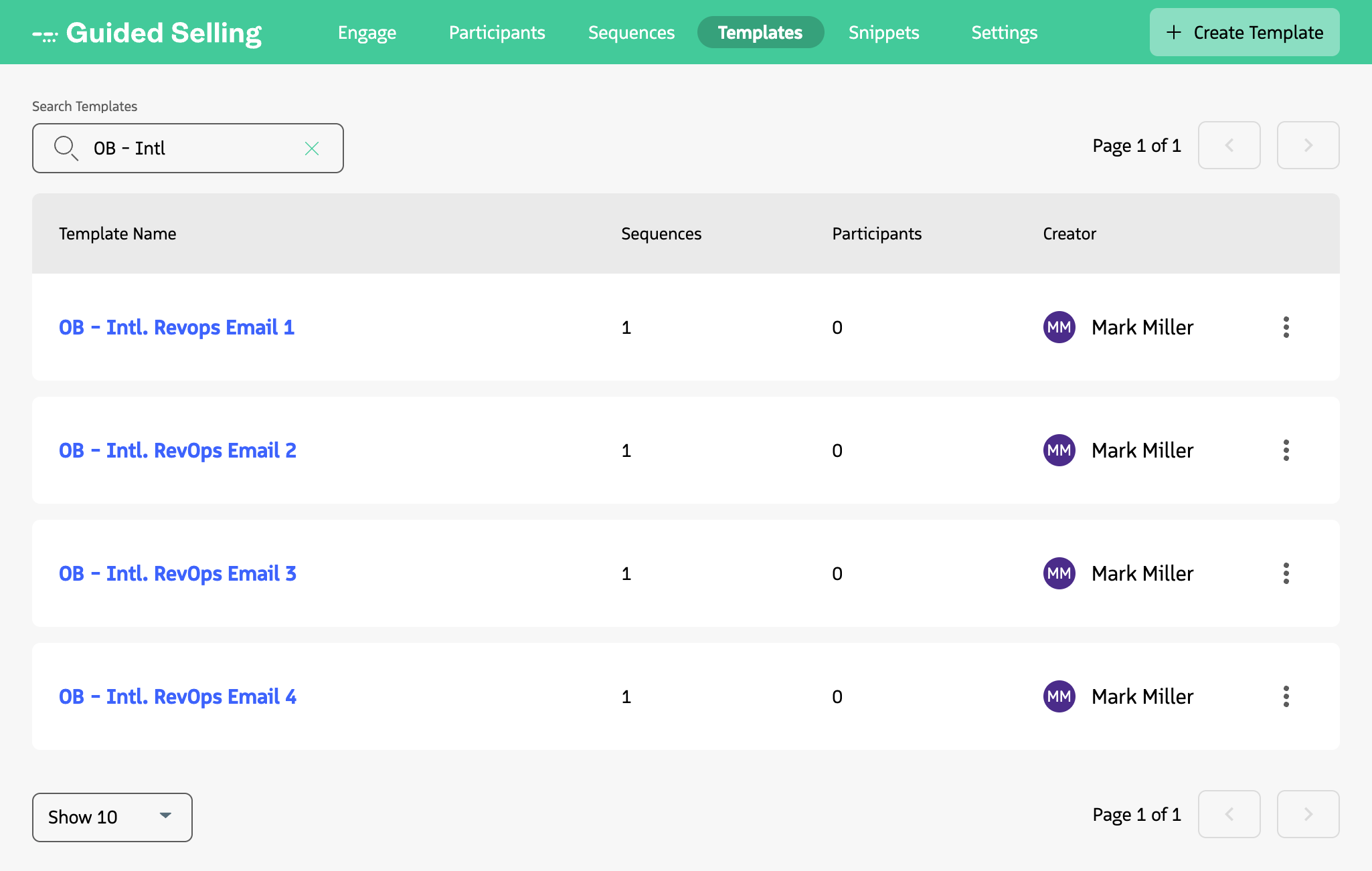
Viewing the Templates list in Guided Selling.
- Enter a name for the template
- Use the Rich Text Editor to compose the email template
- Add merge fields where needed
- Format the content as desired
- Click
Save
Rich Text Editor features
The text editor includes basic formatting options you would expect, plus features that help your email templates drive success:
Merge Fields
Merge fields are dynamic text that you can add to your email templates. For example, if you want to open an email with “Dear First Name,” you can insert a merge field for the recipient’s first name. Click the Merge Field { } button on the Rich Text Editor to see a modal of fields available to you.
The Merge Fields are split into two sections, Participant and Sender:
- Participant fields: Pull any fields on the Lead or Contact (some fields such as First Name are available on both). An icon indicates which record type uses that field. An orange person icon represents a Lead and the purple ID card represents a Contact.
- Sender fields: Include fields available on the User profile for the Participant Action owner, i.e., the person who will be sending the email.
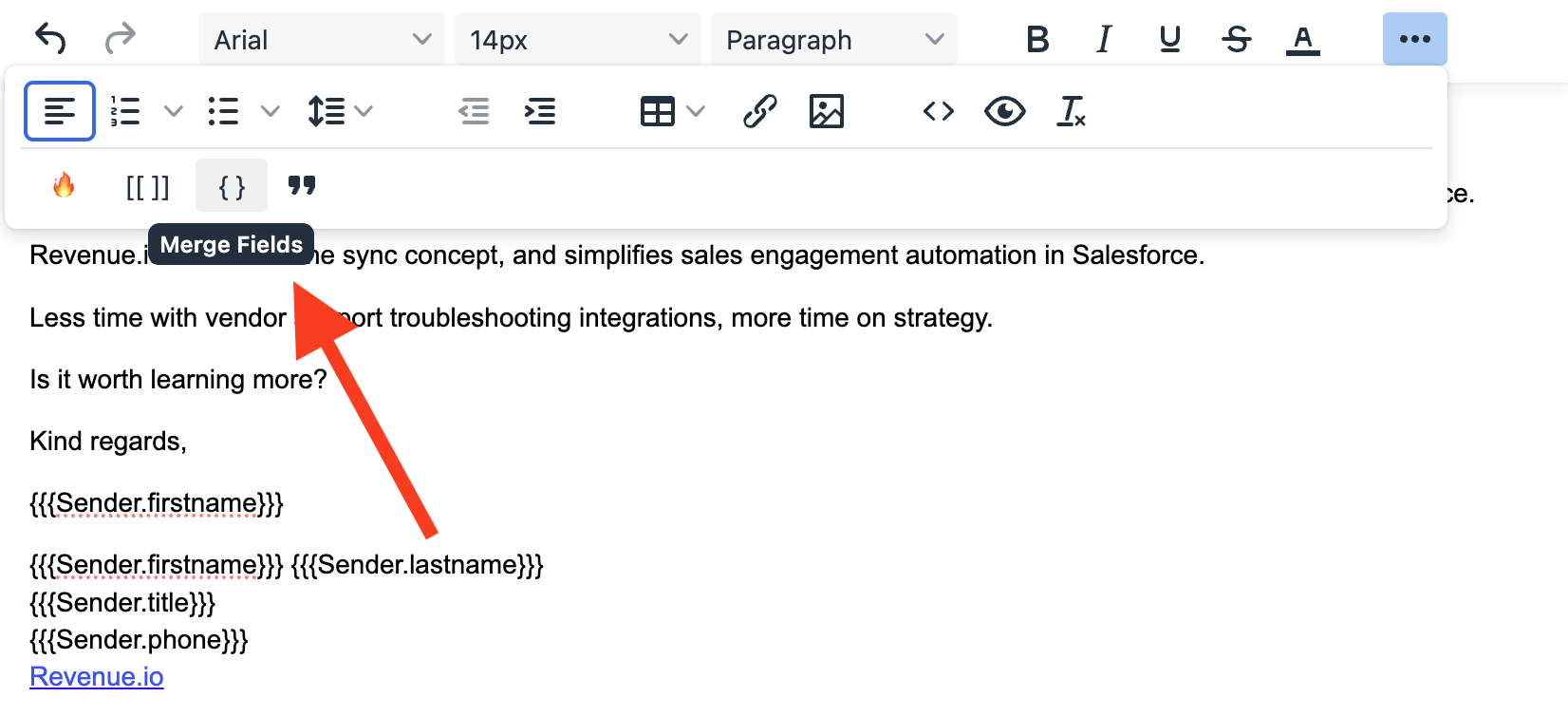
Adding merge fields to an email template.
Make selected text required to update
If you are creating a manual email and want users to add personalization before sending, you can highlight text in the email template and set it as required for update. This highlights the text and requires users to click into the text to update it before sending.
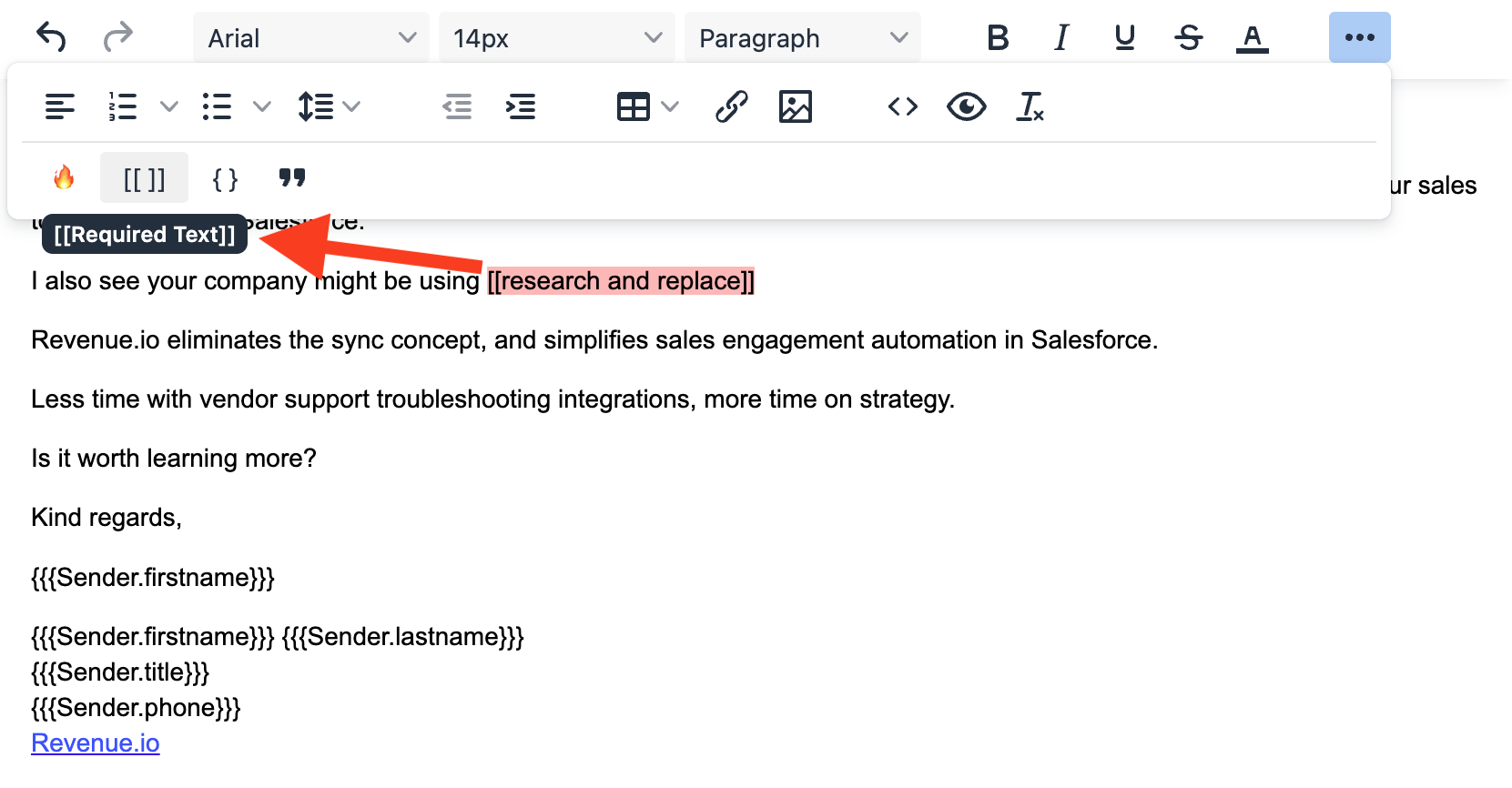
Making selected text required to update before sending.
Snippets
You can insert existing blocks of text using the Snippets feature. This opens a modal where you can select from a list of existing blocks of text.
Formatting tips
- TextArea merge field line breaks: When you use TextArea fields as merge fields, line breaks in the field value are not respected in the rendered email. To get line breaks in the output, store HTML line breaks in the TextArea value. Use the
<br>tag between lines—for example:This is Line 1<br> This is line 2<br> This is line 3. - Paste without formatting: Pasting from websites, Google Docs, or Word can introduce invisible formatting that affects how the template looks. Paste without formatting so only plain text is inserted, then apply formatting in the editor. Use
Ctrl+Shift+V(Windows) orCmd+Shift+V(Mac). - Dynamic links (personalized URLs): You can build hyperlinks whose URL includes a merge field (for example, a personalized tracking or landing-page link). For steps and examples, see the Dynamic links using merge fields video.
Signature lines
For email signatures, it’s a best practice to create your company’s email signature in either a template that is copied for each new email action or as a Snippet that you can drop into each email.
To create a signature, use Sender fields to pull information from the user profile.
Test your email
You can send a test email to verify formatting and merge fields are working correctly. You can send a test while editing the template or after you have saved the template on the action viewer.
Send Test Email
- Click the
Send Test Emailbutton - Choose either Lead or Contact for object type
- Search for and choose the lead or contact whose fields you want to use for the test
- Click
Send
Email threading
Email threading keeps replies to sequence emails in the same conversation thread. When a participant or lead replies to an email sent from an Email action, that reply is associated with the original message so agents can see the full back-and-forth in context (for example, in the participant’s activity or in their email client). This helps agents follow the conversation and avoid sending duplicate or out-of-context messages. For how subject lines and action order affect threading (what threads vs. what does not), see Email & Send Limits → Email threading behavior.
Best practices
- Use merge fields to personalize emails
- Keep templates focused and clear
- Test templates with real data before using in sequences
- Use snippets for reusable content like signatures
- Mark required text for manual emails that need personalization
- Review and update templates regularly
For guidance on domain warmup, opt-in, sender score, and blocklists, see Email deliverability.