Actions
Sequence actions are the individual steps that make up a sequence. These are the phone calls, messages, emails, and tasks that your users are assigned as the participant moves through the sequence.
When you add actions to a sequence and define their order and timing, each enrolled participant receives a corresponding set of Participant Action records. Those records track when each action is due, whether it is manual or automatic, and whether it has been completed, skipped, or deferred.
Action types
Guided Selling supports four action types:
| Type | Description |
|---|---|
| Call | A phone call the user makes to the participant (e.g., via the softphone). |
| SMS | A text message sent to the participant. |
An email sent to the participant; can be manual (user clicks Send) or automatic (sent when due). | |
| Task | A Salesforce Task assigned to the user; the participant action is completed when the task is completed. |
Call actions
Call actions represent phone calls to the participant. The user initiates a call via the Call now button on Engage. When the call is made, the system creates a Conversation record with call details (start time, duration, status, and related metadata).
SMS actions
SMS actions are used for sending text messages to participants. The user can send an SMS by clicking the Message button on Engage. A valid mobile number is required, and the system performs validation before sending the message. Each outgoing SMS generates a Conversation record with details such as sent time, status, and other related metadata. SMS content can be pre-populated using an SMS Template, which are configured in the Revenue.io Admin Console.
Email actions
Email actions define emails to be sent to the participant. Content can be composed per action or use templates with merge fields.
Activation:
- Manual: The user must click
Send. Use manual activation when the email should be personalized before sending. The participant must have an email field populated and Email Opt Out unchecked. - Automatic: The system sends the email when the action is due. You can set timing to
Immediate (Any Day),Business Hours (Weekday), orBusiness Hours (Any Day).
For manual emails, the user can set subject, recipient, body, and optional Cc/Bcc. When an email is sent, the system creates a Conversation record with email details (sent date, opened date, status, replies, and undeliverable status).
Task actions
Task actions correspond to Salesforce Tasks. The participant action is marked completed when the associated Salesforce Task is closed. When you create the sequence action, you can set default values (e.g., priority and activation type). If no subject is defined, the system defaults to the action name plus a timestamp. Users can complete tasks from the Engage tab or from the Lead or Contact profile page.
Order and timing
Actions are arranged in a defined order within the sequence. When a participant enters, their first action is scheduled based on the sequence configuration—and, if enabled, subject to the Slow Drip settings. Each subsequent action is scheduled relative to the previous one (for example, after a set number of days). Completing, skipping, or deferring an action advances the participant to the next step in the sequence.
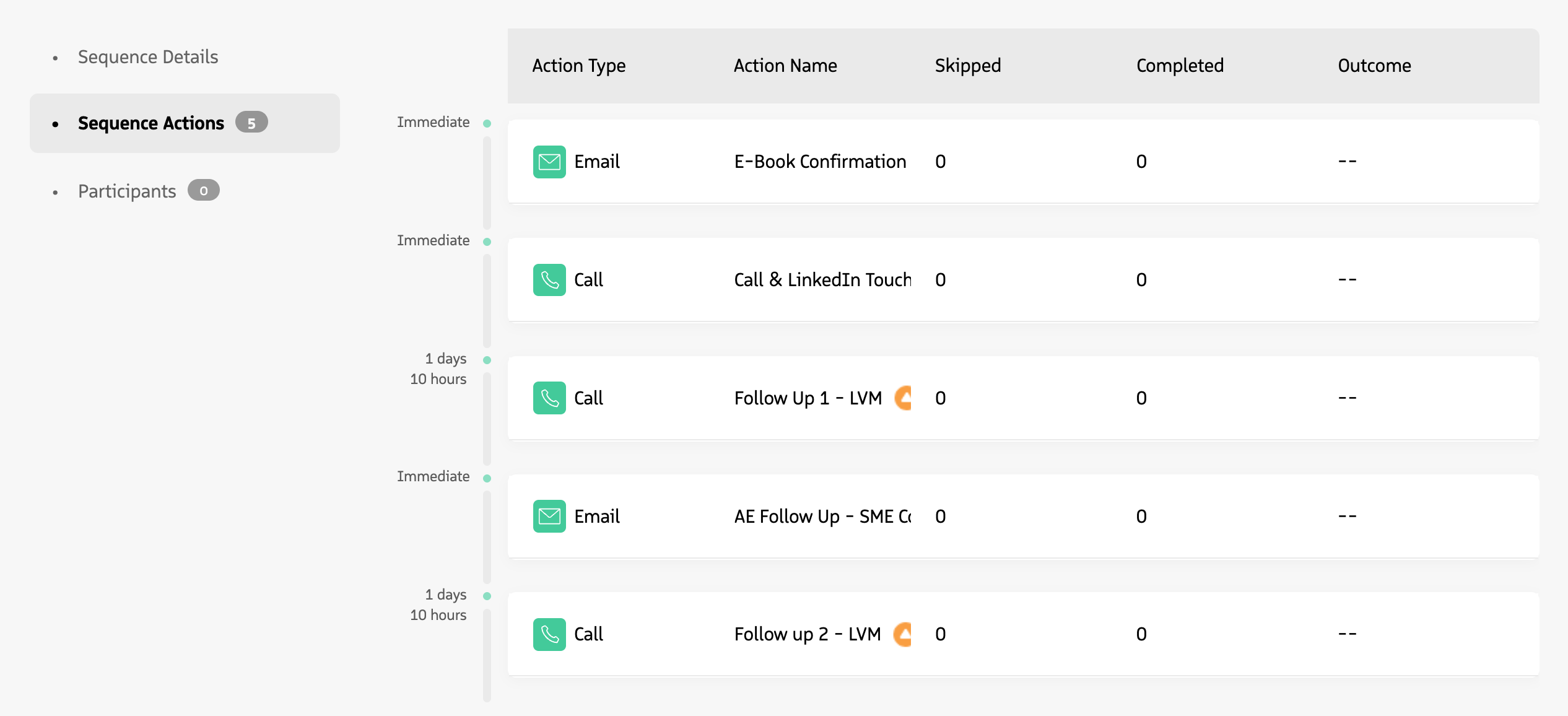
Sequence actions are arranged in order with specific timing between each step.
Advanced settings
Each action has additional settings that can be configured to allow more advanced Sequencing. When editing an Action, click the Show Advanced Settings option.
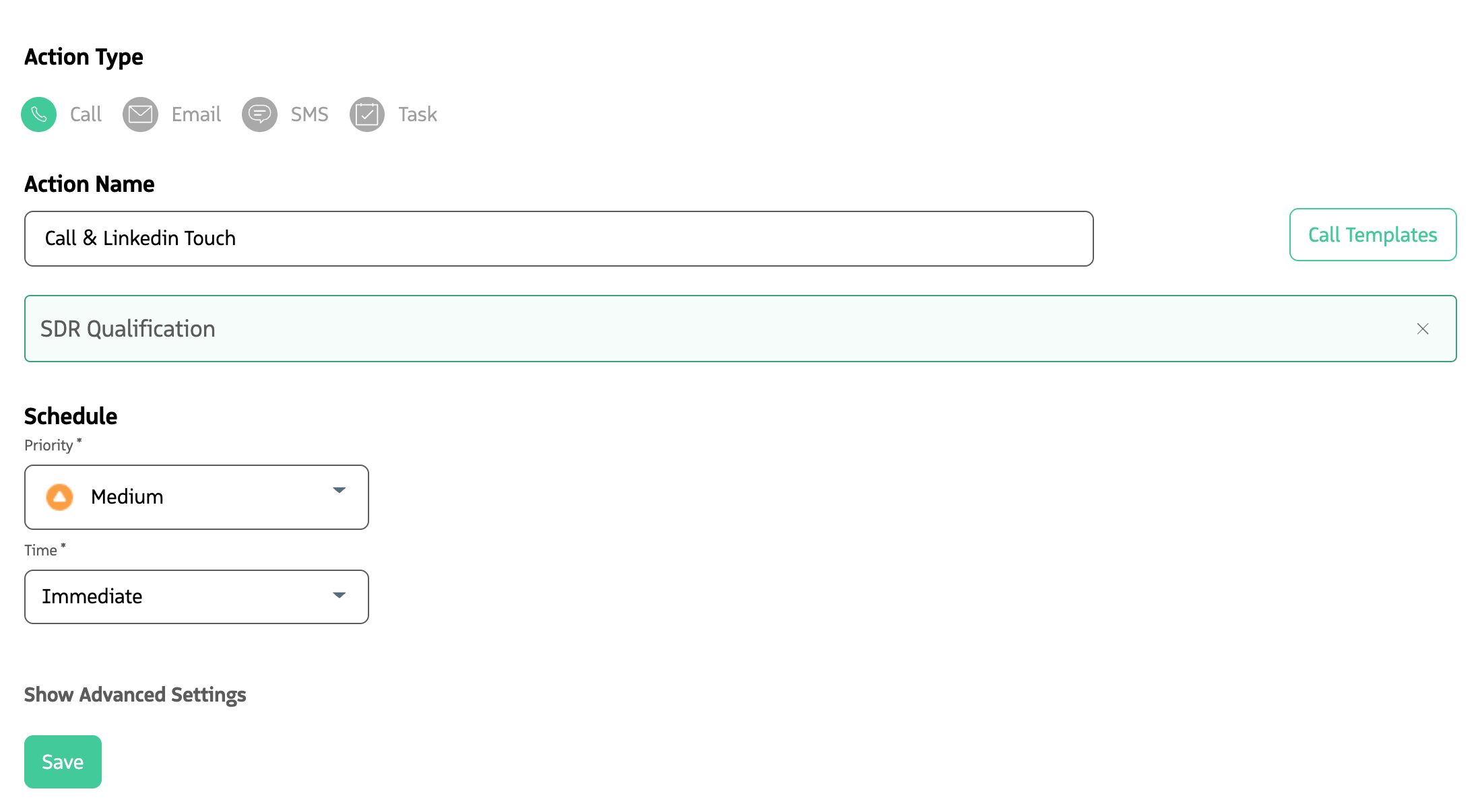
Advanced action settings allow configuration of additional criteria, record updates, delegation, and more.
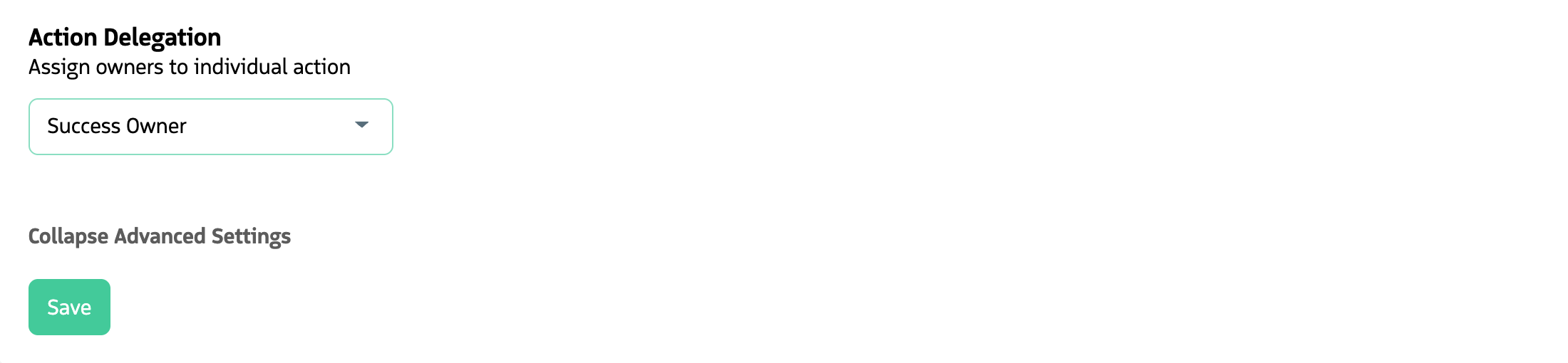
Action delegation
Delegation controls who owns and executes participant actions. By default, the participant record owner owns the actions. You can delegate ownership to another user linked to the participant (for example, via a User lookup field), so that user sees and completes the actions on their Engage tab. Delegation can be set at the sequence level or the action level. For details, examples, and permissions, see Sequence delegation.
Criteria condition
Actions can be delayed (held) until a specific set of criteria is met, or they can be skipped if the criteria are not satisfied at the time of execution.
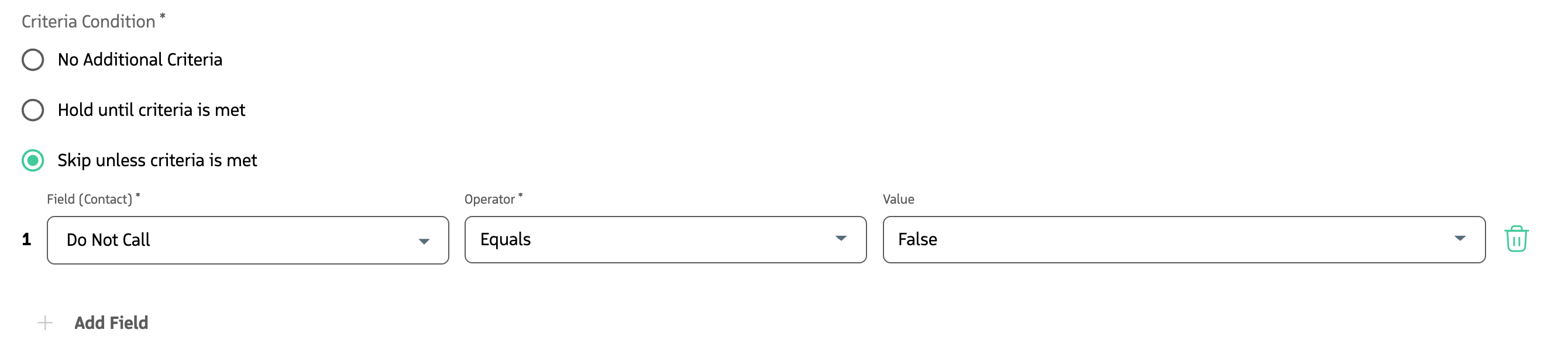
Similar to sequence criteria, action criteria provide multiple criteria options:
- AND: All specified criteria must be satisfied.
- OR: Any one of the specified criteria being satisfied is sufficient.
- Custom (e.g.,
1 AND (2 OR 3))
Record updates
When an action is performed, you can optionally update fields on the participant record (e.g., Contact, Lead, Opportunity, or Campaign) by selecting Field Updates Required and choosing a field and value.
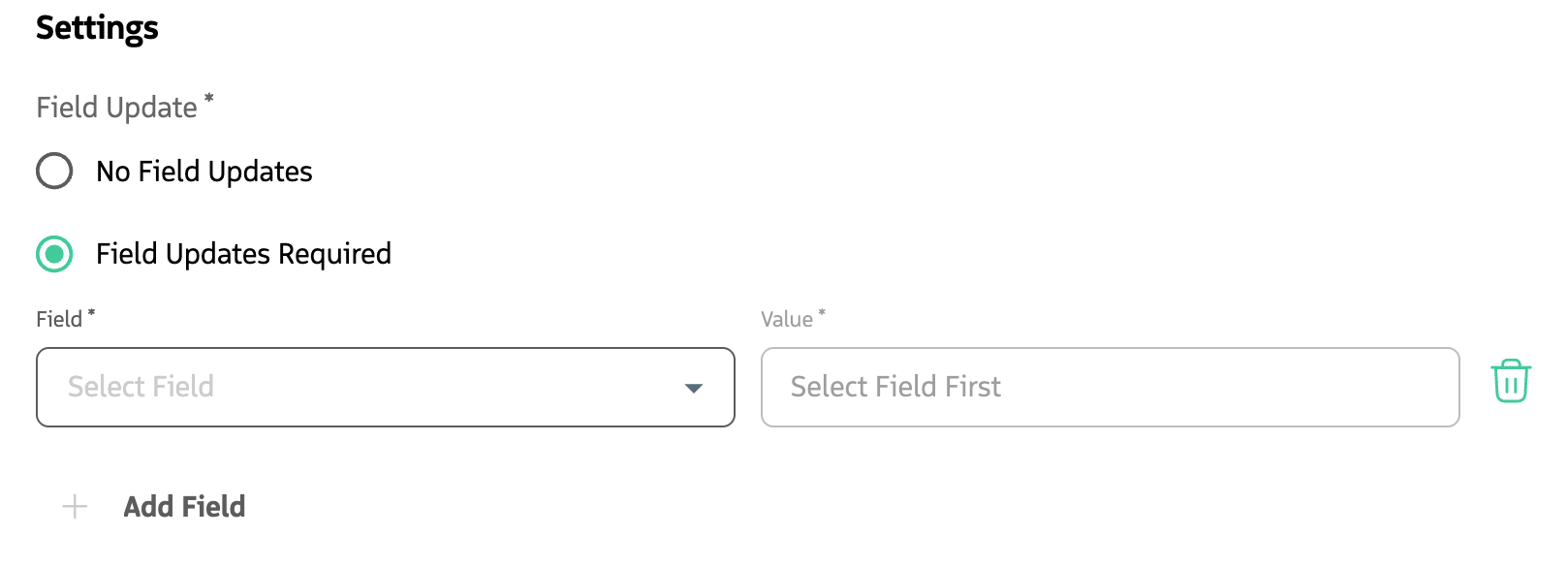
Which fields are available depends on the sequence record type and the field set configured for that type. To change or add fields, see Customize Fields in Guided Selling.
Common use cases include tracking progress, reporting, and workflow automation (for example, triggering other Salesforce automation when a field is updated).