View Sequence Details
Learn what each section of the Sequence page shows and what it is for.
Open a Sequence
- Open Salesforce.
- Click the icon (App Launcher) in the header to open the app menu.
- Search for Guided Selling and open it.
- Click the
Sequencestab. - Click a sequence name in the list to open its detail page.
Sequence Header
The top section of the page shows the sequence name, primary actions, and metrics.
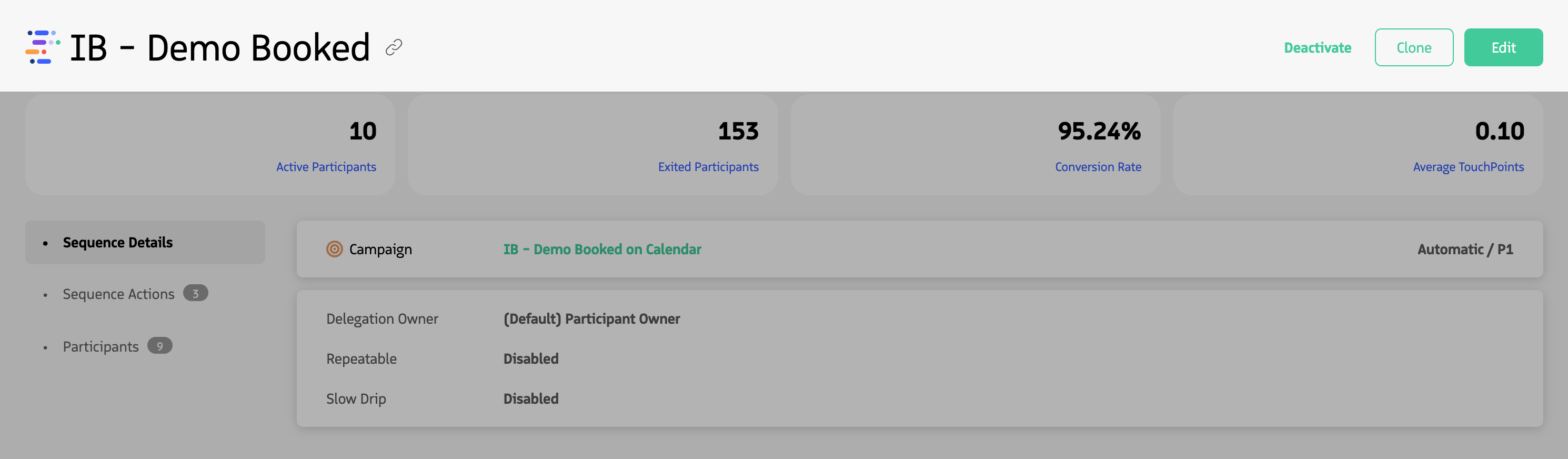
Sequence header with name and action buttons.
- Sequence name — The name of the sequence. This is displayed in the Sequence list and to users.
- Activate / Deactivate — Turn the sequence on or off. When active, participants can be enrolled (manually or automatically, depending on activation type). When inactive, no new participants can be enrolled. Existing participants remain enrolled but their actions no longer appear on the
Engagetab to users. - Clone — Create a copy of the sequence’s configuration.
- Edit — Open the sequence for editing (name, criteria, actions, settings).
See Edit, Clone, or Delete a Sequence for details on cloning and editing.
Metrics cards
Below the header, a row of metric cards gives at-a-glance performance: how many participants are active or have exited, average engagement, and (for leads) conversion.
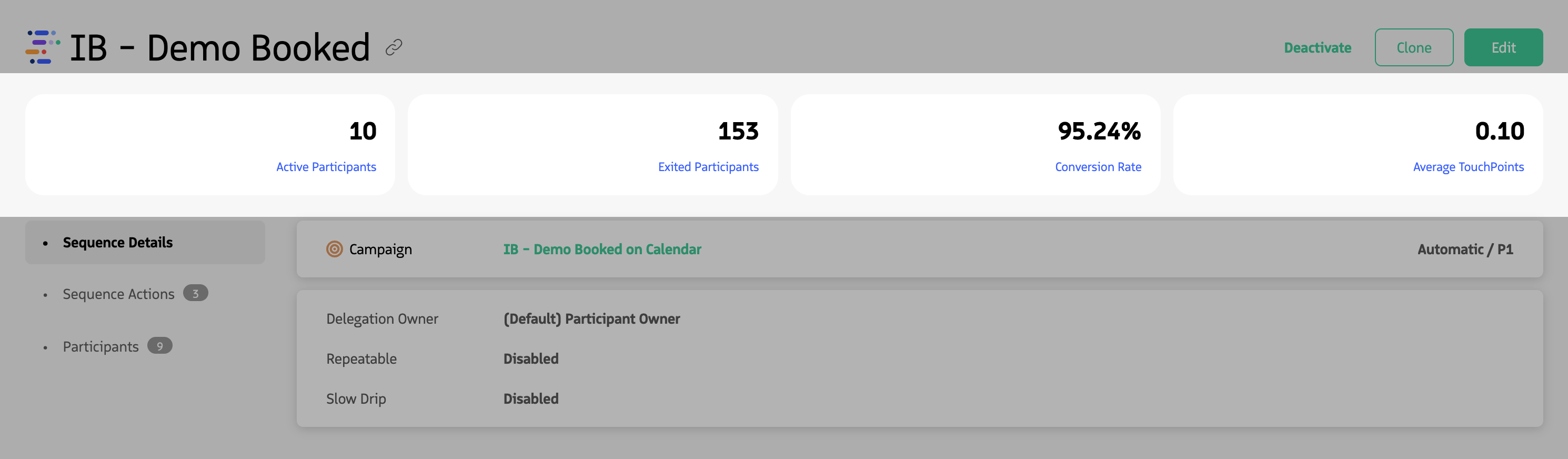
Sequence metrics cards.
| Title | Definition |
|---|---|
| Active Participants | Number of Sequence Associations where Association Status = ‘ACTIVE’. This is how many participants are currently active in the sequence. |
| Exited Participants | Number of Sequence Associations where Association Status = ‘COMPLETED’ plus the number of Sequence Histories. This is how many participants have exited the sequence, either by completing all actions or meeting exit criteria. |
| Average Touchpoints | Number of performed Sequence Actions divided by total number of participants. This shows the average number of actions completed per participant and indicates engagement levels. |
| Conversion Rate | (Number of converted leads in Sequence Associations and Sequence Histories) / (Total number of leads in Sequence Associations and Sequence Histories). This shows the percent of leads that were converted to opportunities or contacts while in the sequence. |
Main Content Area
A vertical menu on the left lets you switch between three views. The main content area to the right changes based on the selected menu item.
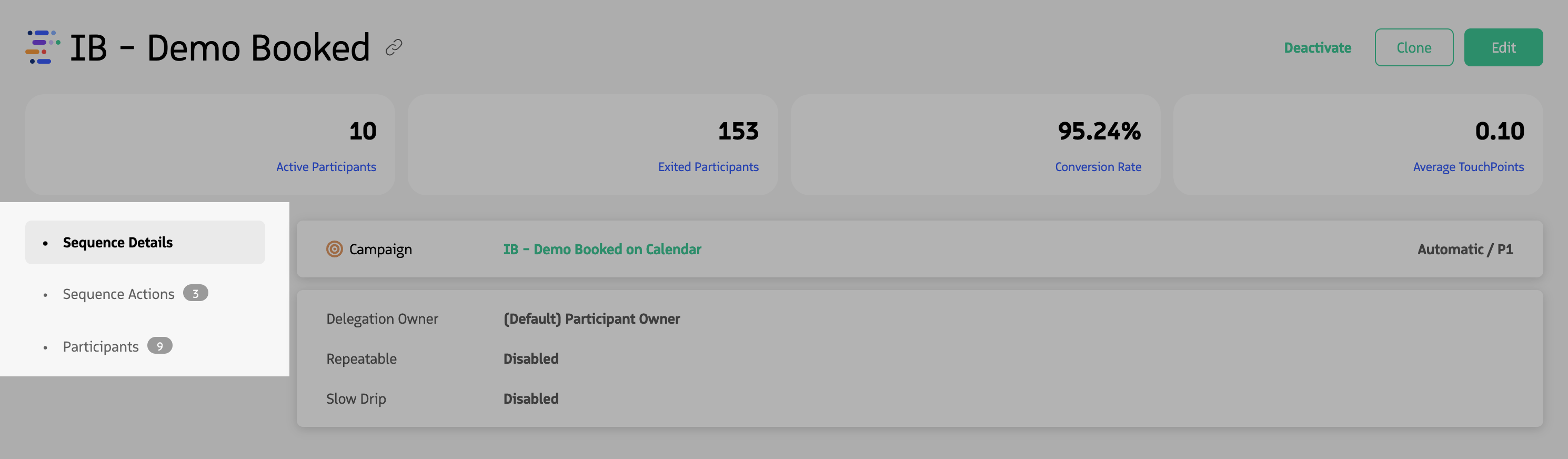
Left menu and main content area.
- Sequence Details — View and understand the sequence’s type, settings, and entrance/exit criteria.
- Sequence Actions — View the ordered list of actions and their timing; open an action to see templates and settings.
- Participants — View who is enrolled (active and inactive) and open a participant’s detail view in Guided Selling.
Sequence Details view
When Sequence Details is selected, the main area shows the sequence’s type, action type, settings, and entrance and exit criteria.
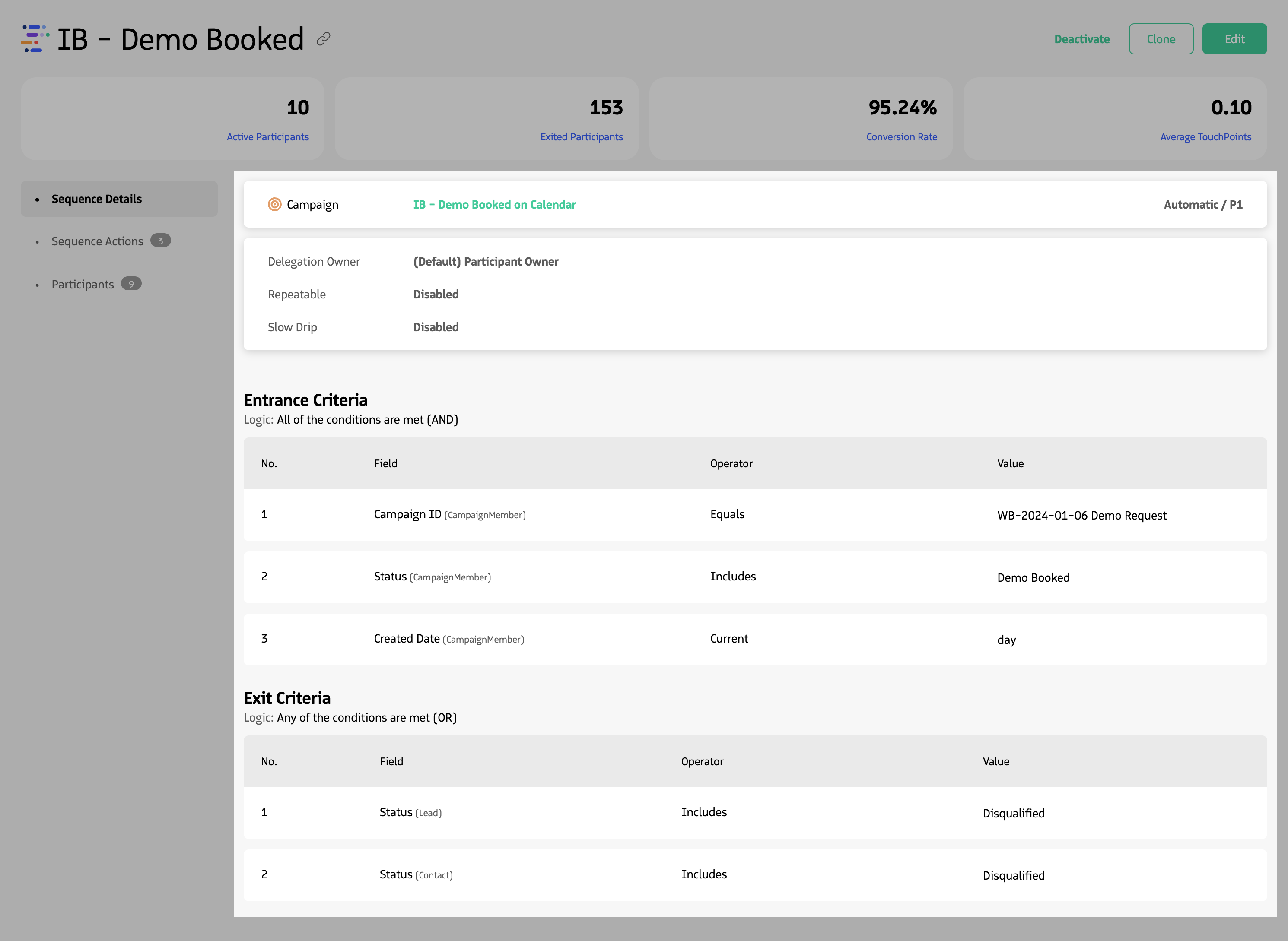
Sequence Details view.
Record and Activation type
- Type — The record type (Lead, Contact, Opportunity, or Campaign). This defines which records can be enrolled and which fields are available. See Record Types.
- Activation Type — Automatic or Manual. Controls how participants enter the sequence. See Activation Types & Priority.
Sequence settings
- Delegation Owner — The field name used for delegation (e.g., a User lookup). When the record owner is not the user running the sequence, delegation assigns who owns and executes participant actions. See Sequence Delegation.
- Repeatable — Enabled or Disabled. When enabled, the same participant can re-enter the sequence after exiting, if they still match entrance criteria and do not match exit criteria. See Repeatable Sequences.
- Slow Drip — Enabled or Disabled. When enabled, how many participants can enter the sequence per day is limited. See Slow Drip.
Entrance and Exit Criteria
Entrance criteria define when a record can be added to the sequence. Exit criteria define when a participant is automatically removed. Both use Field, Operators, and Values, plus Logic (AND, OR, or Custom). See Sequence Entry & Exit Criteria.
Sequence Actions view
When Sequence Actions is selected, the main area shows the list of actions in the sequence and their timing.
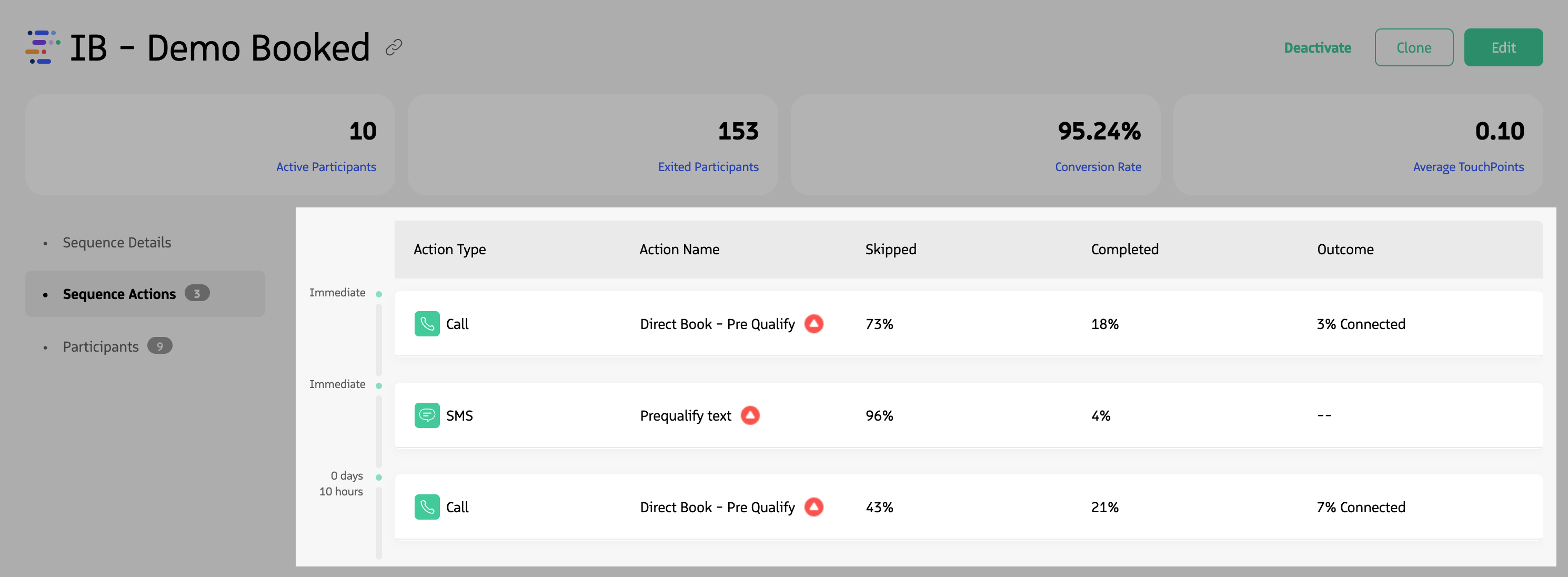
Sequence Actions list with timing.
Clicking an action opens its detail view, where you can see any associated templates and settings.
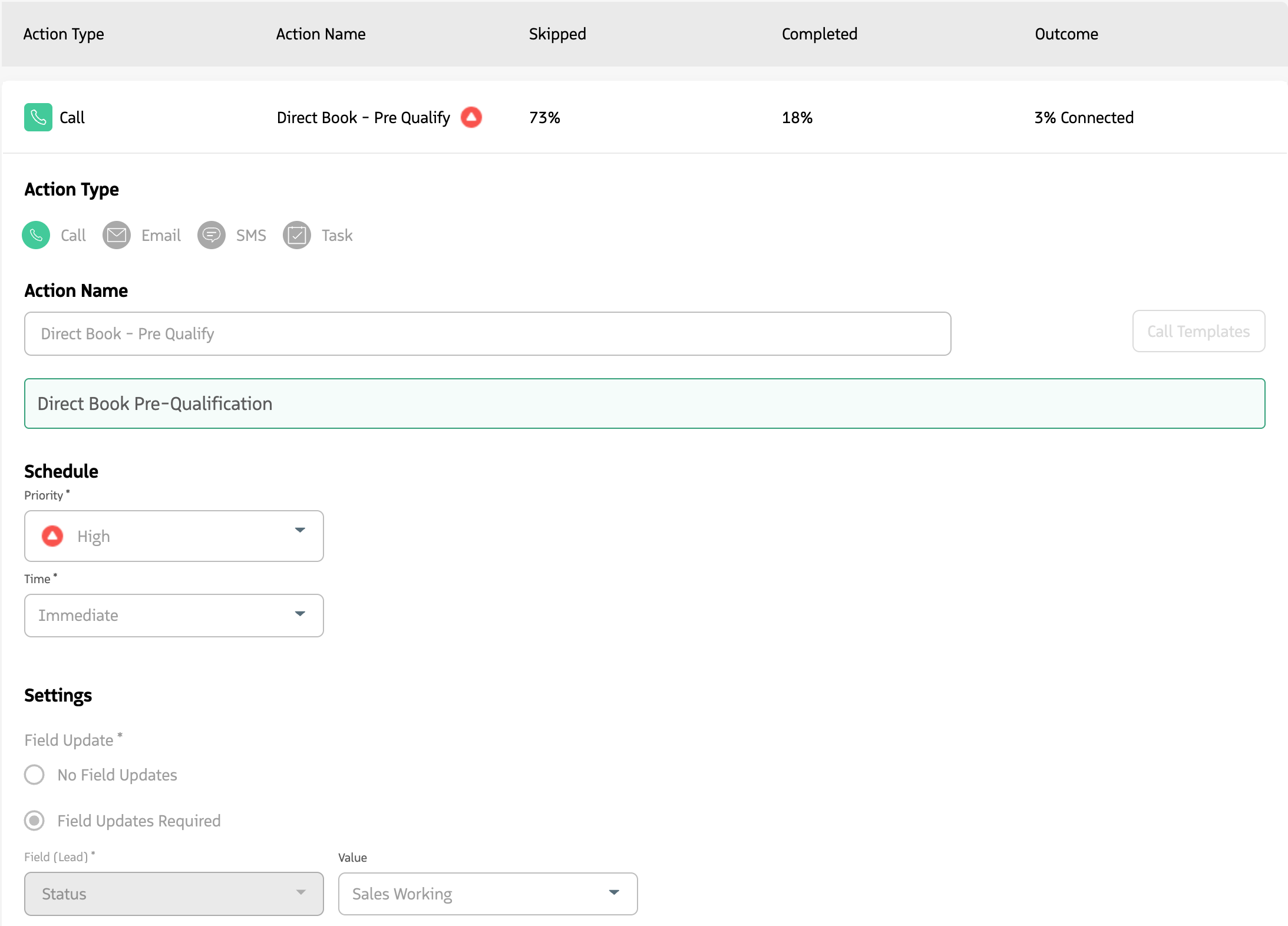
Action detail with templates and additional settings.
Participants view
When Participants is selected, the main area shows everyone enrolled in the sequence, in active and inactive status.
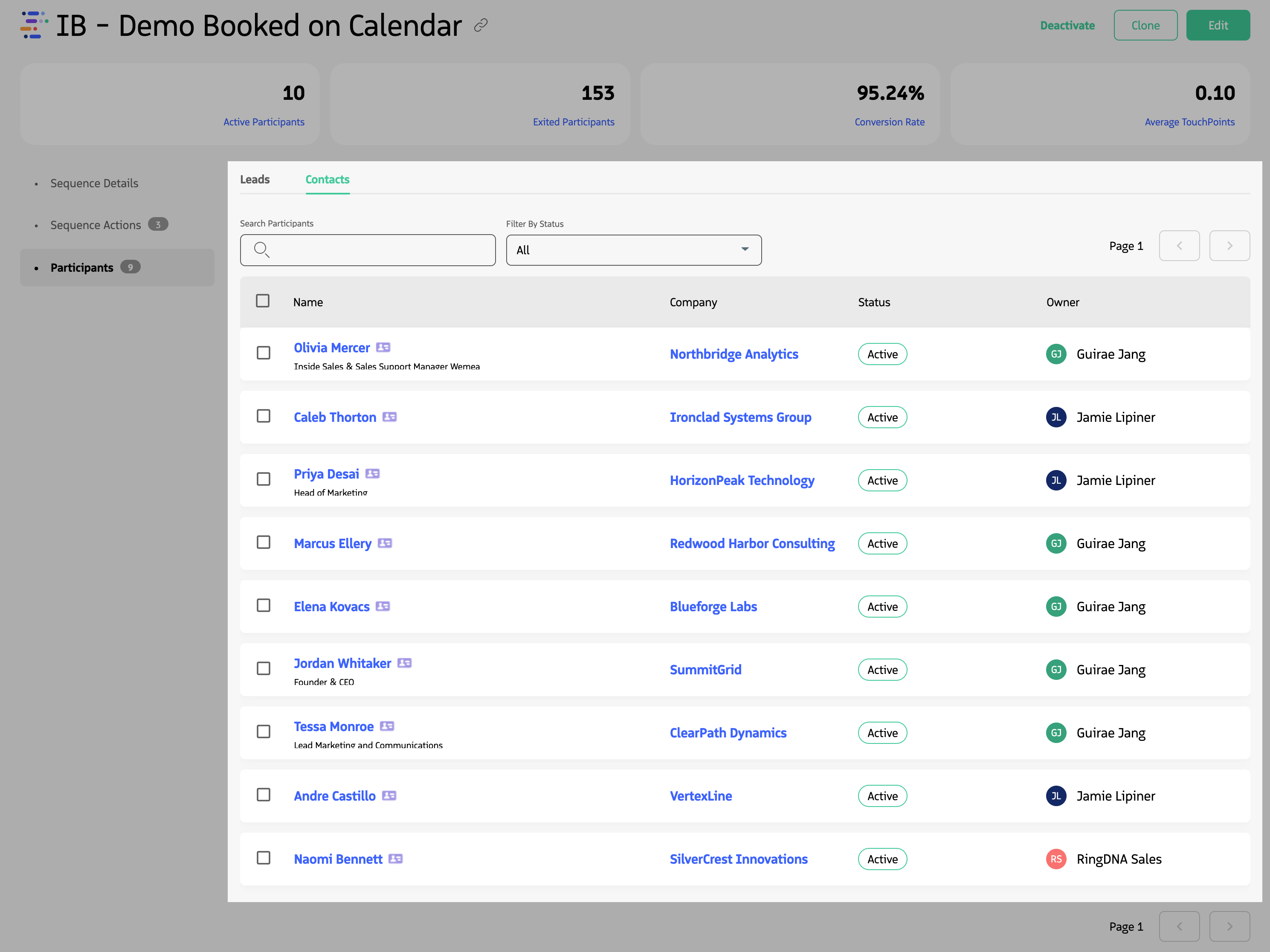
Participants list.
- Columns — Participant name, Company, Status, and Owner.
- Filter — Use
Filterto filter by Status. - Search — Use
Searchto search by participant name. - Open participant view — Click the lead or contact name to open the Participant view in Guided Selling. There you can see that participant’s progression in the sequence and create one-off actions or emails.
Manage participants
You can pause (deactivate) an individual participant so they are no longer active in the sequence but remain enrolled.
- Open the sequence and select
Participantsin the left menu. - Locate the participant (scroll or use
Search). - Select the checkbox next to the participant’s name.
- Click
Deactivate(top right of the page).
The participant is no longer active: their actions no longer appear on the Engage tab for users, but the participant is not removed from the sequence. You can filter by Status to see active vs. inactive participants.
To fully remove a participant from the sequence (rather than only deactivating them), they must either meet the sequence’s exit criteria or be removed manually from the Participant Overview page.