Reschedule Actions
Guided Selling lets sequence builders set the exact timing cadence that fits your company’s needs. However, there are times when schedules need to change. For example, when a lead is out of office until a specific date or when you want to move a call to the morning.
You can reschedule participant actions to a different time than the system-calculated schedule from:
Engageview (single or bulk)Participantsview (single or bulk)Participants Overview
When a participant action is rescheduled, these fields are updated:
Expected Execution DateLast Rescheduled ByLast Rescheduled Date
The Original Due Date field preserves the system-determined due date before rescheduling.
Rescheduling from Engage updates the timing for actions that are currently due. Rescheduling from the Lead/Contact page allows you to reschedule future actions, including automatic emails.
Reschedule from the Engage View
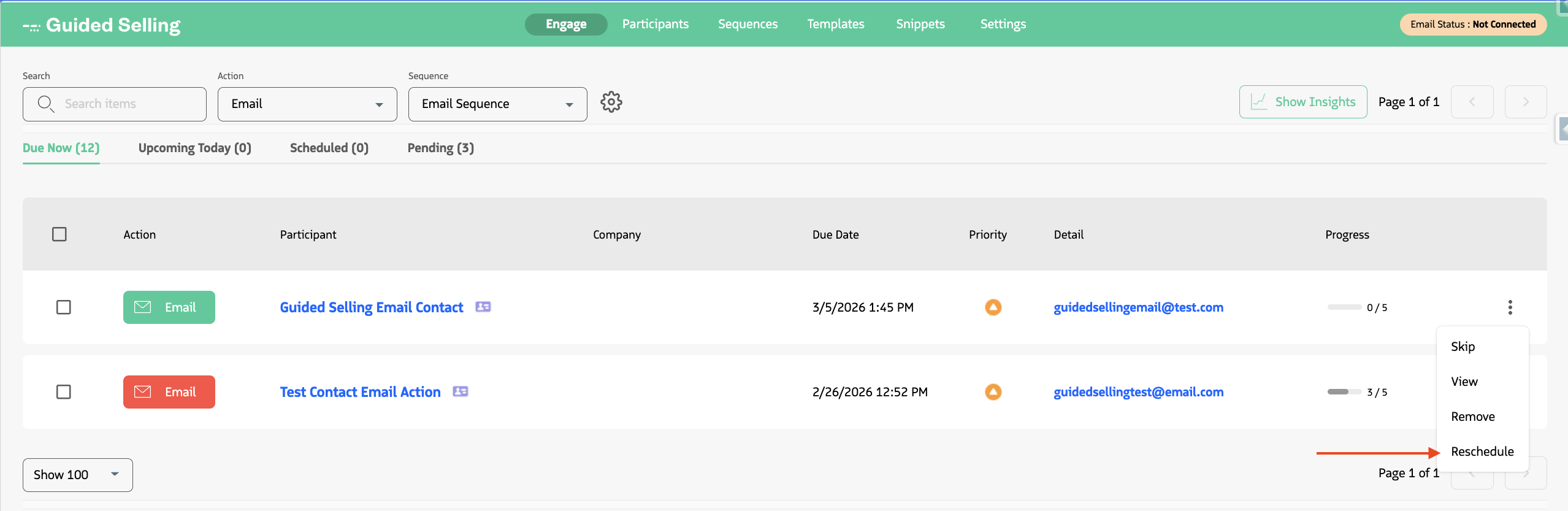
To reschedule an action from the Engage view:
Open the Action Menu
- Click the menu dropdown on the right side of the action.
- Select
Reschedule.
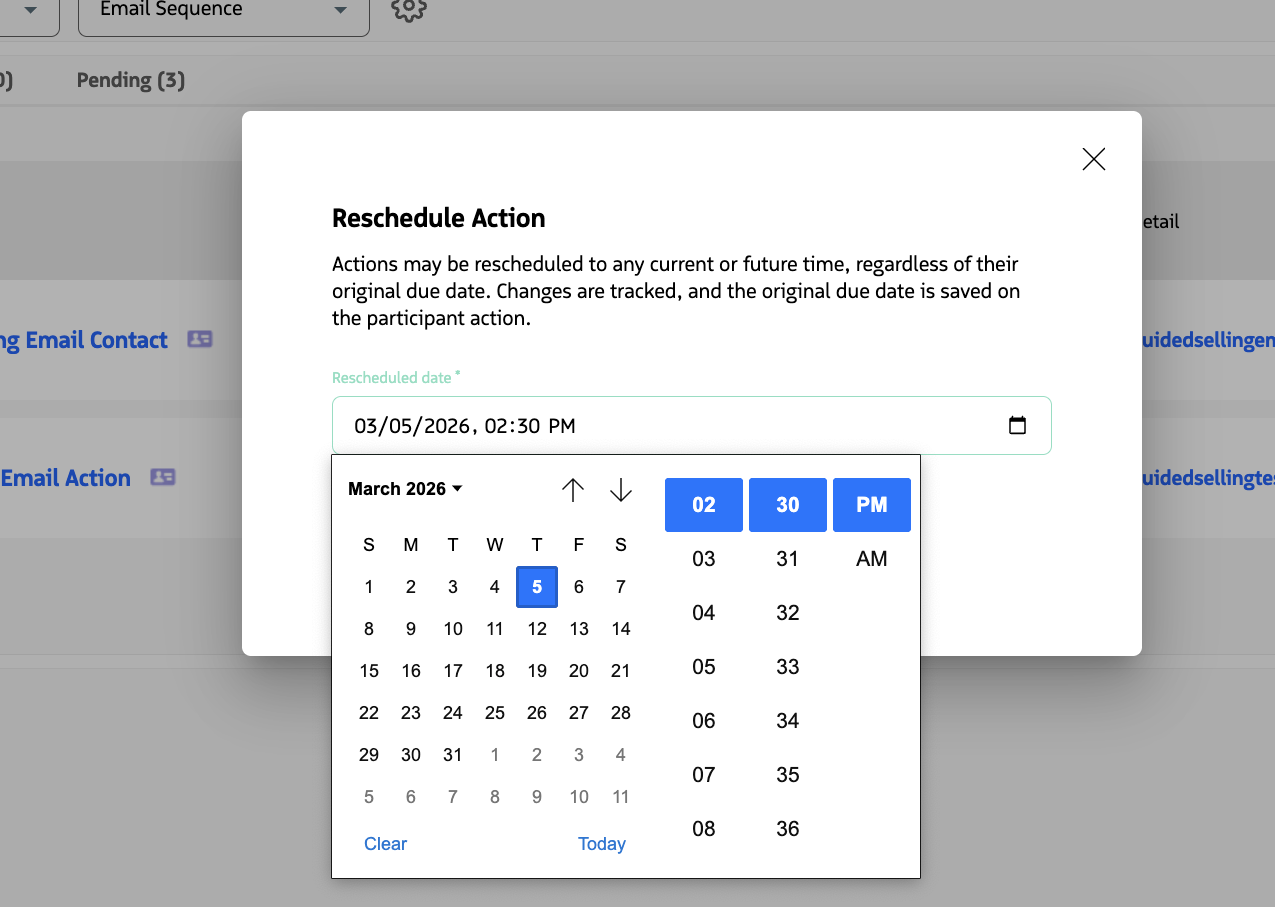
Choose a New Date and Time
- Select the day and time when you want the action to appear next in Engage.
- The action is updated with the new
Expected Execution Date.
Bulk Rescheduling
You can reschedule multiple actions at once from the Engage view or Participants view. Select multiple actions, then use the bulk Reschedule option to update all selected actions to a new date and time.
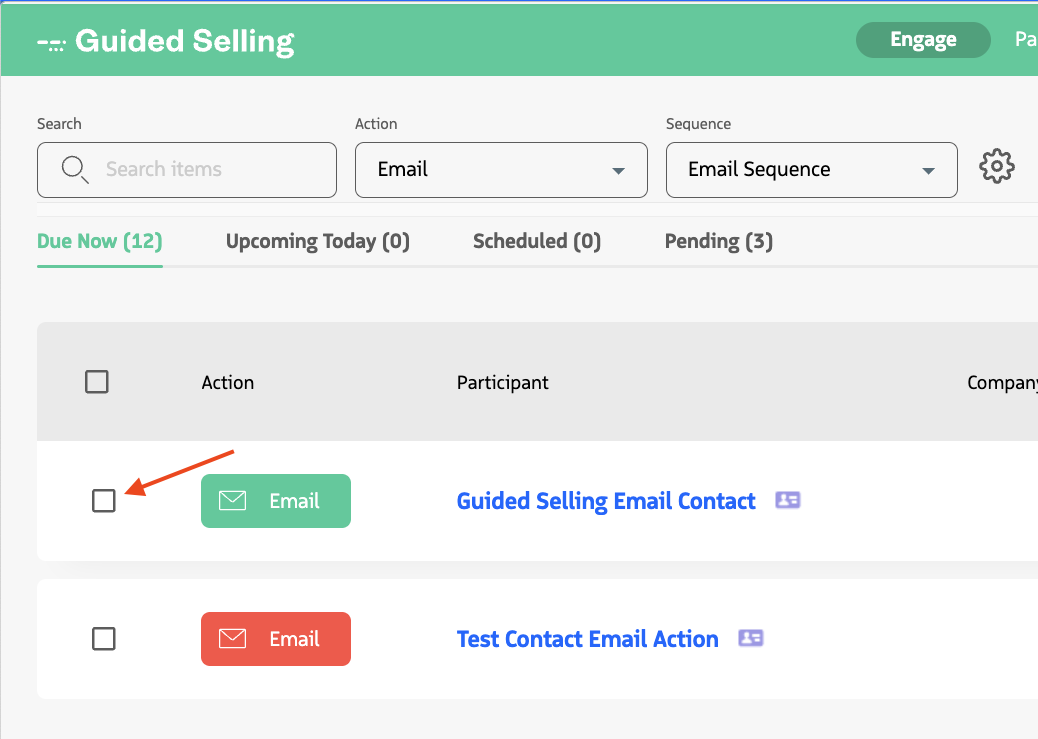
Select Multiple Actions
- In Engage, select the checkbox for each action you want to reschedule.
- Confirm the selected actions are the ones you want to update.
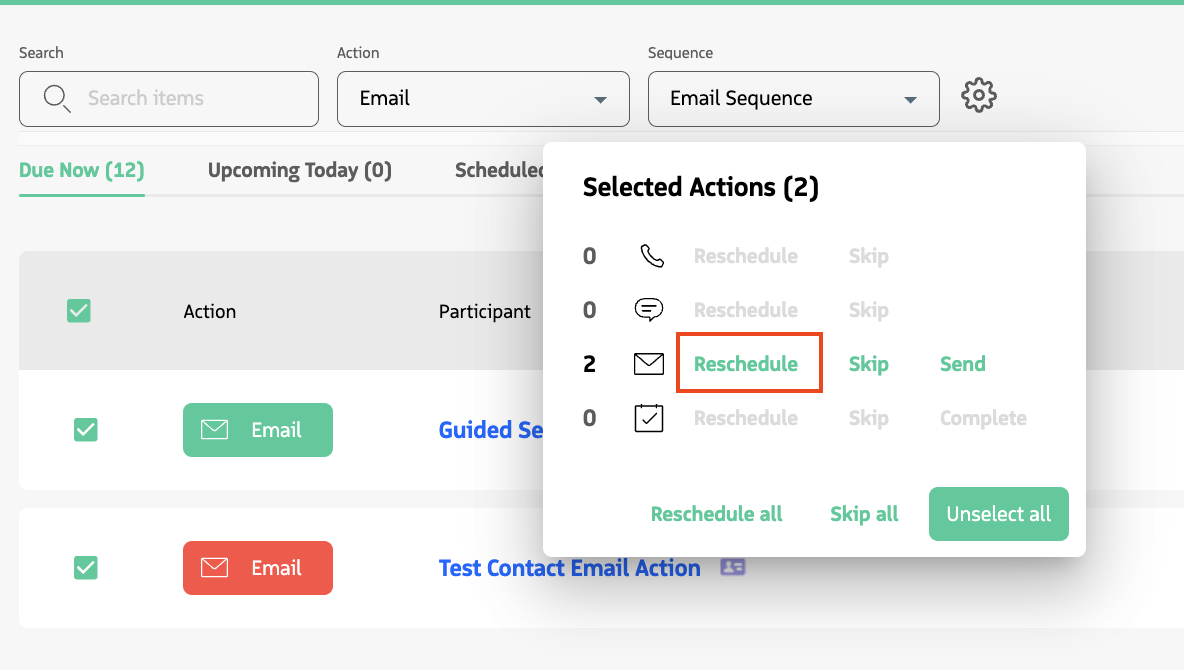
Bulk Action Menu
- After selecting actions, the
Bulk Action Menuwill automatically appear. - Select
Reschedule.
Choose a New Date and Time
- Select the day and time to apply to all selected actions.
- Confirm the update.
- All selected actions are updated with the new
Expected Execution Date.