Filter Actions on Engage
The Engage view includes flexible filtering tools that help you focus on the right actions at the right time. You can narrow the table by action details, timing, ownership, and other column values.
Quick Filters
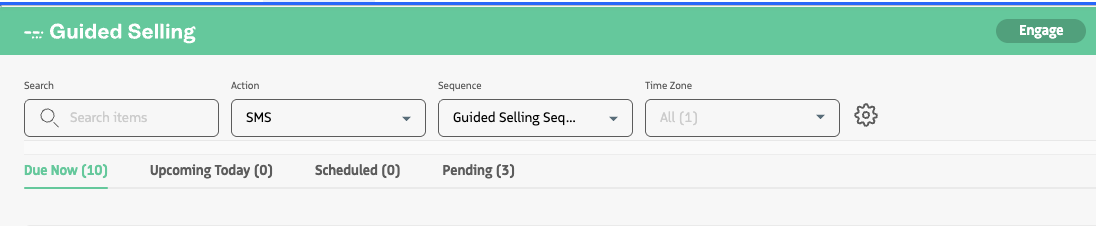
Quick Filters appear above the table for one-click access to your most-used filters.
You can configure Quick Filters from the Settings panel and choose up to three filter fields. Common choices include:
Action TypeSequenceStatusDue DateOwner / Group-related fields
Use Quick Filters when you want to apply broad filters quickly without opening each column menu.
Header Filters
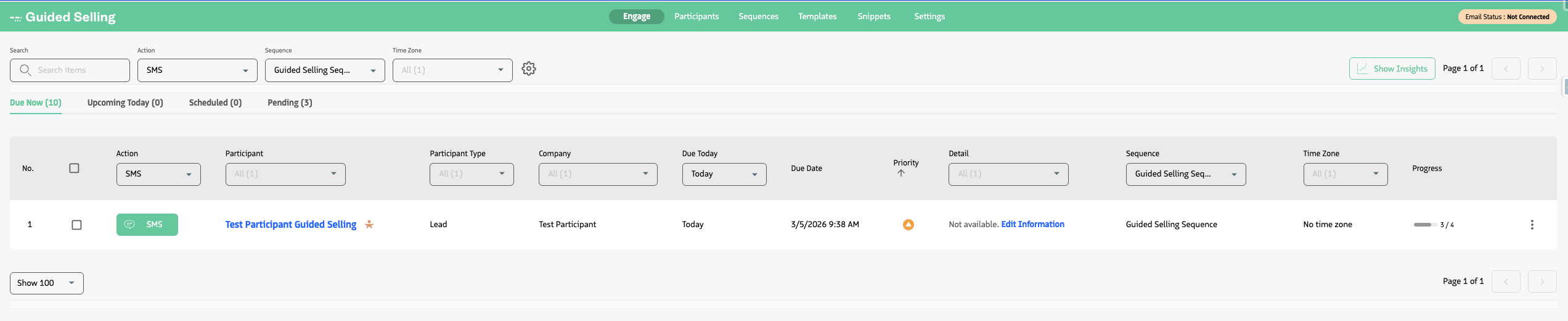
Header filters are shown directly in each column header when enabled.
- Turn them on from
Settingsusing theHeader filterstoggle. - Once enabled, use each column’s header control to set or adjust filters inline.
This is the fastest way to refine a specific column while keeping the rest of your table context visible.
Settings Panel Options
The Settings panel provides additional filtering controls and personalization options:
Additional Filters:Shows all available column filters in one place so you can build multi-column filter combinations from the Settings panel.Visibility:Lets you choose which fields appear as columns in the Engage table by toggling column visibility on or off.Group selection:Filters participant actions by a selected group.Pin group (pin icon):Saves a preferred group so it is applied by default when you open Engage.Quick Filters configuration:Chooses which filter fields appear above the table (up to three).Participant Drawer Position:Controls where the participant drawer opens on screen (left, top, right, or bottom).Header filters toggle:Shows or hides per-column filtering controls in the table header.Table footer:Shows or hides the footer area with table summary/details.Pagination:Enables or disables paginated table navigation.
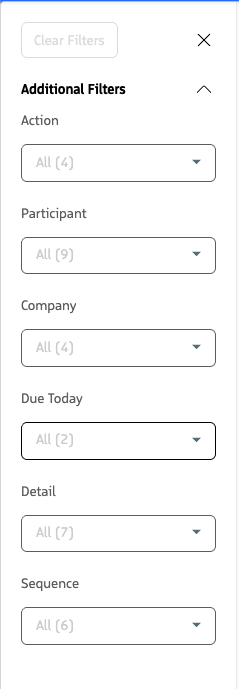
Settings panel: Additional Filters and Visibility.
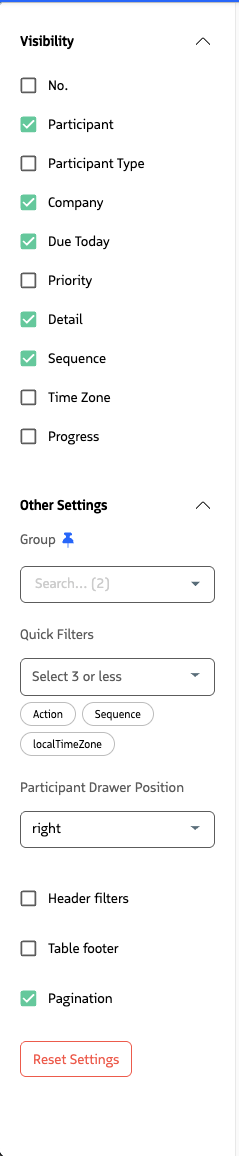
Settings panel: Group, Quick Filters, and layout options.