Customize Quick Filters
Role:
Sequence Agent
License:
Guided Selling
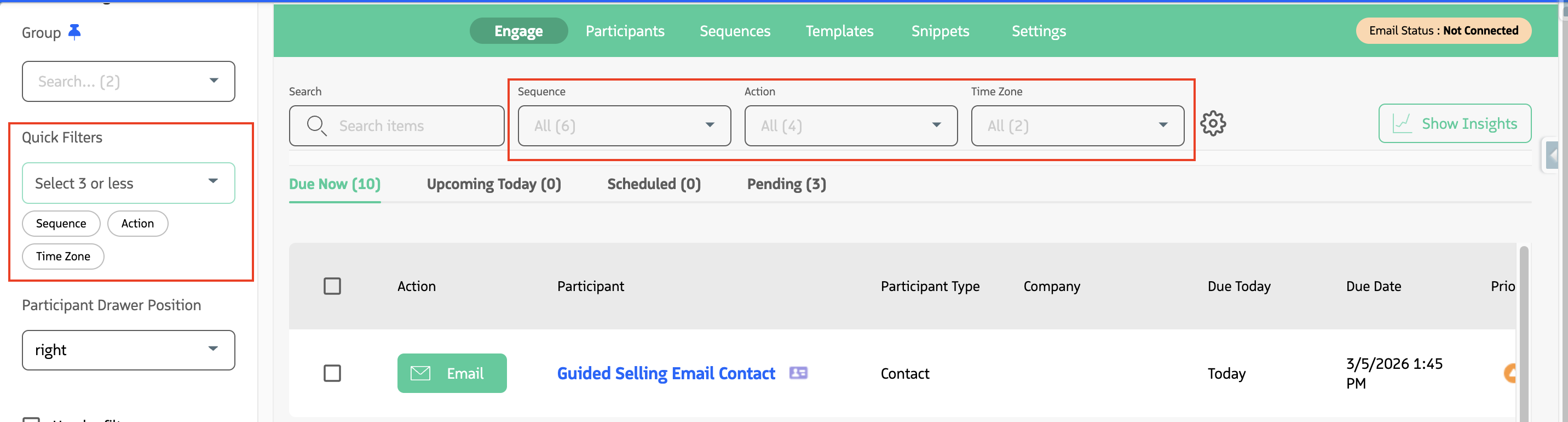
Quick Filters let you pin up to three commonly used filters so they are easier to access while working in Engage.
Customize your Quick Filters
- In Engage, click the
Settings(gear) icon. - In the customization drawer, expand
Other Settingsif it is collapsed. - Find
Quick Filters. - Open the dropdown and select up to 3 filter fields.
- Close the drawer.
Your selections are saved automatically.
Important behavior and limits
- You can select a maximum of 3 quick filters.
- Only fields that support filtering are available in the Quick Filters list.
- The selector shows
Select 3 or lesswhen no quick filters are chosen.
Troubleshooting
I can’t find a field in Quick Filters
Only columns that support filtering appear in the list. If a field is missing, it may not be filterable in the current table configuration.
My Quick Filters did not update
Try these steps:
- Reopen
Settingsand confirm your selections. - If needed, click Reset Settings in the same drawer and reapply your Quick Filters.
- Refresh the page.
Last updated on