Send an Email from Engage
Role:
Sequence Agent
License:
Guided Selling
Engage lets you complete Email actions quickly, with actions displayed in order of priority. The steps below describe how to send emails from Engage.
Email actions use an Email Template that pre-fills the subject and body; you can review, personalize, and edit before sending.
Complete an Email Action
- Open the
Engageview. - Ensure you are on the
Due Nowtab. - Find an Email action and click
Emailto open the email editor. - Review and edit the subject and body as needed, then click
Send.
After you send the email, a new Conversation record is created with delivery and engagement details (sent date, opened status, replies, etc.), and the completed Participant Action is removed from your Engage list.
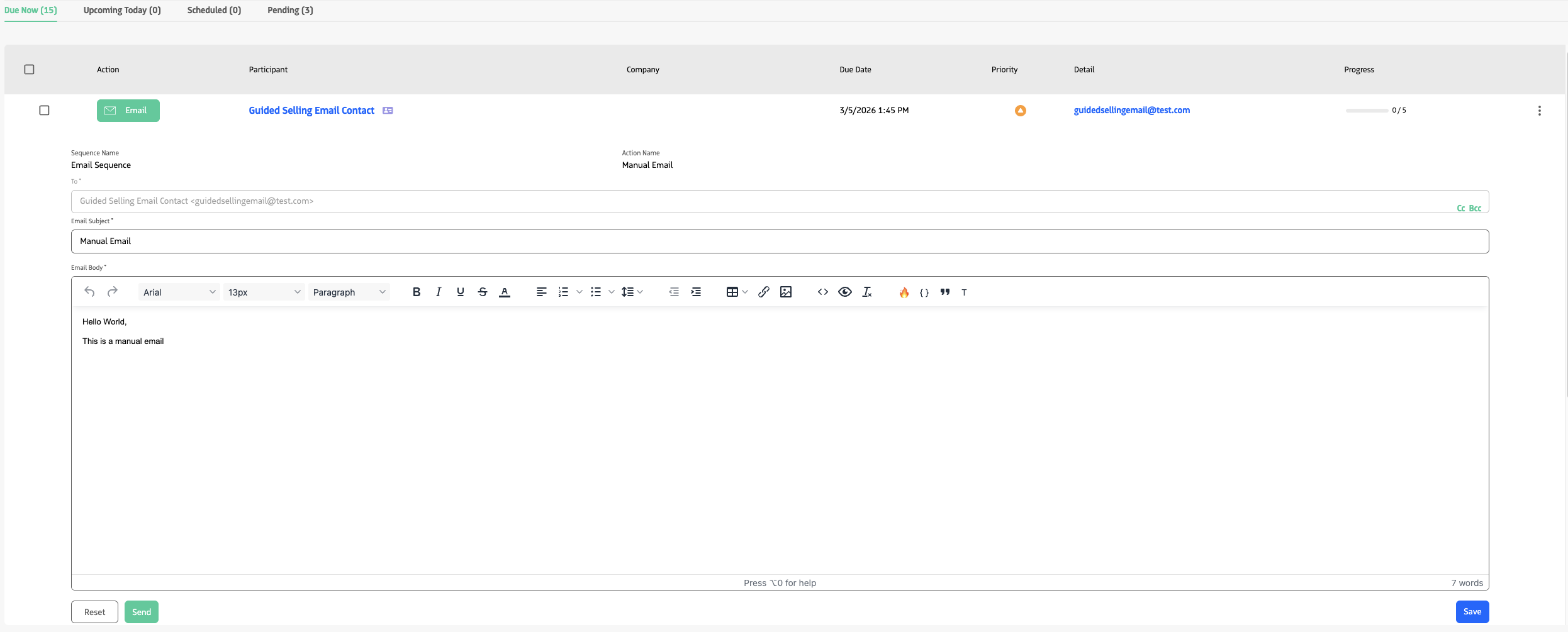
Click Email in the action row to open the editor; review, personalize, and click Send.
An Email Action is available only for manual Email actions when the Lead or Contact has an email address. If the Send button is disabled, check the record for a valid email and complete any required text.
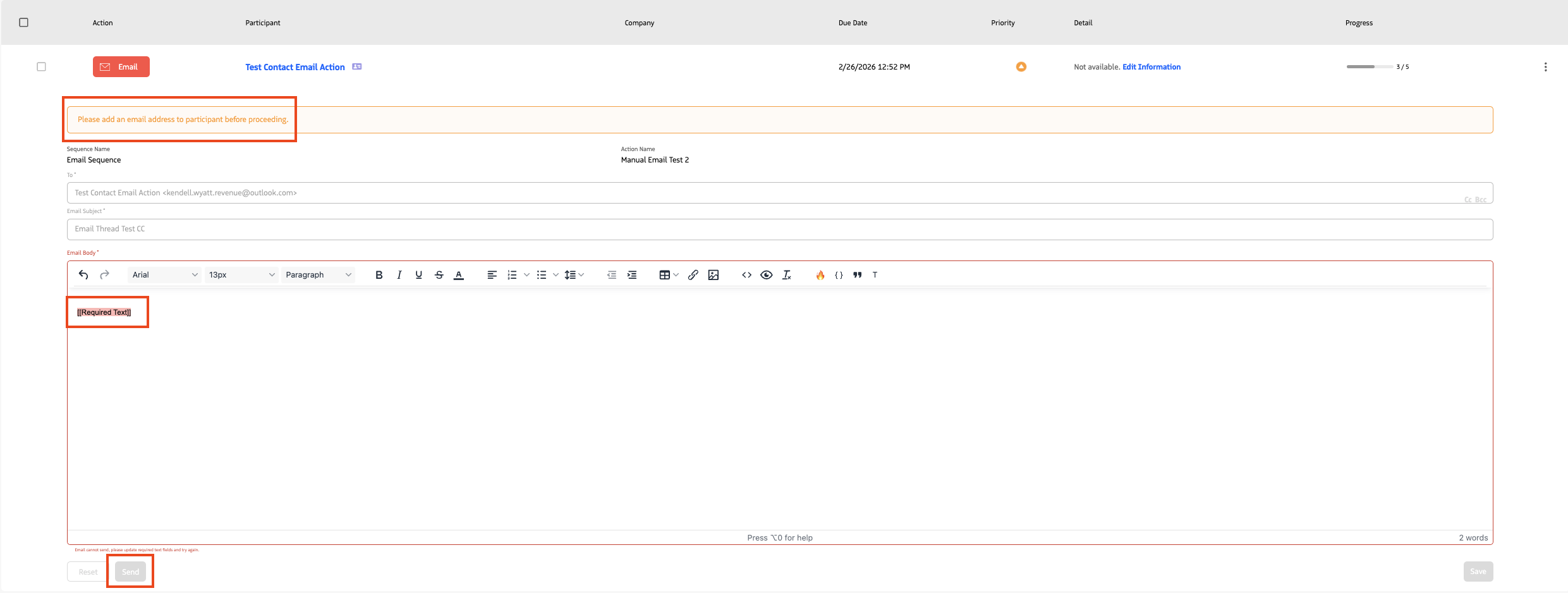
Send button for a manual Email action.
Last updated on