Setup API Credentials
Set up API credentials so your Guided Selling instance can communicate with Revenue.io servers. API credentials are generated by your Implementation Manager or the Support Team and allow your Guided Selling instance to communicate with our servers. Valid credentials are required to enable various RingDNA API functionalities, including sending emails, executing actions with templates, and confirming permissions. These capabilities are essential for performing nearly all actions within the Guided Selling application.
Setting up API credentials
- Open the
App Launcherin Salesforce and search forGuided Selling by Revenue.io - Click the
Settingstab in the top navigation bar - Go to the
Setupsection found in the left menu - Enter the
API KeyandAPI Secretthat was provided to you - Click
Save
Validating API credentials
If your API credentials were accepted, you’ll see a confirmation message appear in your Setup page. Your Users tab will also populate with all users with an assigned Guided Selling license.
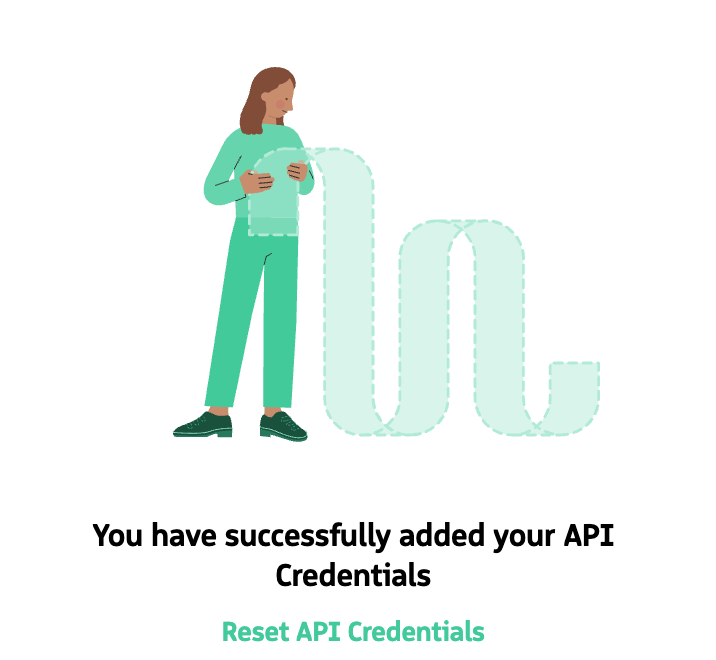
Confirmation message after API credentials are accepted.
Sandbox refresh considerations
If you encounter a Uh Oh! License required. message in a Salesforce Sandbox, and you have a Guided Selling license assigned, you may need to update your API credentials.
The API Key and API Secret values are tied to your Salesforce Organization ID. When you refresh a partial-copy sandbox, your Organization ID may change. When this happens, you must contact our Support Team to update your Salesforce Organization ID in your Revenue.io account.
Please provide our team:
- Your new Salesforce Organization ID (e.g.,
00D600...) - Your RingDNA Account ID (found on your Account Overview (opens in a new tab) page when logged in to your sandbox account)
After we update the Salesforce Organization ID in our database, your Salesforce sandbox should sync properly with your Revenue.io sandbox account.