Install the Guided Selling Managed Package
Install the Guided Selling Managed Package in your Salesforce org to enable guided selling features.
Package Installation
Navigate to the Installation URL
Open the installation URL provided by your Customer Success Manager or Account Executive. You may be prompted by Salesforce to log in.
Review Package Details
Review the package details and version information displayed on the installation page. Ensure you’re installing the correct version and you’re logged into the correct Salesforce instance (Sandbox or Production).
Select Installation Options
When prompted, select Install for Admins Only. This restricts initial access to admins only. Access to package components will be managed later using permission sets.
Click Install.
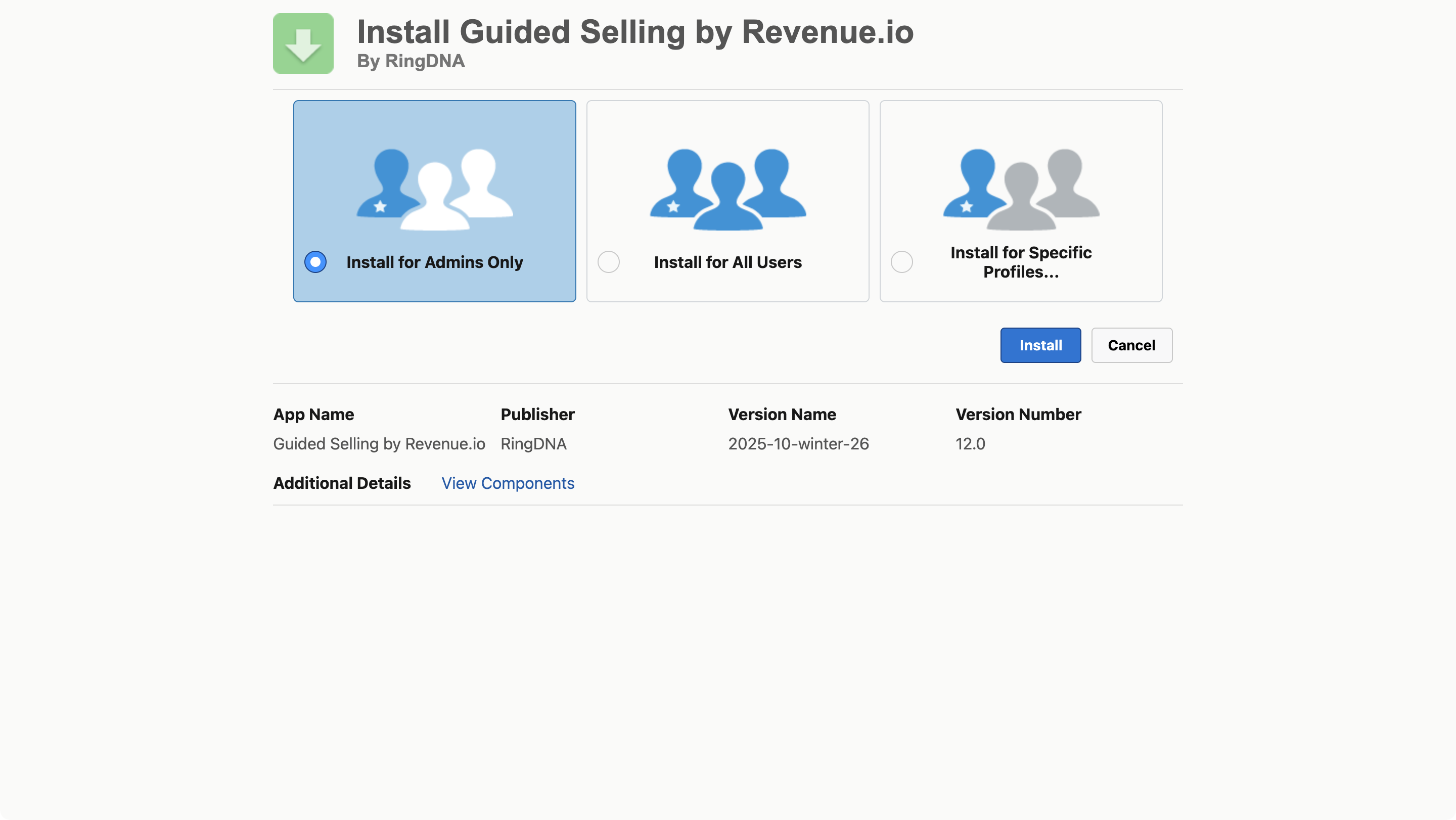
Select ‘Install for Admins Only’ during package installation.
Approve Third Party Access
When prompted, check the box that states Yes, grant access to these third-party web sites. This allows Guided Selling to communicate with our servers to enable core functionality.
Click Continue.
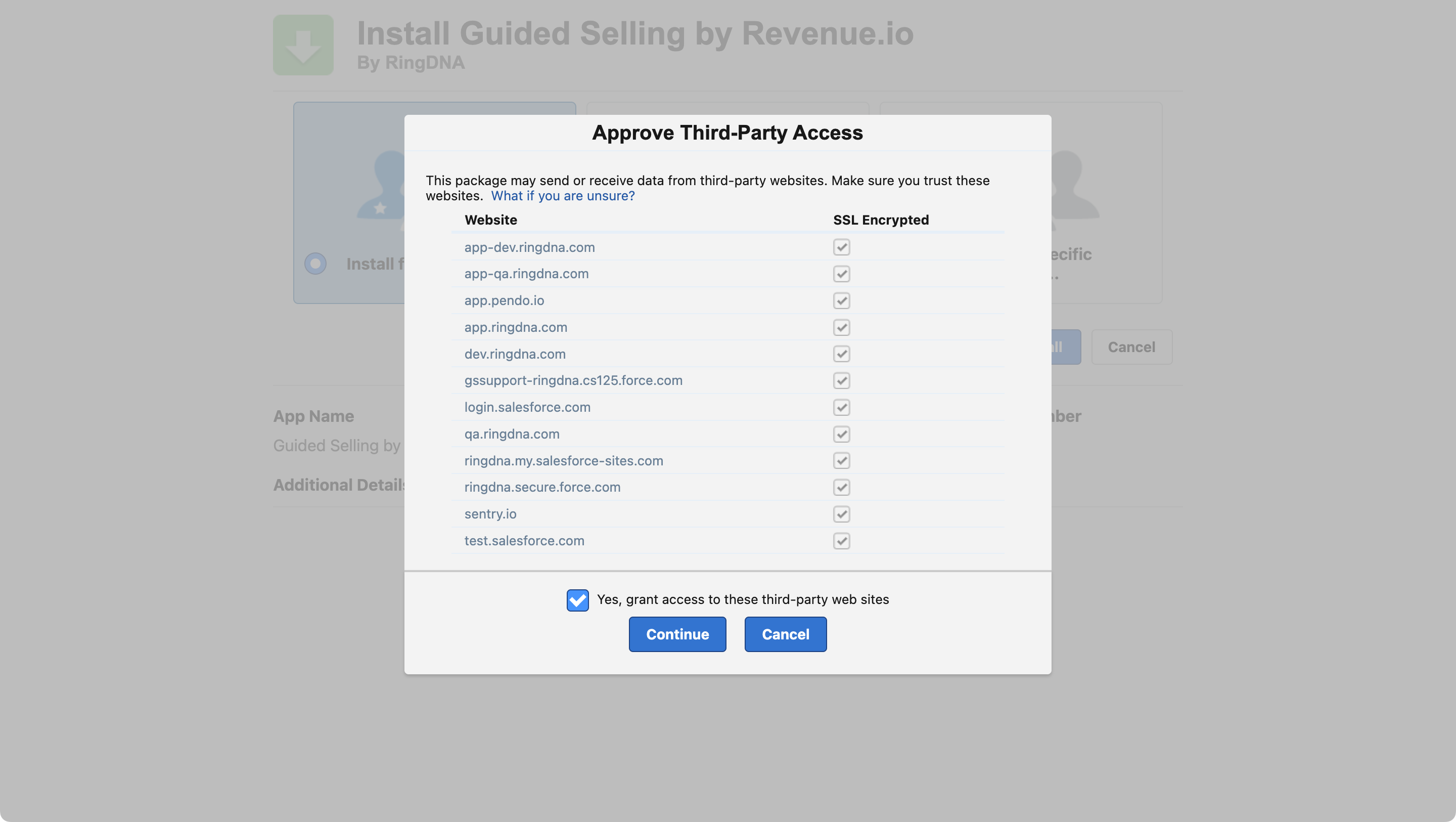
Approve third-party access to allow Guided Selling to communicate with our servers.
Wait for Installation to Complete
The installation may take several minutes depending on your org’s size and complexity. During this time, you might see the Salesforce page update. This is completely normal. This might be a good time to grab a cup of coffee or tea while you wait.
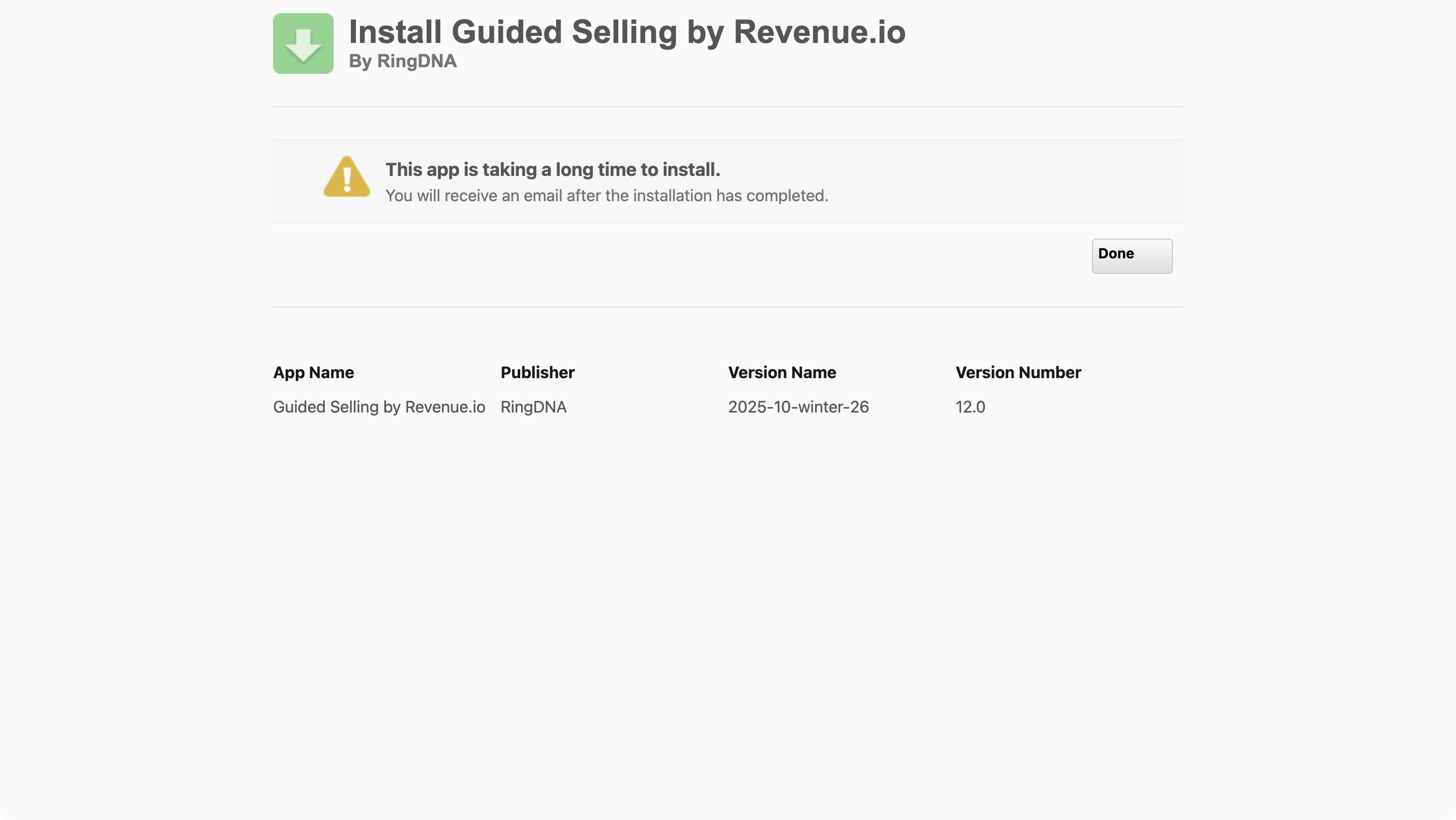
The installation may take several minutes to complete.
Verify Installation
Once the installation completes, verify that the Guided Selling Managed Package appears in your installed packages:
- Navigate to
Setup→Installed Packages - Confirm that the Guided Selling package is listed
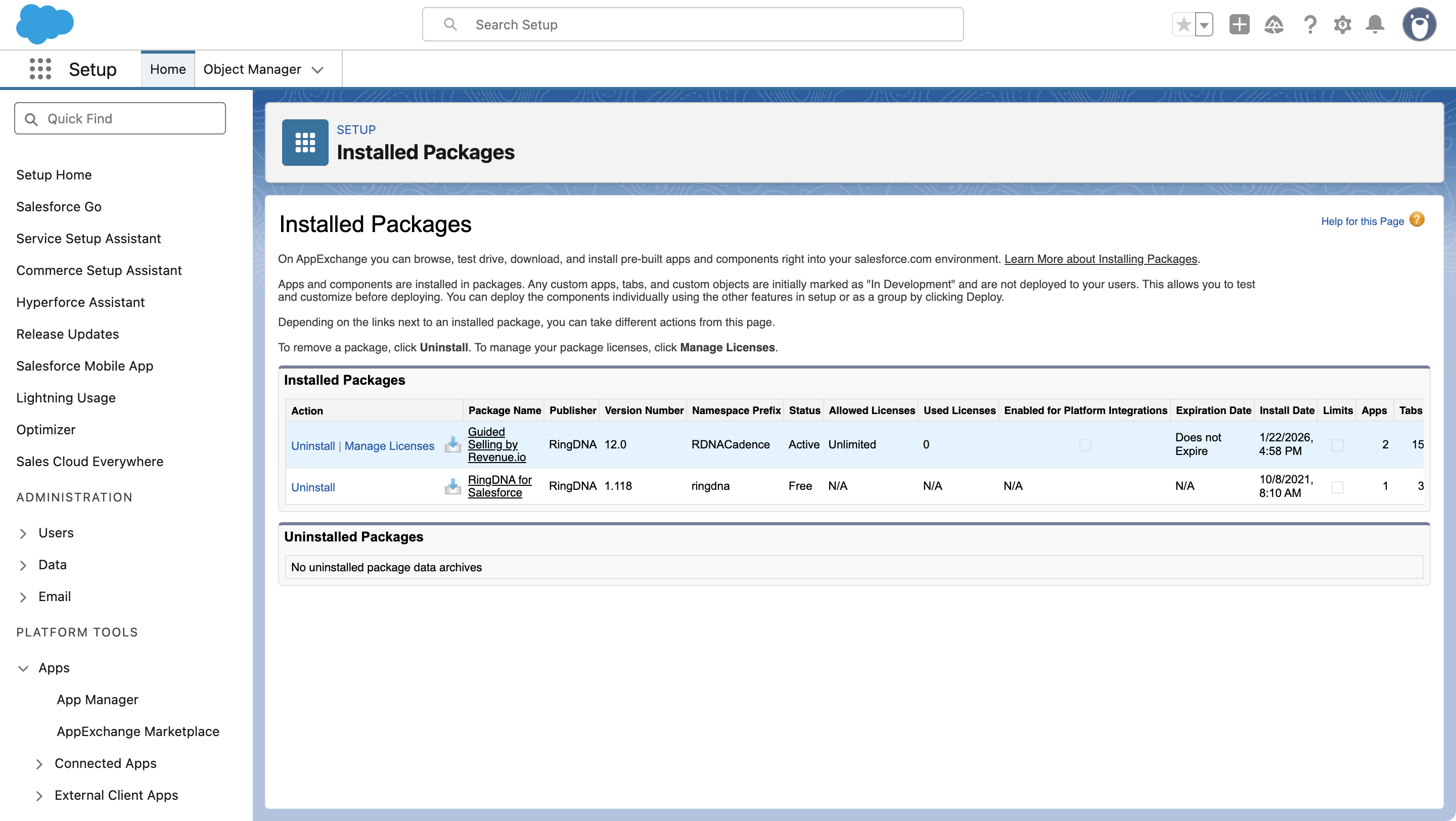
Verify the Guided Selling package appears in your Installed Packages list.