Add Custom Fields in Guided Selling
Role:
Salesforce Administrator
Field Sets control which fields are available to use in Guided Selling. This gives you control over which fields your team can use when building Sequences and configuring:
- Entrance Criteria: Conditions that determine when a record enters a sequence
- Exit Criteria: Conditions that determine when a record exits a sequence
- Automatic Field Updates: Actions that update field values when specific conditions are met
Available Field Sets
Guided Selling provides field sets for different objects:
- Revenue.io Sequence Leads: Fields available for Lead sequence criteria
- Revenue.io Sequence Contacts: Fields available for Contact sequence criteria
- Revenue.io Sequence Opportunities: Fields available for Opportunity sequence criteria
- Revenue.io Sequence Campaigns: Fields available for Campaign sequence criteria
Managing Field Sets
The management buttons on the Settings page will direct you to the appropriate field set, allowing you to add or remove fields from that object.
Access Field Sets
- Open the App Launcher in Salesforce and search for Guided Selling by Revenue.io
- Click the Settings tab in the top navigation bar
- Go to the Field Sets section found in the left menu
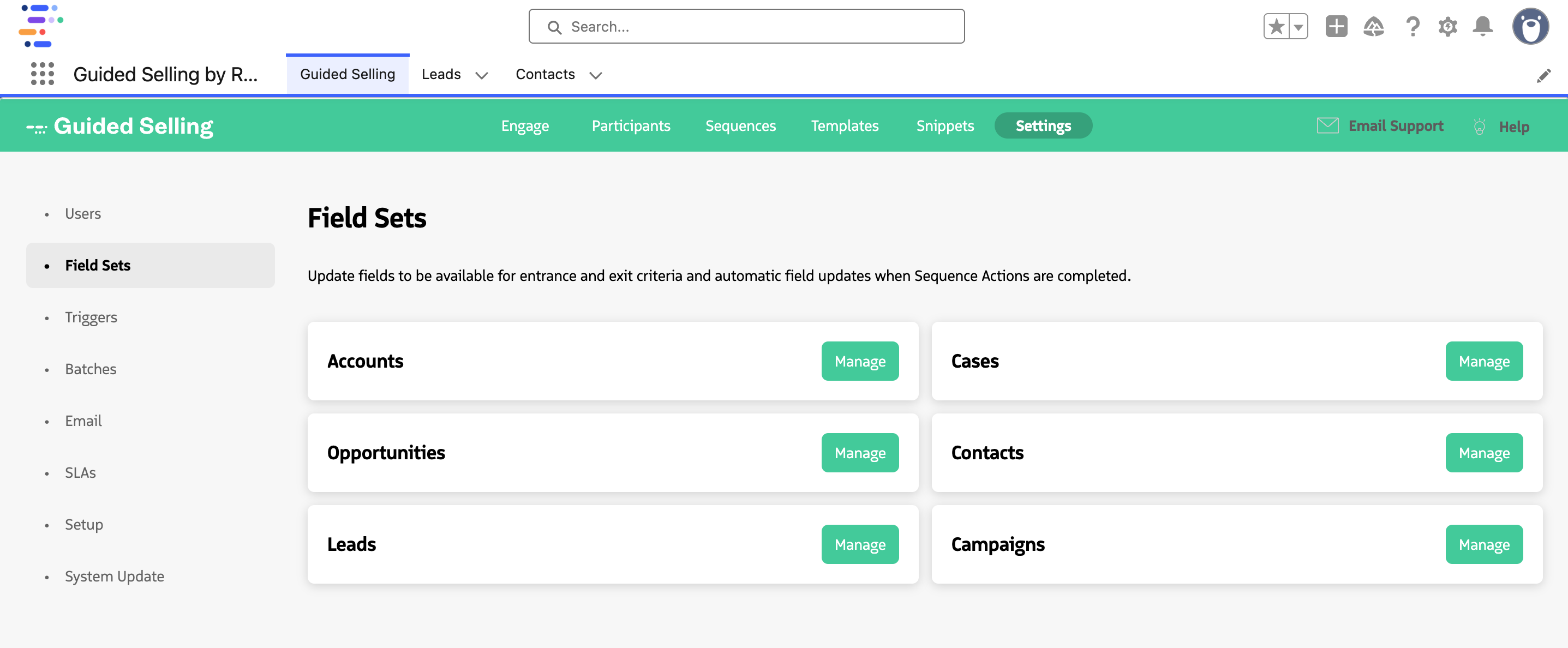
Field set management in the Settings page
- Click the Manage button to be brought to the Field Set in Salesforce Setup
- Select the Edit link to manage the field set
Add and Remove Fields
- Drag and drop fields from the object or related object field lists onto the field set
- Remove fields by dragging them out of the field set
- Reorder fields as needed
- Save the field set to update the fields available in Guided Selling
It is essential to re-grant permissions on the Users settings page after making changes to the Field Set. All fields added to the field set, regardless of the specific set, must be readable by users with access to the Guided Selling application.
- Navigate back to Guided Selling Settings
- Click the Users tab
- Click Grant All Permissions
Best Practices
- Only include fields that are needed for sequence criteria or automatic field updates
- Keep field sets organized and up to date
- Test field set changes in a sandbox environment first
- Document which fields are used in which sequences
- Click Grant All Permission after any field set modification
Last updated on