Winter 2026 Release (V12)
Guided Selling v12 builds on the just-in-time foundation laid in v11 to offer teams more power and precision in how they see, manage, and automate work. With updates to Engage, expanded APIs, and architectural simplification, this release is designed to boost day-to-day productivity while laying the groundwork for even smarter automation.
Feature Highlights
| Feature | Why It Matters |
|---|---|
| Upcoming Actions on Engage | Work ahead with clearer visibility into what’s next. |
| Reschedule to Any Date | Gives reps flexibility to manage their workload and plan ahead. |
| Track Action Rescheduling | Surfaces action-level accountability and performance insights. |
| Create Email & SMS Quick Actions | Expands rep flexibility with more one-off engagement types. |
| API: Create Quick Actions | Programmatically trigger one-off actions via Flow or Apex. |
| API: Skip or Perform Actions | Supports automation workflows that advance participants. |
| Simplified Sequence Action Model | Removes complexity by eliminating the Action object. |
📔 Check out this Interactive Demo of our newest features!
Implementation Steps (Required)
If you org is currently on Guided Selling v11 or earlier, to complete your upgrade to Guided Selling v12 (or later), have a System Admin with a Guided Selling license follow these steps (eta 45min)
Delete Lightning Component Tabs
After version 5.16, we removed these tabs from our package. If you’ve had the package installed since then, some of these tabs may still appear in your org because Salesforce doesn’t automatically remove previously installed tabs. Here’s a list of tabs you may find that should be deleted:- Navigate to Setup > User Interface > Tabs
Section API Name Label Visualforce Tabs cadence_actions Actions (Deprecated) Visualforce Tabs cadences Sequence (Deprecated) Visualforce Tabs sequence_setting Sequence Setting (Deprecated) Visualforce Tabs target_list Engage (Deprecated) Lightning Component Tabs cadence_actions_classic Actions (Deprecated) Lightning Component Tabs cadence_classic Sequence (Deprecated) Lightning Component Tabs sequence_setting_classic Sequence Setting (Deprecated) Lightning Component Tabs target_list_classic Engage (Deprecated) Upgrade to version 11.30.8
- Choosing “Install for Admins Only” is recommended
- Production org: Install in Production
- Sandbox org: Install in Sandbox
- Choosing “Install for Admins Only” is recommended
Wait for ActionMigrationBatch to complete
- Navigate to Setup > Apex Jobs
- Locate ActionMigrationBatch
- Verify that 1 or more batches processed successfully for both jobs.
- Additional Validation - data check (SOQL query)
SELECT id, RDNACadence__ActivationType__c, RDNACadence__Type__c FROM RDNACadence__CadenceAction__c- All rows should have values for both fields
- Navigate to Setup > Apex Jobs
Upgrade to version 11.34
- Choosing “Install for Admins Only” is recommended
- Production org: Install in Production
- Sandbox org: Install in Sandbox
- Choosing “Install for Admins Only” is recommended
Delete Deprecated Fields and Objects*
*Your org may contain additional custom, or previously deprecated, fields that reference the Action ID field or the Action Object. If you encounter any dependency errors when attempting the following steps, please delete any fields referenced in that error in order to proceed.- Delete the Action ID (RDNACadence__Action_Id__c) field from the Sequence Action Object
- Switch to Salesforce Classic.
- Navigate to Setup Create Objects.
- Find and open Sequence Action.
- Locate the Action ID (RDNACadence__Action_Id__c) field and click Del in the Action column.
- Confirm the deletion by selecting “Yes, I want to delete the relationship.”
- At the bottom of Custom Fields & Relationships, click Deleted Fields, then click Erase for Action ID (RDNACadence__Action_Id__c).
- Confirm “Yes, I want to permanently delete the custom field.”
- Delete the Action object
- Go back to Setup Create Objects.
- Find the Action object and click Del.
- Confirm “Yes, I want to delete the custom object.”
- Scroll down to Deleted Objects, click through, and select Erase to permanently delete it.
- Delete the Action ID (RDNACadence__Action_Id__c) field from the Sequence Action Object
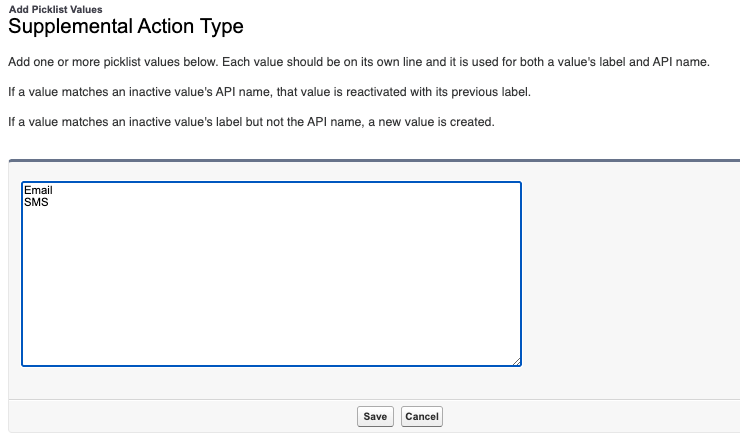
Add Values to Type__c picklist values to support new Quick Action types
- In Lightning Go to Setup Object Manager Participant Action Fields & Relationships
- Click Supplemental Action Type (RDNACadence__Type__c)
- Values Click New
- Add “Email” and “SMS”
- Click Save
Upgrade to version 12.0.50 (v12)
- Choosing “Install for Admins Only” is recommended
- Production org: Install in Production
- Sandbox org: Install in Sandbox
- Choosing “Install for Admins Only” is recommended
Update the names of all Email Templates related to an existing Sequence Action to make it easy to find your email templates in the new streamlined Sequence builder flow. NOTE: This batch job may have executed during a previous package upgrade step, but the names applied may not be what you expect.
- Execute the following script which first sets RDNACadence__isReusable__c to FALSE for all email templates, then executes the EmailTemplateMigrationBatch job.
Open the Developer Console via the gear icon, navigate to Debug, and select Open Execute Anonymous Window.
Copy/Paste the following Apex code and click “Execute”
list templatesToUpdate = [select id from RDNACadence__Email_Template__c];

for (RDNACadence__Email_Template__c t: templatesToUpdate){
 t.RDNACadence__isReusable__c = false;
}

Update templatesToUpdate;

rdnacadence.Api gsApi = new rdnacadence.Api();
gsApi.call('emailTemplateMigrationBatch', null);
- Execute the following script which first sets RDNACadence__isReusable__c to FALSE for all email templates, then executes the EmailTemplateMigrationBatch job.
Verify the results from successful execution of the email template migration. You should have 0 results from the following query. All templates that were previously associated with sequence actions should be accessible as an email template for new email actions.
- select count() from RDNACadence__CadenceAction__c where RDNACadence__Type__c =‘Email’ and RDNACadence__EmailTemplate__r.RDNACadence__IsReusable__c = false
Execute the MigrateConversationEmailFields batch job, which populates historical email data onto new fields on the Conversation record
Open the Developer Console via the gear icon, navigate to Debug, and select Open Execute Anonymous Window.
Copy/Paste the following Apex code and click “Execute”
rdnacadence.Api gsApi = new rdnacadence.Api();
gsApi.call('migrateConversationEmailFields', null);
New Features and Functionality
Upcoming Actions on Engage
What’s New?
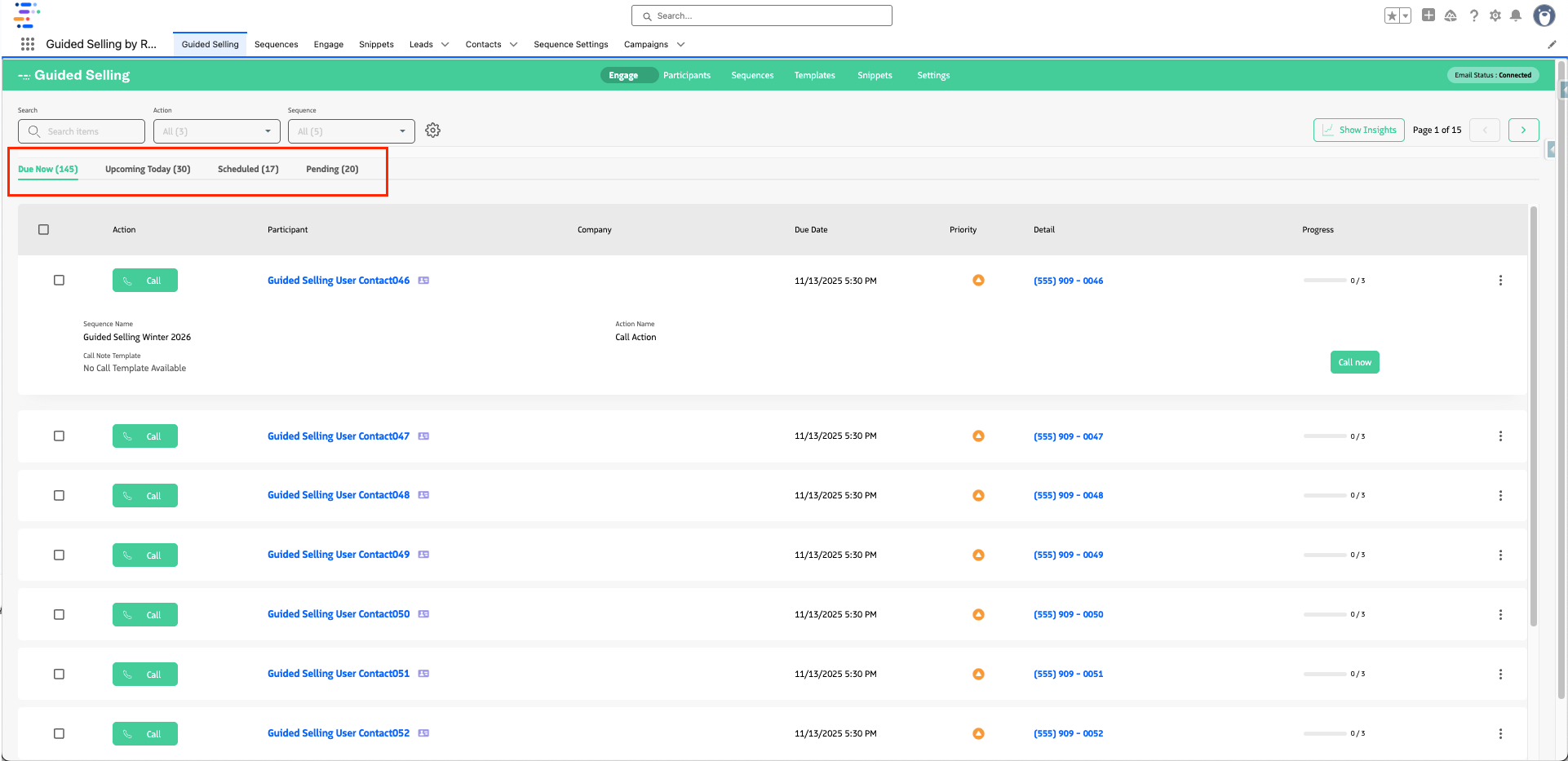
Engage now includes four smart tabs: Due Now, Upcoming Today, Scheduled, and Pending. This gives reps a clear view, without leaving Engage, of what they can do now, what’s coming up, and what’s still blocked.
Why Was This Built?
Previously, Engage only showed actions that were immediately due, with no way to see what was coming next. That meant reps couldn’t work ahead or plan their workload proactively. With this update, reps can now explore, schedule, and manage their pipeline in real time.
How It Works
- Actions are grouped into four buckets:
- Due Now: Currently due and actionable (traditional Engage view).
- Upcoming Today: Scheduled for later today.
- Scheduled: Due in the future, beyond today.
- Pending: Blocked by unmet criteria.
- Buttons on future actions are disabled but allow quick access to editing and rescheduling.
- Tab counts update live; filters apply across all tabs.
- Dial Next remains exclusive to Due Now actions.
- The Details column is optional on Due Now, but cannot be added to other tabs.
- The Due Date column is system-managed and cannot be removed or hidden.
Note: If Due Date is not visible, users should click the gear icon to access Engage settings, then click Reset Settings.
Reschedule to Any Date
What’s New?
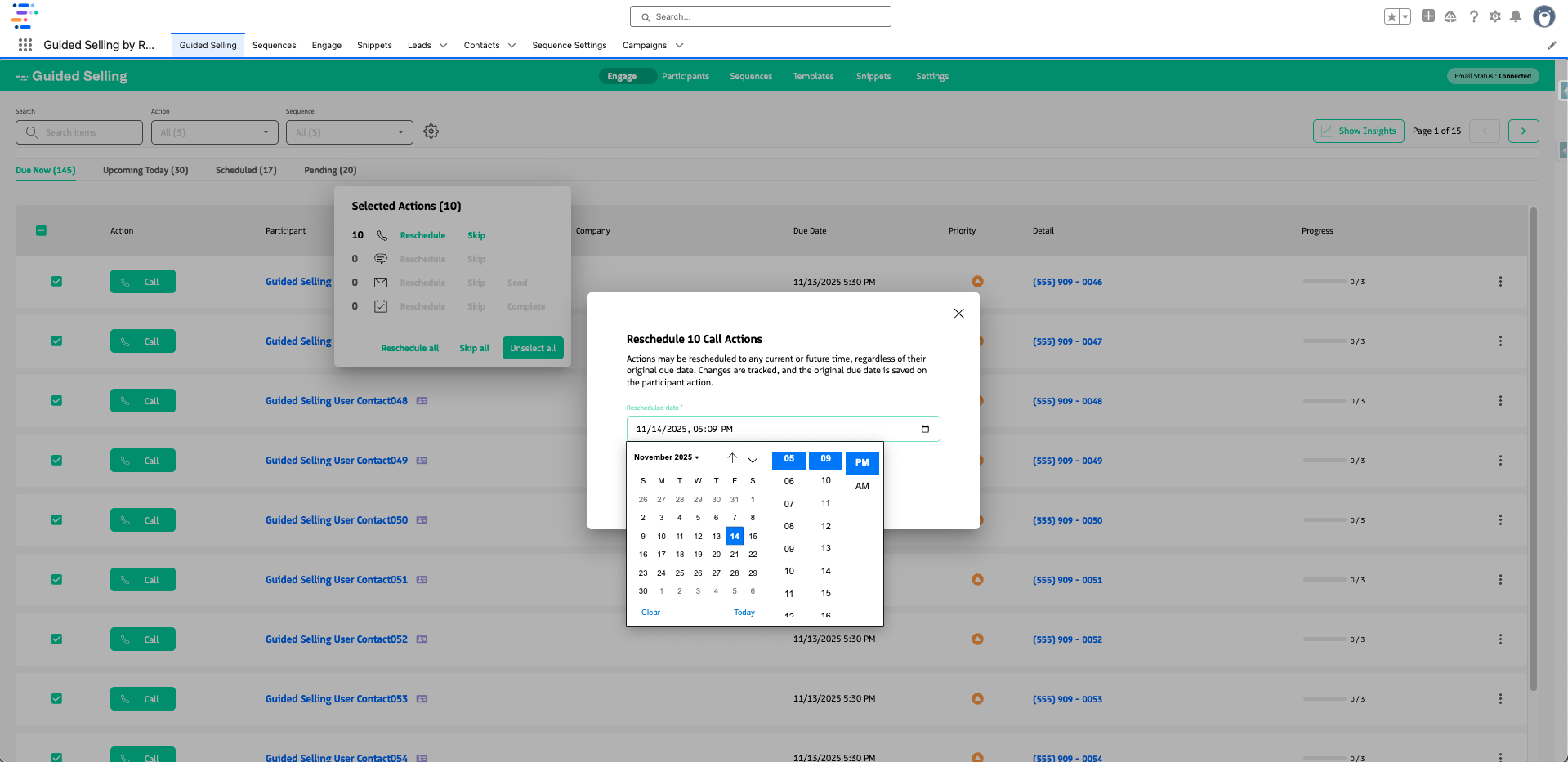
Reps can now reschedule any action to any future date, or as early as the current time, even if it is before the current due date.
Why Was This Built?
Previously, reps were blocked from moving actions earlier, which was frustrating for those trying to plan ahead, accommodate travel, or make the most of quiet periods. This update unlocks greater ownership of time management.
How It Works
- Updated reschedule modal allows users to choose the current time or any future date.
- Error handling prevents selecting times in the past.
- To assist with pulling actions forward, the modal defaults to the current date and time.
Track Action Rescheduling
What’s New?
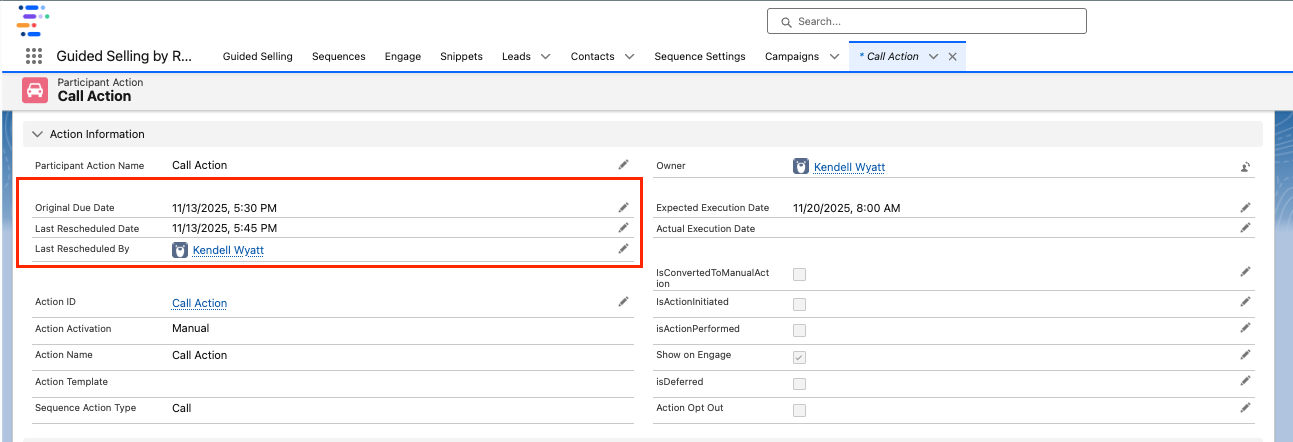
Each action now tracks its original due date, last rescheduled date, and rescheduling user.
Why Was This Built?
Rescheduling is a key productivity signal. By tracking these events, admins and RevOps teams can spot trends in deferrals, better understand rep workload, and design smarter benchmarks.
How It Works
- New fields on Participant Actions:
Original Due DateLast Rescheduled DateLast Rescheduled By
- Populated automatically through the UI or individual or bulk updates, or API.
- Fields are queryable and reportable.
Create Email & SMS Quick Actions
What’s New?
Quick Actions now support Email and SMS, in addition to Call and Task.
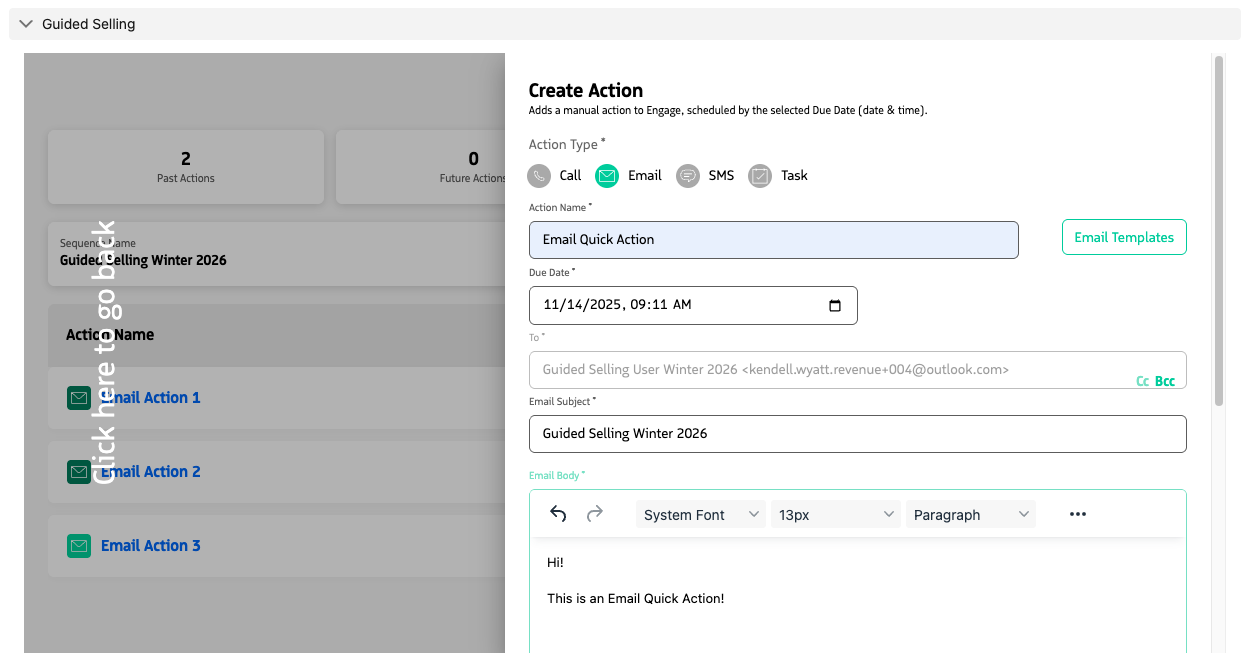
Why Was This Built?
Reps need flexibility in how they follow up. This change aligns Quick Actions with the options found in Sequence Actions.
How It Works
- Available in the same dropdowns and overview modules as other Quick Actions.
- Email actions can be templated or written manually.
- SMS creation follows the same permissions and validation as sequence-based SMS actions.
Create Quick Actions API
What’s New?
A public Apex method and Flow-compatible action now lets admins or developers create Quick Actions with automation.
Why Was This Built?
Many teams want to trigger follow-ups based on user behavior or custom logic. This API unlocks workflows that don’t rely on a UI and future-proofs action creation for all data model changes.
How It Works
- Inputs:
ownerId,dueDate,participantId,actionType,actionName,Task Configuration (optional) - Works in Salesforce Flow and Apex
Skip or Perform Actions API
What’s New?
Two new methods allow automation to skip or mark as performed a participant action.
Why Was This Built?
Programmatic participant progression is critical for automation, especially for teams with integrated systems or form-based workflows.
How It Works
- Automatically advance participants to the next action
- Fully documented and Flow-compatible
Simplified Sequence Action Model
What’s New?
The Action object has been removed. Sequence Actions are now fully self-contained.
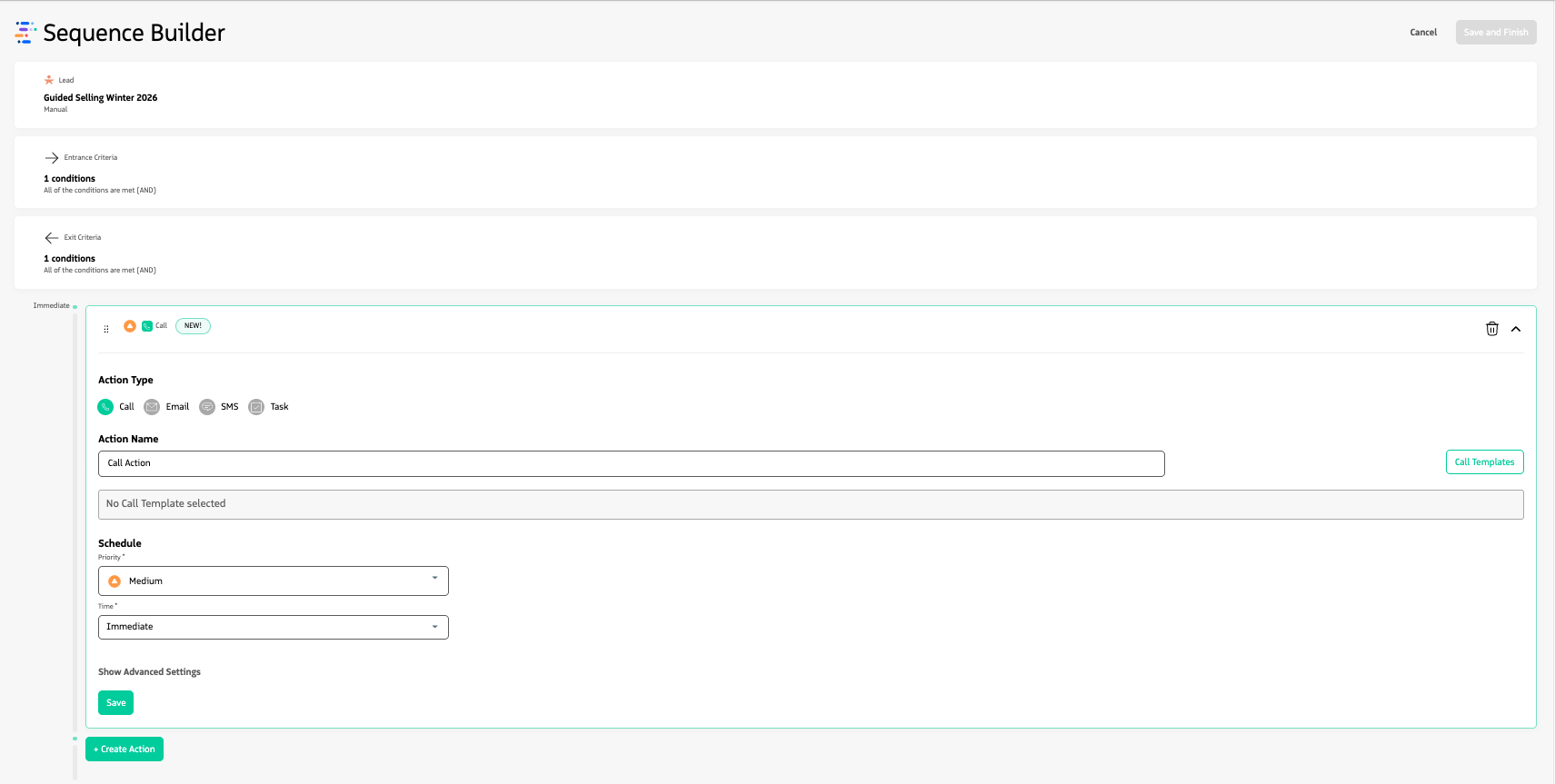
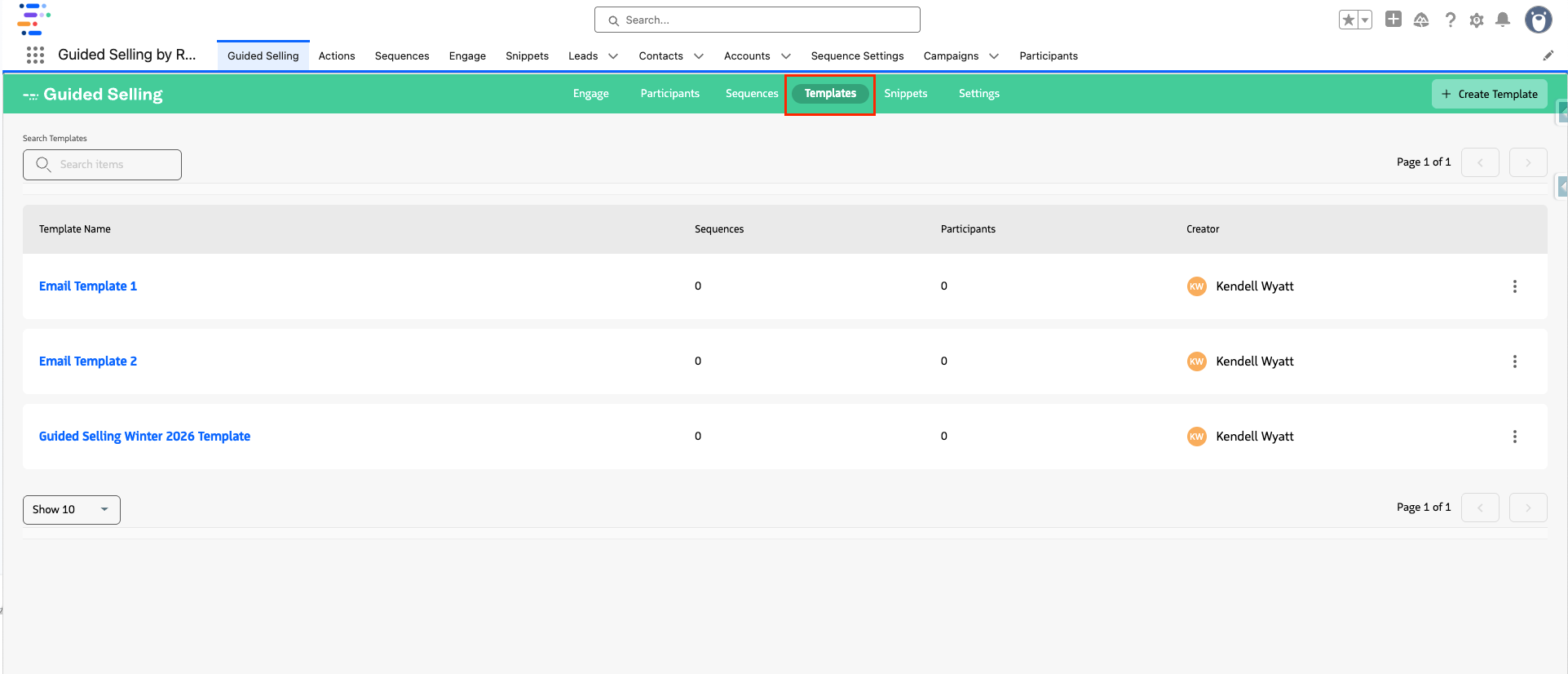
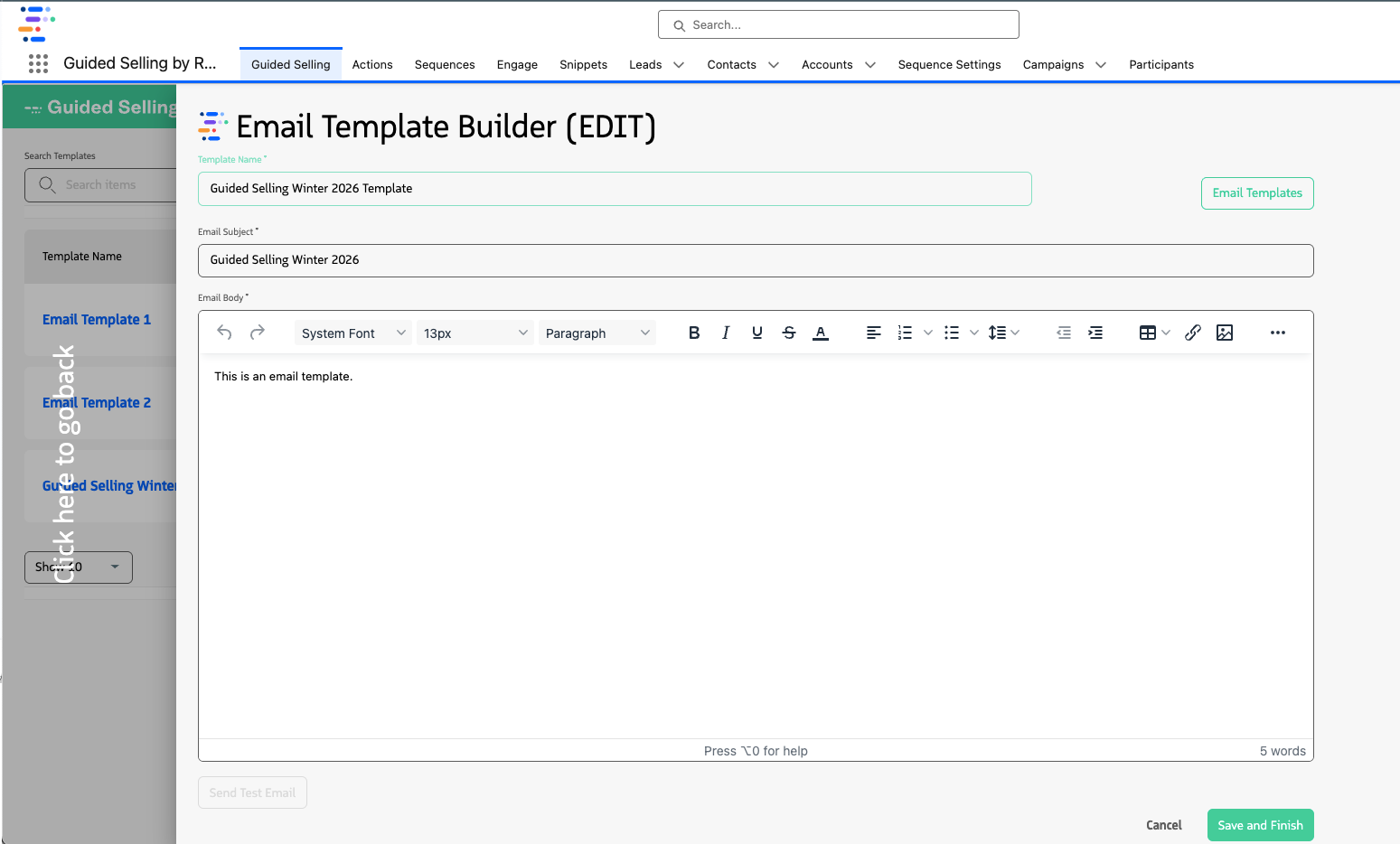
This also introduces the new Templates section for admins to centrally manage reusable email content. The Templates tool allows a single email template to be used across multiple sequences and sequence actions—regardless of whether the action is set to Manual or Automatic. This simplifies reuse and visibility, while also highlighting where each template is in use. Orgs that previously used naming conventions like “Step 1 - Auto Email” may want to update these now that activation type is defined at the Sequence Action level.
Why Was This Built?
Maintaining three levels of action hierarchy (Action → Sequence Action → Participant Action) introduced confusion and overhead. With minimal reuse value and better reporting at the Sequence Action level, the Action object was unnecessary.
How It Works
- Action-level fields and behaviors migrated to Sequence Action
- Sequence Builder now lets you define all action details—including templates and activation—in a single, consolidated view
- Template assignment, activation type, and sequence action name are all handled within the Sequence Action
Technical Enhancements
- Visualforce in Lightning – Enables Guided Selling modules on modern Dynamic Forms layouts.