Managing and Updating Notifications
To manage your notification settings, hover over Settings, then select the Inbox Setup tab under User Settings section.
Notification Types
There are two main types of notifications:
- User Notifications
- Saved Search Notifications
- My Saved Searches
- Saved Searches Shared with Me
- Public Saved Searches
User Notifications
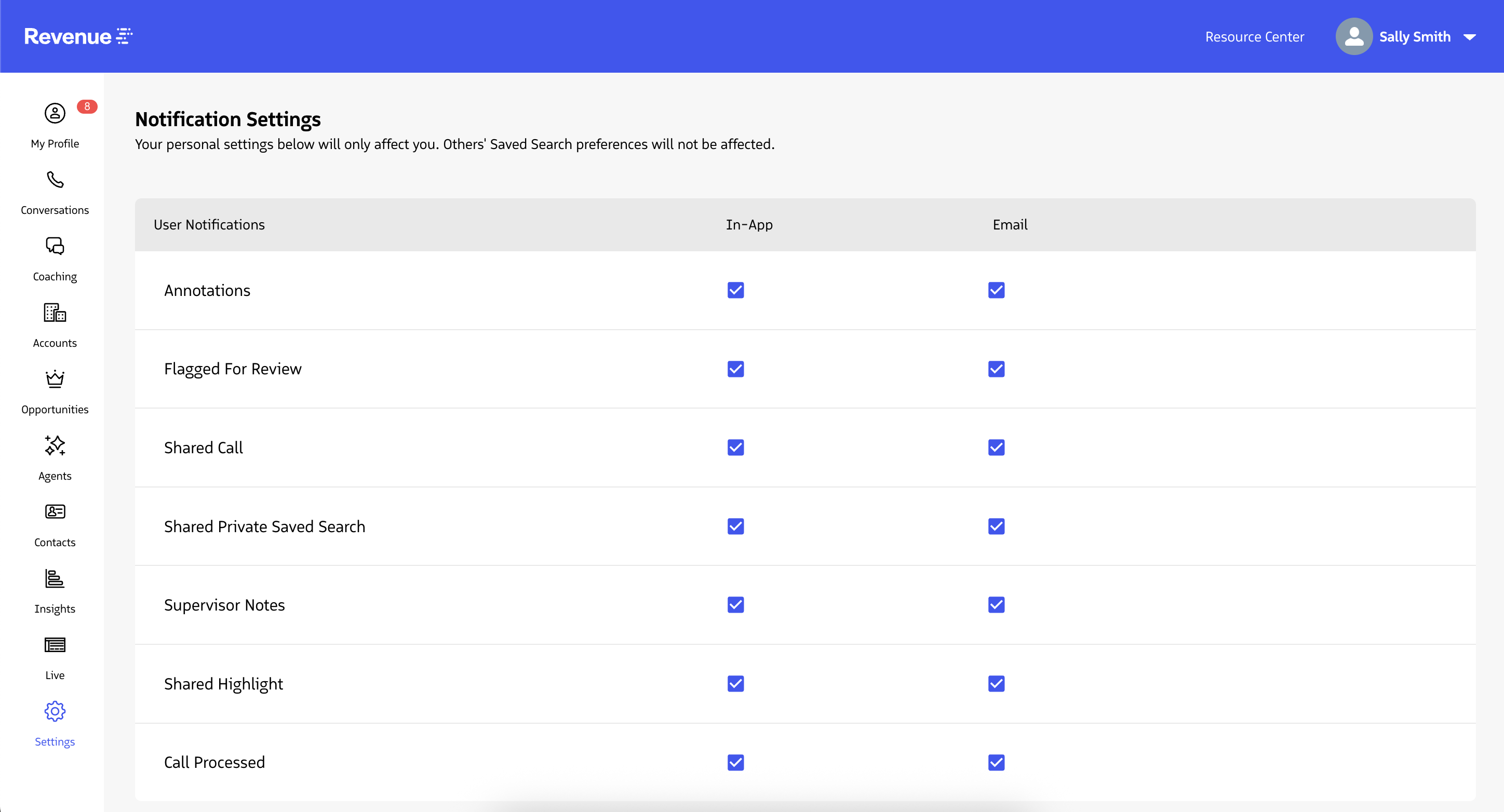
The user notification section allows you to manage where you receive notifications for core ConversationAI activities:
- Annotations: One of your conversations received a written annotation.
- Flagged For Review: As a Supervisor, a member of your team has flagged a call for coaching.
- Shared Call: Someone shared a call with you.
- Shared Private Saved Search: Someone shared their Private Saved Search with you. (This notification is specific to the fact that a Saved Search was shared with you, not notifications regarding new conversations that qualify for the saved search’s criteria)
- Supervisor Notes: Your Supervisor left a note on your call.
- Shared Highlight: Someone shared a highlight with you.
- Call Processed: your call has been processed and can now be viewed in Conversation AI.
When the “In-App” box is checked, users will receive a notification within their Conversation AI Inbox for each user notification type. If the box is unchecked, they will not receive a notification for that notification type within their Conversation AI inbox
See Also: Using Your Conversation AI Inbox
When the “Email” box is checked, users will receive a notification within their email for each respective User notification type. If the box is unchecked, they will not receive an email notification for that notification type.
Saved Search Notifications
See Also: How to create Saved Searches
My Saved Searches
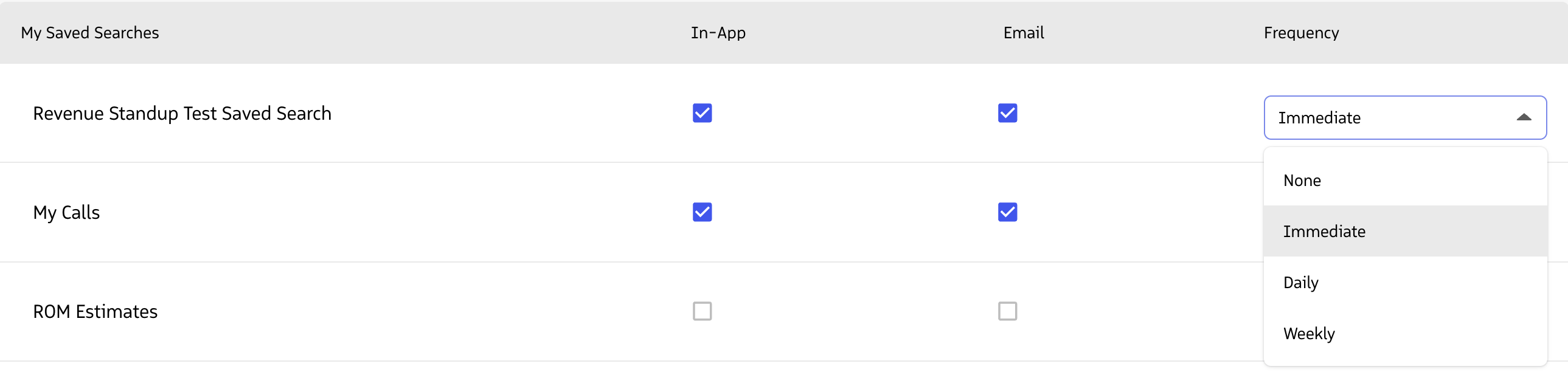
The My Saved Searches section within the notification settings allows users to update and adjust the notification settings for Saved Searches that they created. Users can indicate where they want to be notified (In-App and/or Email) and the frequency of those notifications. The frequency of notifications can be set to one of the following:
- None
- Immediate
- Daily
- Weekly
Tips:
- Setting the Frequency to None for a My Saved Search is the same as un-checking both the in-app and the email checkboxes.
- If both the In-App and Email checkboxes are unchecked, to enable them, you must first select a notification frequency from the frequency drop-down
Saved Searches Shared With Me
The saved searches shared with me contains only Saved Searches that users specifically shared with you.

Public Saved Searches
This section lists all Public Saved searches. Just like the previous Saved Search sections, users can subscribe or unsubscribe to notifications for a saved search in the section by checking (or un-checking) the In-App and/or Email checkbox, in addition to setting the notification frequency.
If you feel like you get too many saved search notifications from Public saved searches, visiting this section is an easy way to look over all the Public saved searches you currently receive notifications for, and make adjustments as necessary.
